 Time in status for Jira Cloud
- Overview
- Before you start
- Migration flow at a glance
- Supported field types
- Step 1 · Export plugin settings
- Step 2 · Capture screens and generate the field-creation script
- Step 3 · Bind plugin configs to field contexts
- Verification checklist
- Troubleshooting
- Getting help
Overview
This guide walks you through upgrading Time in Status for Jira Cloud from its legacy Connect build to the new Forge build. Forge replaces Connect in-place on the same Jira Cloud site via a normal Atlassian Marketplace update - there is no JCMA, no cross-site transfer, and no rollback once the update is applied. The migration splits into three logical steps that you must prepare before clicking the Marketplace update button:
- Plugin settings - calendars, field settings, web panels and custom events are exported from the Connect admin tab as a JSON file, then imported into Forge after the upgrade.
- Plugin custom fields - a JiBrok Studio scenario generated by the Connect admin tab creates the Jira custom fields, contexts, and screen attachments in the Forge build.
- Plugin config bindings - a BINDING MANIFEST printed by that scenario is pasted into the Forge admin to link each field context to its matching configuration.
⚠️ Rollback to Connect is not possible after the upgrade. Once the Forge build replaces the Connect backend, the Connect UI is gone and its data can only be recovered via a slow support request. Download and save every artefact described in Step 1 and Step 2 before you press the Marketplace update button. Atlassian is ending support for Connect apps, and Time in Status must be on the Forge build no later than September 30, 2026 (the last day of Q3 2026) - see Atlassian’s end-of-support announcement.
📖 Before you migrate, compare the two builds. The Forge build is a ground-up rewrite on Atlassian’s serverless platform, and a handful of Connect features are not available one-for-one. Review Time in Status Forge vs. Connect - feature comparison so you know exactly which capabilities you keep, which change shape, and which are not yet implemented on Forge - before you start Step 1.
Before you start
- Latest Connect build installed. The Migration to Forge tab described below only appears in recent Time in Status Connect builds; the tab is flagged with a red
ACTION REQUIREDlozenge. If you do not see it, update Time in Status from the Atlassian Marketplace first. - Jira admin on the same Cloud site. The upgrade is in-place - there is no source / destination pair.
- JiBrok Studio for Jira Cloud installed on the site. The automatic migration path runs a generated scenario inside JiBrok Studio. Install it before pressing the Marketplace upgrade button so the post-upgrade flow is uninterrupted.
- Do not click the Marketplace upgrade button yet. Everything in Step 1 and Step 2 must be captured while the Connect UI is still reachable.
- Know which fields you have. Open Time in Status in the Connect admin tab and review the “Time in status” fields tab. Every field setting listed there is a candidate for migration - the Connect Migration tab uses the same list as its source of truth.

Field Settings in Connect - the source of truth for what the migration needs to recreate in Forge.
Menu path to the Migration tab. Jira administration → Apps → Manage apps → Time in Status → Configure. Inside the TIS admin you will see a tab row that ends with Migration to Forge (with the ACTION REQUIRED lozenge). Open that tab and keep it open for the rest of this guide.
Migration flow at a glance
| Step | Manual path | Automatic path (recommended) |
|---|---|---|
| 1. Plugin settings | Export JSON from the Connect Migration tab → upgrade to Forge → Forge Import / Export → Import Settings | Same JSON export - on Connect → Forge there is no JCMA path, JSON is the only channel |
| 2. Custom fields & screens | Recreate each field by hand in Jira after the upgrade and reattach to the screens you noted on the Migration tab | Run the generated JiBrok Studio scenario (pre-seeded with the screen captures you pasted into the Migration tab) |
| 3. Config bindings | Open each context in Jira Cloud → Edit custom field config → pick the matching field setting | Copy the BINDING MANIFEST block from the scenario log → paste into Apply binding manifest in Forge |
Unlike the Data Center → Forge migration, Connect → Forge does not involve the Jira Cloud Migration Assistant. The JSON export produced in Step 1 is the only channel that carries your plugin configuration across the upgrade.
Supported field types
The Connect build only ships base Time in Status, Timer, Stopwatch, Calendar Select and Web Panel objects, and all of them are supported by the Forge build. The Connect Migration tab does not need to flag unsupported types.
It does, however, surface three categories of issues in its Migration warnings block at the top of the Field creation script section:
- Unmatched custom fields - a field setting whose name no longer matches any Jira custom field. The Forge build will still create the field, but you should review why the name drifted.
- JQL-unmapped contexts - a field setting bound to a JQL filter that cannot be reduced to a concrete projects + issue types pair. The Forge field will be created with no Jira context (global visibility) unless you fix the source context in Connect first. See Troubleshooting.
- Fields without captured screens - a field for which you have not yet pasted the
/rest/api/3/field/{id}/screensresponse into the Migration tab. The script runs, but that field is not attached to any screen.
The box turns into a green “All N field(s) can be migrated” confirmation once everything is clean.
Step 1 · Export plugin settings
Connect → Forge has a single path for settings: a JSON export from the Connect Migration tab.
- Open Apps → Manage apps → Time in Status → Configure → Migration to Forge.
- Scroll to Export configuration (used in Step 1). The tab loads live counts of Calendars, Field Settings and Web Panels directly from the Connect backend.
- (Optional) Tick Analyze JQL filters for project/issue-type hints. The Migration tab then runs each field setting’s JQL through a parser and marks any filter that cannot be reduced to projects + issue types as
partial. Simple expressions likeproject = Xandissuetype in (…)come out asok; saved filters,ORlogic andcf[…]references are flagged. The export JSON itself is not affected - this is purely a pre-flight check so you know which contexts need cleanup before running Step 2. - Click Export Configuration (JSON). In the Configuration exported - save this file now modal, tick the sections you want to include (Calendars, Field settings, Web panels - all three by default), click Download File, and save the file in secure storage. You can also use Copy to Clipboard as a second backup.
- The payload format is
ExportData v1. This is the only file Forge will read after the upgrade - do not lose it.
After the upgrade you will return to this file and import it through Apps → Time in Status → Import / Export → Import Settings, which is where the manual binding manifest button also lives.
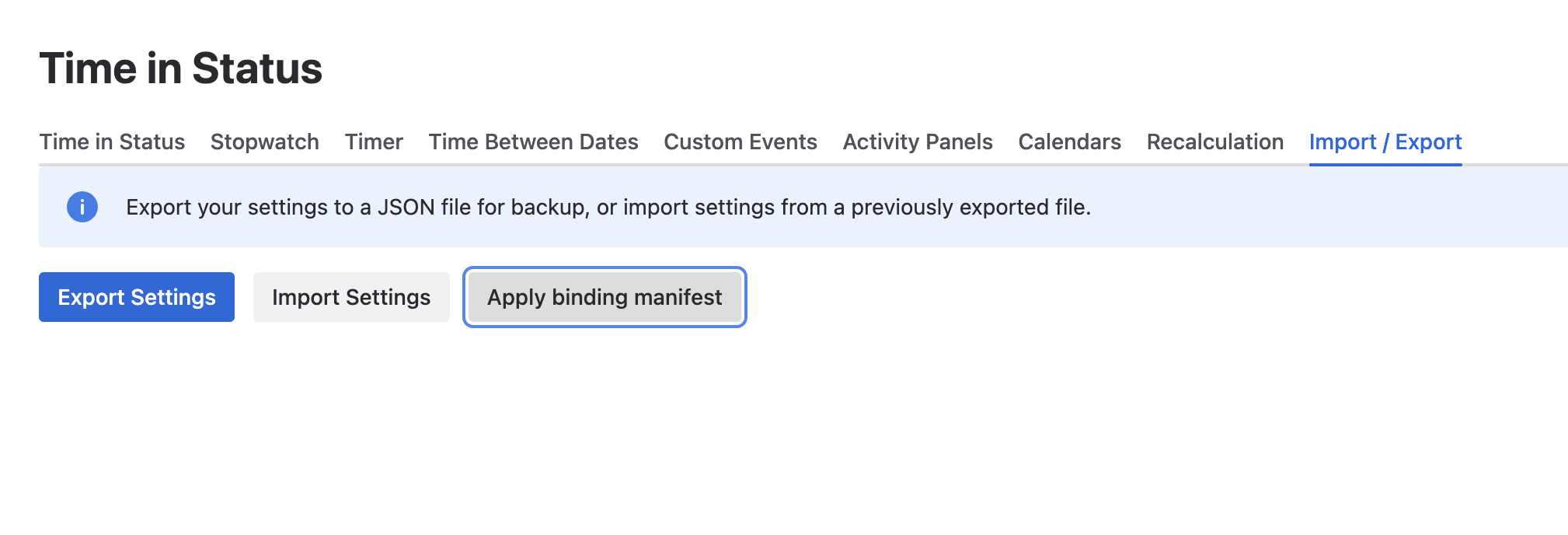
Import / Export tab in the Forge build - the JSON import and the binding manifest both live here. You will come back to this screen after the Marketplace upgrade.
Step 2 · Capture screens and generate the field-creation script
Step 2 is where the Connect migration differs most from the Data Center migration, because Connect has no permission to read /rest/api/3/field/{fieldId}/screens. You will capture screens manually, then feed them into a JiBrok Studio scenario that the Migration tab generates for your exact field list.
Find your Forge TIS App ID and Environment ID
The generated script needs two UUIDs - the Forge App ID and Environment ID for your Cloud site. The Forge TIS admin prints both in the bottom-left corner of any settings page.
Chicken-and-egg note. Because Forge replaces Connect in-place, you cannot see these UUIDs on your production site until after the upgrade. Two practical options:
- Spin up a free sandbox Jira Cloud site, install Time in Status (Forge), read the pair from the Forge admin footer, then discard the sandbox. The pair is the same on every site.
- Ask JiBrok support for your pair.
Keep the pair handy - you enter it into the Migration tab before the upgrade so the generated script is already valid when you paste it into JiBrok Studio.
Capture screens (Connect-specific)
Still on the Migration tab, scroll to Attach fields to screens (manual step) inside the Field creation script section. The Migration tab builds a table with one row per custom field and five columns: Field, Jira admin, REST URL, Screens JSON, Status.
For every row, pick one of two capture methods - the REST URL path is faster and fully automates Step 2:
- Jira admin link. Opens
/secure/admin/AssociateFieldToScreens!default.jspa?fieldId={id}in a new tab. Use it if you prefer to write down the screen names by hand and attach the field through Jira’s standard UI after the upgrade. This path is manual end-to-end. - REST URL.
/rest/api/3/field/{id}/screens?maxResults=200. Click the Open link (or the Copy button and run the URL withcurl+ an API token), copy the raw JSON response, paste it into the row’s Screens JSON textarea and click Save. The Migration tab validates the JSON, shows a green “N screen(s)” badge in the Status column, and stores the capture inlocalStorageundertis-connect-migration-screens.{fieldSettingId}. The generated script picks these pastes up automatically.
Do this before copying the script below. The screens you save are baked into the generated script the next time it re-renders, so you want every field captured before you copy or download it.
Watch the localStorage dependency. Captures live in the browser that generated them. Clearing site data for the Jira Cloud domain, or capturing in one browser and running the script from another, wipes the pastes. Run Step 2 end-to-end in a single browser session and in a single tab.
Generate the migration script
Scroll up to the Field creation script (JiBrok Studio) (used in Step 2 - automatic path) block and fill in the three inputs:
- TIS App ID - the first UUID from the Forge admin footer (also referenced as
TIS_APP_IDinside the script). - Environment ID - the second UUID (
TIS_ENVIRONMENT_ID). - Cloud Base URL - autofilled from your Jira site; used to build direct links in the scenario log.
- Fields per script - default
50. Lower this for very large instances to split the generated script into shorter parts that you can run sequentially.
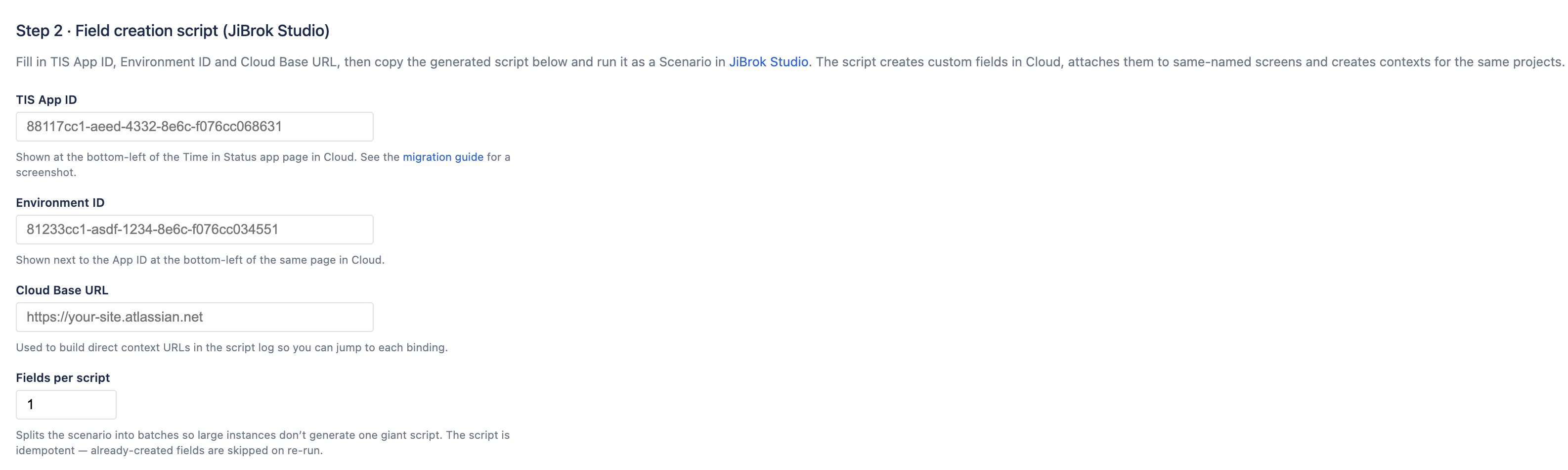
Step 2 inputs on the Connect Migration tab. The script regenerates as you type and as new screens are saved.
Above the script you will see stats cards for Fields, Contexts, Fields with screens (captured / total), Screens total and Scripts (number of script parts). Below them is the Migration warnings block - review every entry before continuing. When everything is clean it turns into a green “All N field(s) can be migrated” confirmation.
Use the Copy button above the code block to put the script on the clipboard, or Download to save a tis-connect-to-forge-script-{date}-part{N}.js file per part. The script is idempotent: already-created fields, contexts and screen assignments are skipped on re-run, so it is safe to interrupt and retry. If the Migration tab split your instance into multiple parts, save every part.
Take a final screenshot of the Field bindings preview table at the bottom of the Migration tab. It is your fallback checklist for Step 3 if anything goes wrong with the binding manifest.
Upgrade to Forge
You now have three artefacts on disk:
- The
ExportData v1JSON file from Step 1. - Every part of the generated JiBrok Studio script.
- A screenshot of the Field bindings preview table (optional but recommended).
| Confirm they are all saved somewhere outside this browser session, then open Atlassian Marketplace → Manage apps and upgrade **Time in status | SLA | Timer | Stopwatch for Jira DC/Cloud. The Forge build replaces the Connect backend on the same site. Reload the Jira admin and open **Apps → Time in Status - the UI you see now is the Forge admin. |
Before doing anything else, open Apps → Time in Status → Import / Export → Import Settings and upload the JSON file from Step 1. Calendars, field settings and web panels should reappear immediately.
Paste the script into JiBrok Studio
In Jira Cloud, open Apps → JiBrok Studio → Script Console, switch to the Library tab and create a new script. Paste the generated scenario and give it a descriptive name, for example tis migration from connect - part 1.
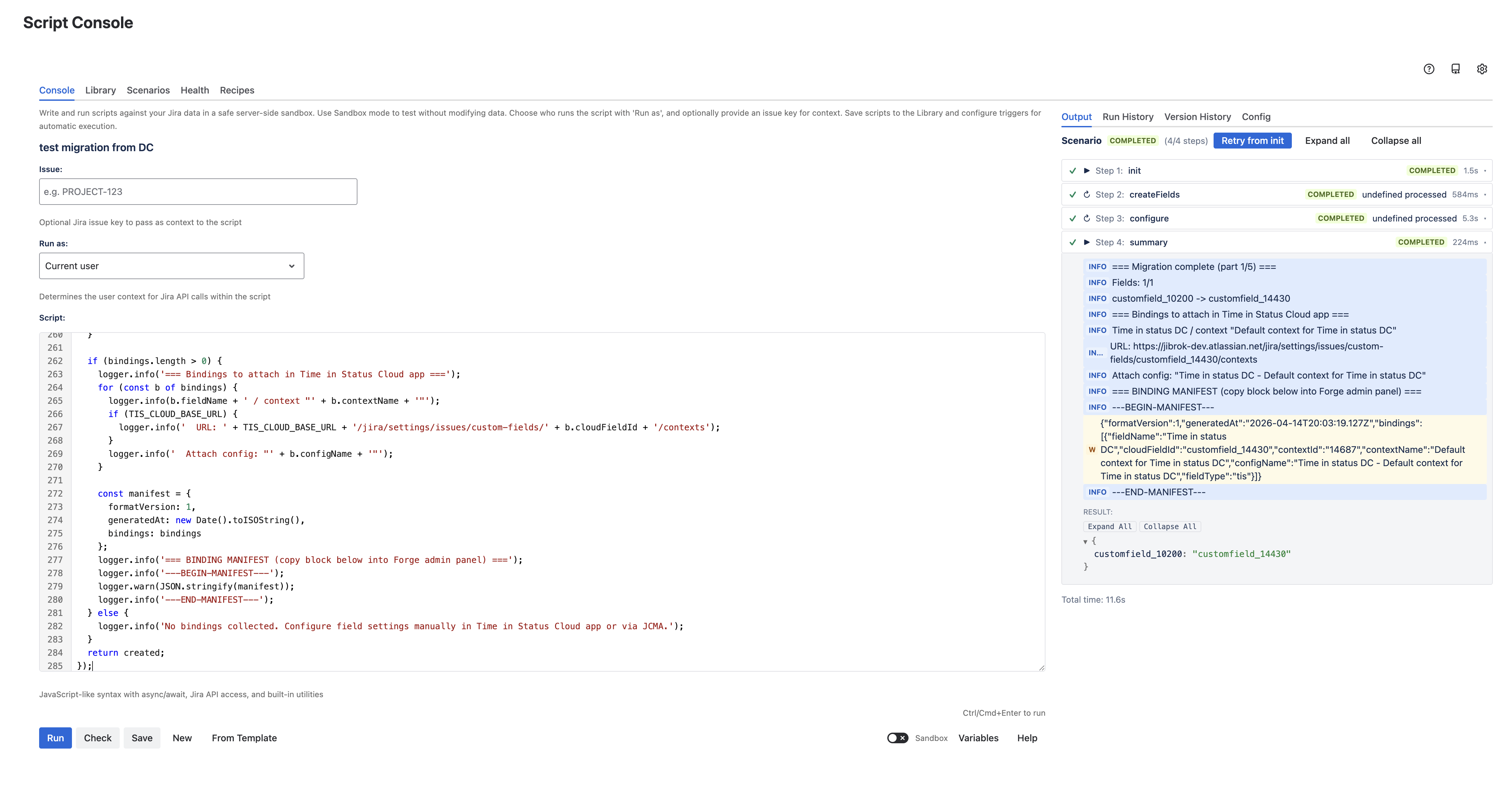
Migration script pasted into the JiBrok Studio Script Console. The right-hand panel already lists the four scenario steps.
Open the Config tab and make sure the script is Enabled, the engine is JavaScript, and the name/description are set.
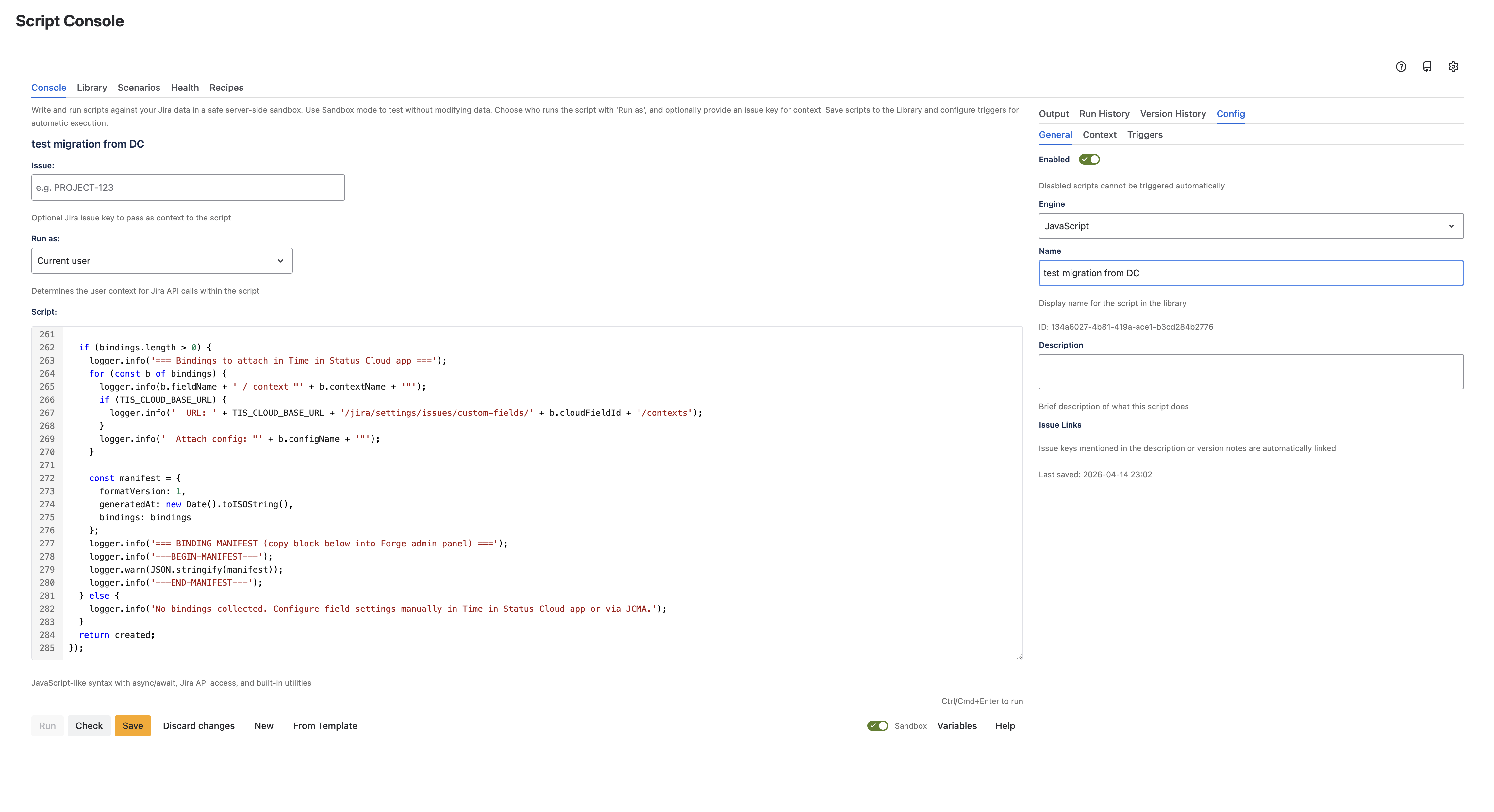
Config tab - keep the script enabled and on the JavaScript engine.
Save the script. Studio asks for an optional version note on each save, which makes it easy to roll back to a previous revision.
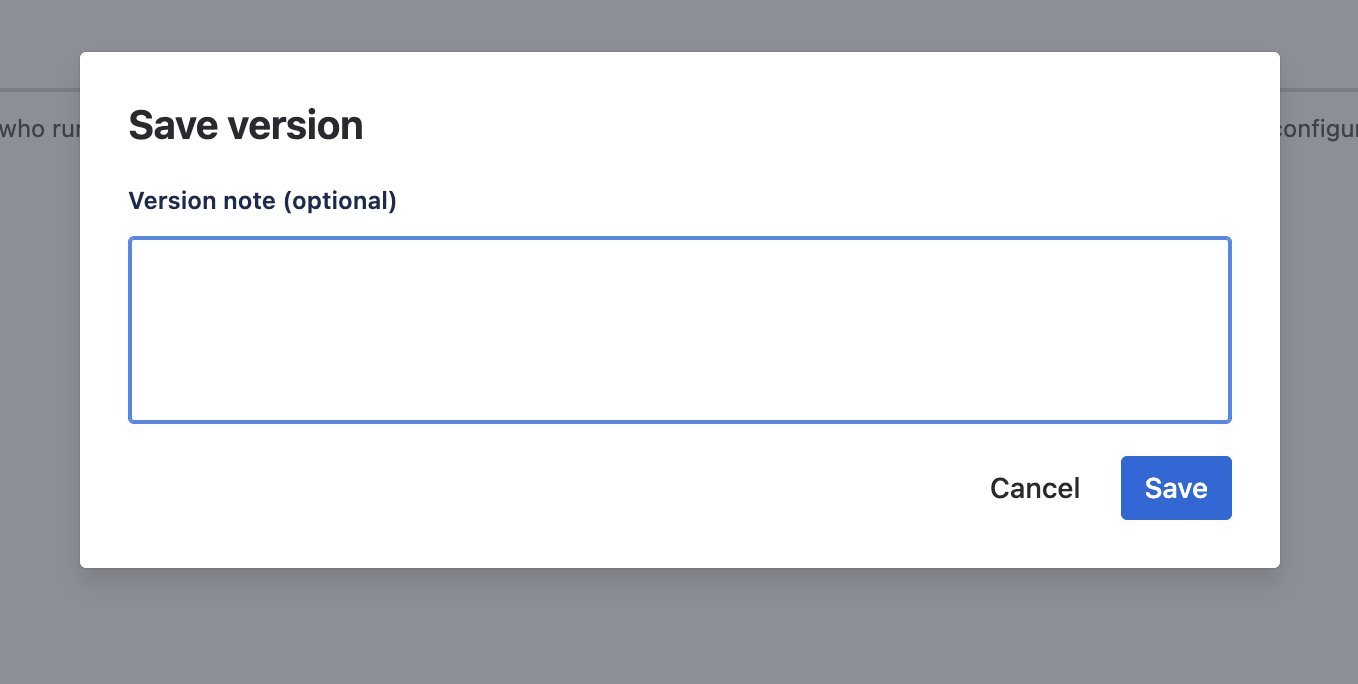
Save version - leave the note blank or describe the batch you are about to run.
Dry-run in Sandbox mode
Before running the scenario for real, enable Sandbox at the bottom of the Script Console. Sandbox mode simulates POST, PUT, and DELETE calls without touching Jira data, so you can confirm that every step reports green.
Click Run, then confirm the Run Scenario dialog. Each step in the output panel should finish as COMPLETED and the top of the page should show the yellow Sandbox mode - write operations were simulated, no changes were made to Jira banner.
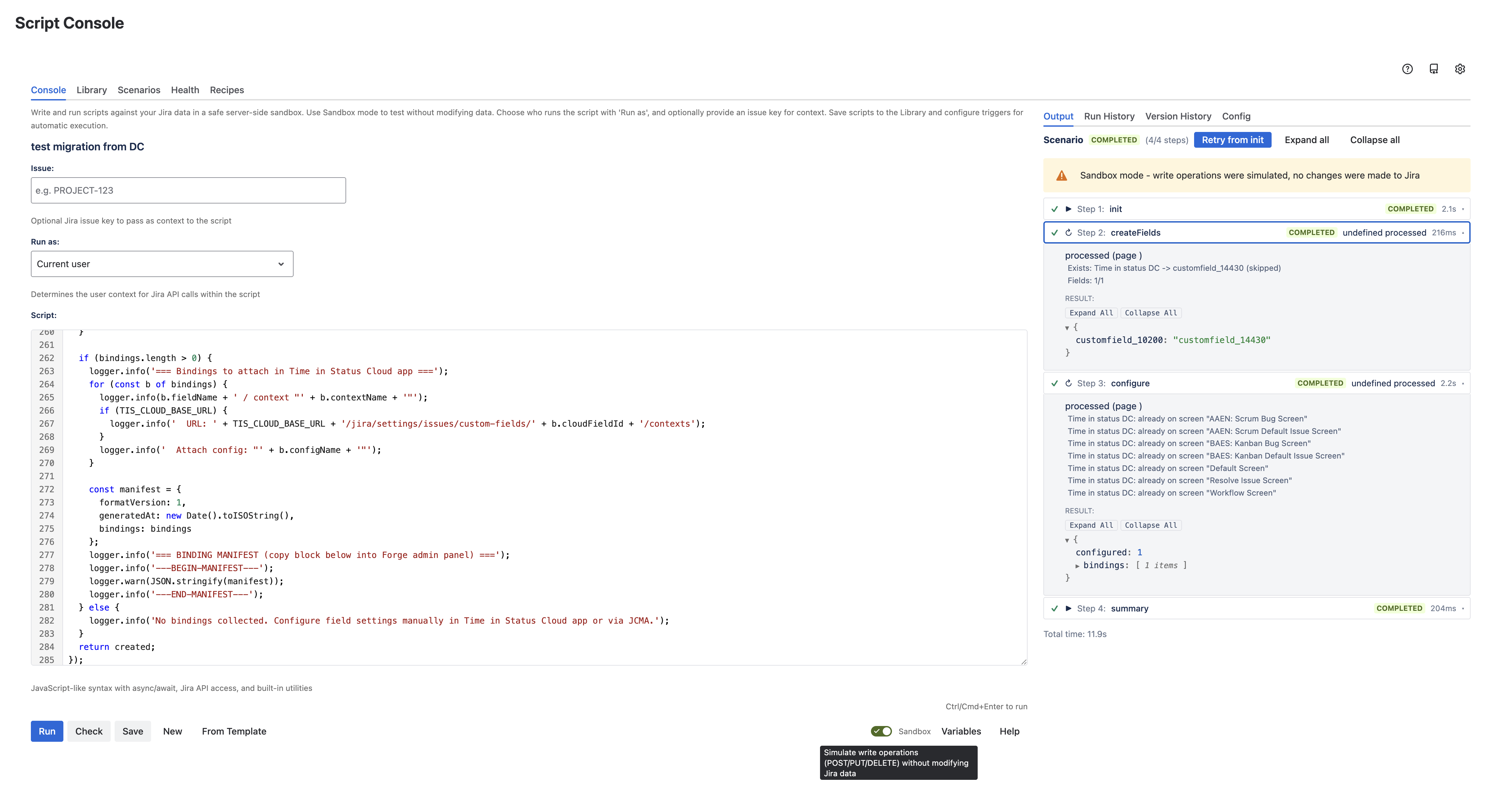
A successful dry-run: every step completes and the Sandbox banner confirms no writes hit Jira.
Review the log for warnings - screen "<name>" not found points to screens that were renamed between capture and run, or to captures that were cleared from localStorage; JQL unmapped points to contexts that need a manual fix-up in Forge after the run.
Run the scenario for real
Turn Sandbox off, click Run again, and confirm the Run Scenario dialog. The dialog lists the four scenario steps in order:
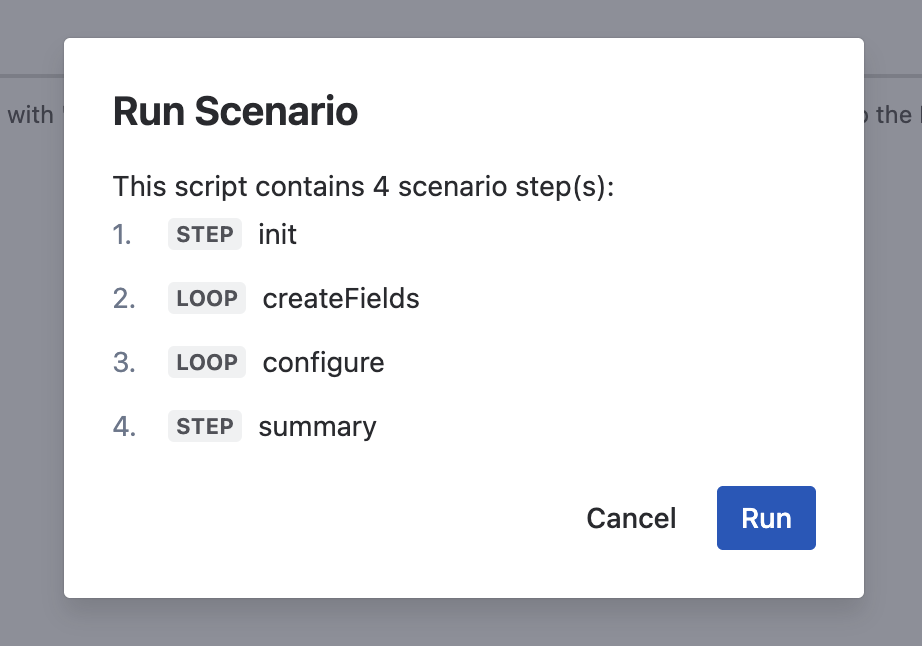
Run Scenario dialog - the four steps run in order every time.
Wait for the scenario to complete. A typical run on a small instance takes 10-15 seconds; large instances take proportionally longer.
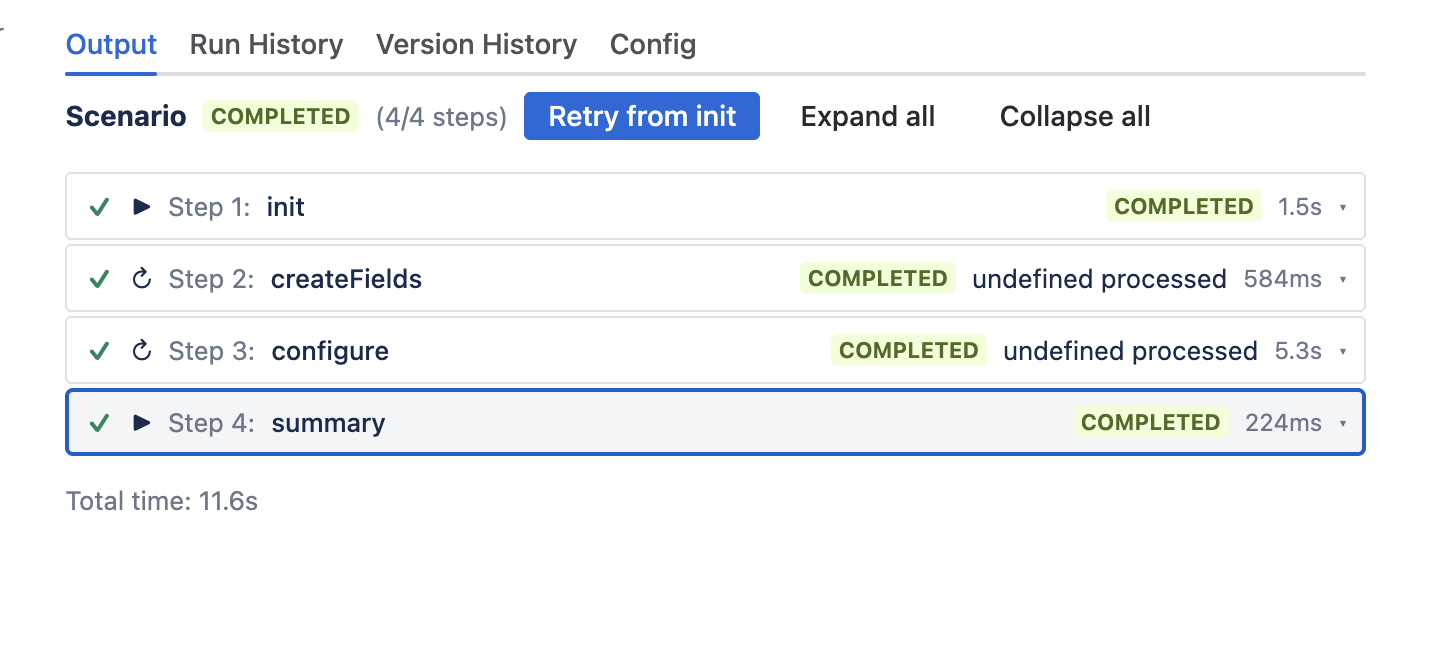
All four scenario steps completed - total time 11.6 seconds on this instance.
What each step does
- init - discovers Forge-side state: issue types, projects, already-existing custom fields, screens. No writes.
- createFields - creates each custom field from the Connect payload. If a field with the same name and Forge type already exists, it is reused and the ID is remembered for the next steps.
- configure - creates one Jira context per field (projects + issue types) from your Connect contexts, attaches the field to every screen you pasted into the Migration tab, and collects the list of config bindings that Step 3 will apply.
- summary - prints a per-field summary (
Connect name → Forge customfield_*) and emits the BINDING MANIFEST JSON block that Step 3 consumes.
Verify the fields appear in Jira Cloud
Open Jira administration → Work items → Custom fields and search for one of the migrated field names. Each field should show a Cloud customfield_* ID and the Time in Status field type.
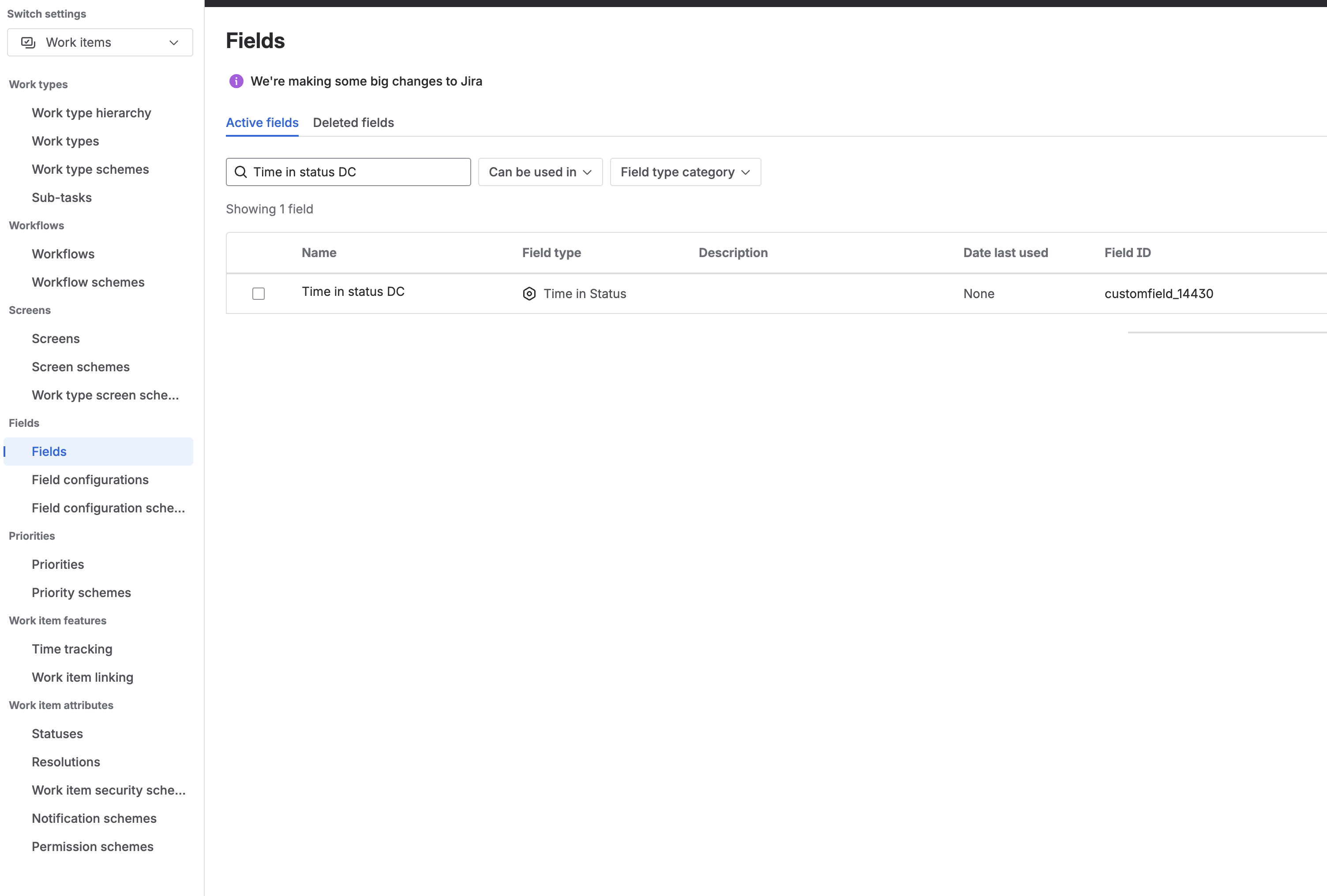
Jira Cloud custom fields page - the migrated Time in Status field is now available.
Large instances and batching
If the Connect Migration tab generated more than one script part (e.g. Script 1 of 3), paste and run each one in turn. The scenarios are idempotent, so you can re-run an earlier part at any time without creating duplicates. Apply the binding manifest from each run - every part prints its own manifest block.
Step 3 · Bind plugin configs to field contexts
A binding maps a plugin configuration (the Time in Status / Timer / Stopwatch field setting that defines which statuses to track, which calendar to use, how to display values) to a specific (field, context) pair. Step 1 brought the configurations into Forge. Step 2 created the fields and their contexts. Step 3 tells each context which configuration to display.
Path A · Binding manifest (recommended)
At the end of the Step 2 run, the summary step prints a BINDING MANIFEST block between two marker lines.
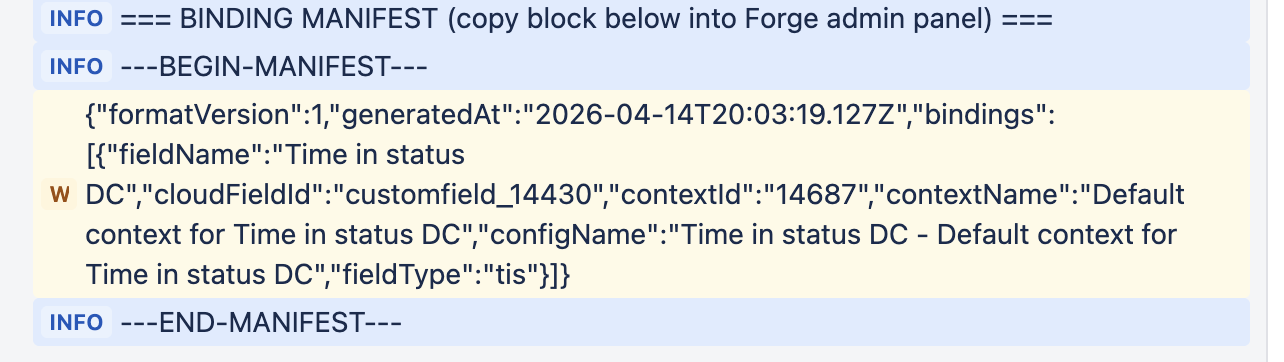
Locate the ---BEGIN-MANIFEST--- marker in the scenario log.
Select and copy the JSON object between ---BEGIN-MANIFEST--- and ---END-MANIFEST--- - only the JSON line itself, not the markers.
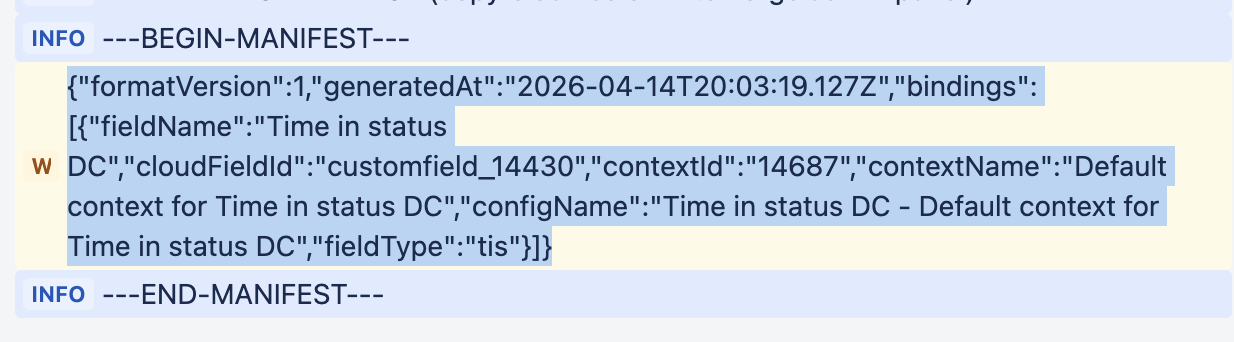
Copy the manifest JSON.
The manifest is a single JSON object with this shape:
{
  "formatVersion": 1,
  "generatedAt": "2026-04-14T20:03:19.127Z",
  "bindings": [
    {
      "fieldName": "Time in status DC",
      "cloudFieldId": "customfield_14430",
      "contextId": "14687",
      "contextName": "Default context for Time in status DC",
      "configName": "Time in status DC - Default context for Time in status DC",
      "fieldType": "tis"
    }
  ]
}
In Jira Cloud open Apps → Time in Status → Import / Export, click Apply binding manifest, paste the JSON into the textarea and click Apply. Time in Status attaches each plugin config to the matching context automatically.
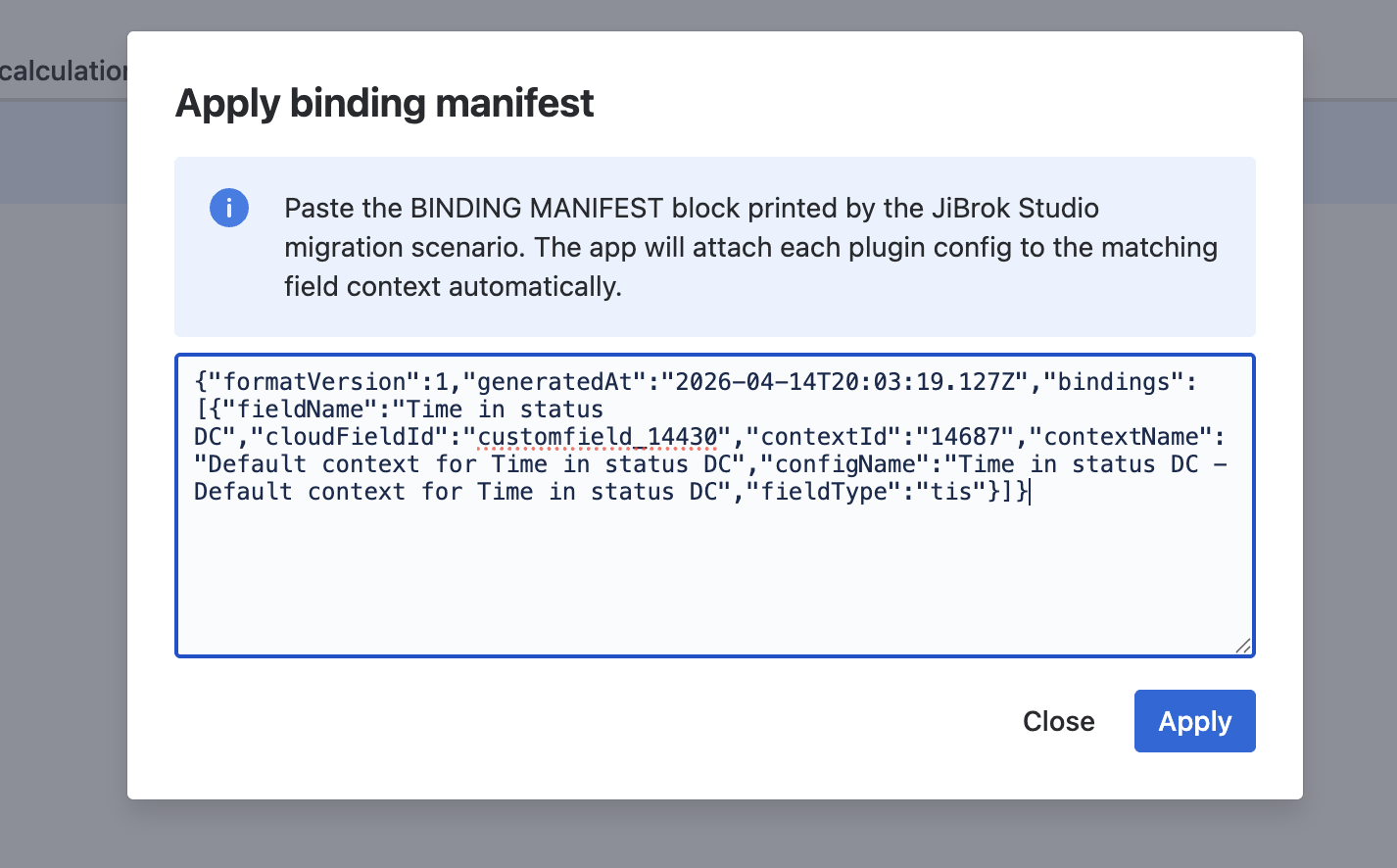
Apply binding manifest modal - the app resolves each entry and attaches the matching configuration.
Path B · Manual binding
Use the screenshot of the Field bindings preview table you captured on the Connect Migration tab (or the Field bindings preview table on the post-upgrade Forge side if you kept the browser tab open) as a checklist. For every row:
- In Jira Cloud open Administration → Work items → Custom fields and find the field.
- Open the field’s context and click Edit custom field config.
- In the Field Setting dropdown, pick the plugin configuration with the name shown in the Connect bindings preview (for example
Time in status DC - Default context for Time in status DC) and click Save.
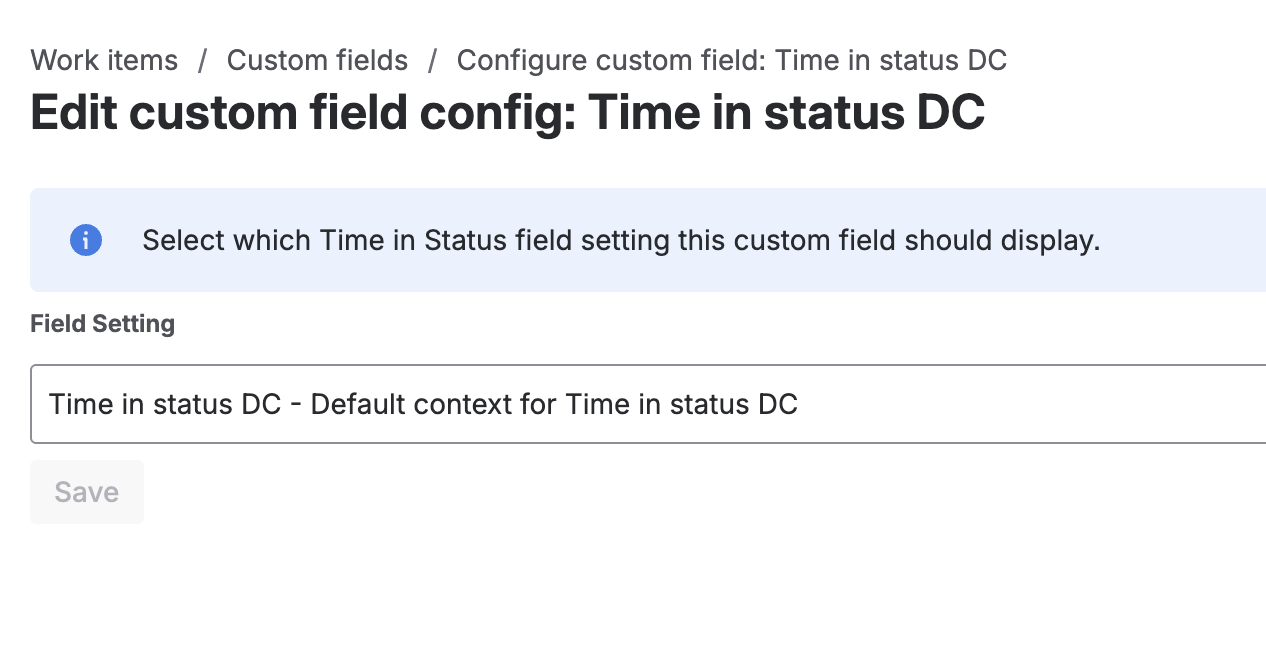
Manual binding: pick the same configuration name that the Connect bindings preview showed for this context.
Repeat for every (field, context) combination. The scenario log also prints a direct URL for each context, which you can paste into the Cloud browser to jump straight to the right page.
Verification checklist
Run through this checklist once Step 3 is done:
- The Forge Import / Export → Import Settings action completed without errors and calendars / field settings / web panels are visible in the Forge admin.
- Every field from your Connect “Time in status” fields tab appears in Jira Cloud → Custom fields with the expected Forge type (Time in Status / Timer / Stopwatch / Calendar Select).
- Every context of every migrated field has its Field Setting populated and matches the row it had in the Connect Field bindings preview table.
- An issue in a migrated project opens and the Time in Status / Timer / Stopwatch fields render values (or the expected web panels appear on the issue screen).
- The Connect Migration tab’s Migration warnings box was either empty or contained only entries you intentionally acknowledged (unmatched names, JQL-unmapped contexts, fields without captured screens).
- Cross-check each capability your team relied on against the Time in Status Forge vs. Connect feature comparison - anything marked as not yet implemented on Forge will not appear after the upgrade even if the migration itself finished cleanly.
Troubleshooting
Skip <field>: unknown type <key>in the scenario log. Unlikely on Connect - the Connect build only ships base TIS / Timer / Stopwatch / Calendar Select fields, all of which are supported by Forge. If you see this, capture the log and contact support.screen "<name>" not found. A screen was renamed between screen capture and scenario run, or the capture was cleared fromlocalStorage(different browser, cleared site data, incognito session). Rerun Step 2’s screen capture and regenerate the script.JQL unmapped/no projects for "<ctx>". A Connect field setting used a JQL filter that the JQL analyzer could not reduce to concrete projects + issue types. The Forge field is created with no Jira context (global visibility). Preferred fix: on the Connect side, open the field setting, switch its context type fromJQLtoProjects + Issue Types, click Reload Jira fields data on the Migration tab, and regenerate the script before upgrading. Alternative: create the context by hand in Forge after the upgrade.Apply binding manifestbutton is missing in Forge. The Marketplace upgrade did not complete - the site is still running an older Forge build (or still the Connect one). Reload Manage apps, confirm Time in status is on the latest version, then reopen the Import / Export tab.Import Settingsin Forge reports errors. The JSON may have been generated by a very old Connect build. Roll back locally to the saved JSON, re-export from the latest Connect build on the same instance, and import again. If the site is already on Forge and you no longer have a Connect UI, open a support ticket with both the old JSON and the error message.- Need to re-run after a failure. Rerun the same script in JiBrok Studio. Already-created fields, contexts, screen assignments and bindings are detected and skipped - the scenario is idempotent by design.
- Two runs produced duplicate contexts. The scenario matches contexts by name; if a context was renamed between runs it will be recreated. Remove the duplicate in Jira Cloud and re-apply the manifest.
- Screen captures disappeared after a reload. Captures live in
localStoragefor the Jira Cloud domain. Clearing site data, opening the Migration tab in a different browser, or running the Migration tab in a private window without prior captures all wipe them. Run Step 2 end-to-end in a single normal browser session.
Getting help
If a step does not behave as described, the Connect Migration to Forge tab is the authoritative view of what your instance contains and what the scenario will produce. Capture a screenshot of the Field bindings preview table, the Migration warnings block and the JiBrok Studio scenario log, then contact JiBrok support - we can reproduce most issues from those three inputs alone.



