 Message Field for Jira Cloud
- Module Overview
- Jira Modules
- JSM Portal Modules
- JSM Create Modules
- Custom Field Module
- UIM Management
- Enabling Modules
- Visibility Rules
- Multiple Panels
- Next Steps
Message Field can display in multiple locations across Jira and Jira Service Management.
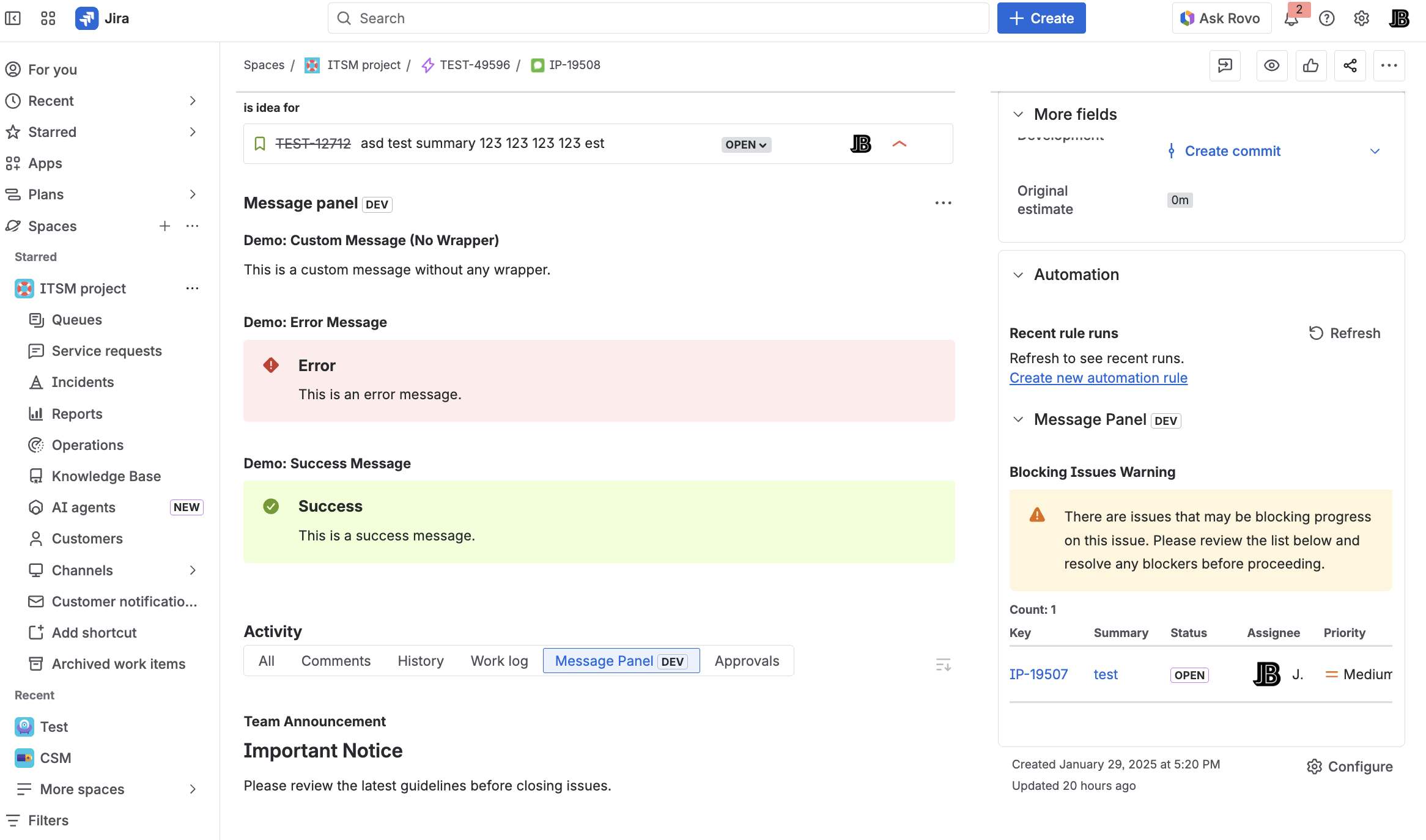
Module Overview
| Module | Location | Supports Modal |
|---|---|---|
| Issue Panel | Right sidebar | Yes |
| Issue Activity | Activity feed tab | No |
| Issue Context | Context panel | No |
| Issue Action | Toolbar button | No |
| JSM Portal Panel | Request details page | No |
| JSM Portal Footer | Portal page footer | No |
| JSM Portal Subheader | Portal page subheader | No |
| JSM Portal Subheader (Create) | Request create form, below title | No |
| JSM Portal Footer (Create) | Request create form, bottom | No |
| Message Field (Custom Field) | Custom field on issue view / create / edit screens | No |
Jira Modules
Issue Panel
Location: Right sidebar on issue view
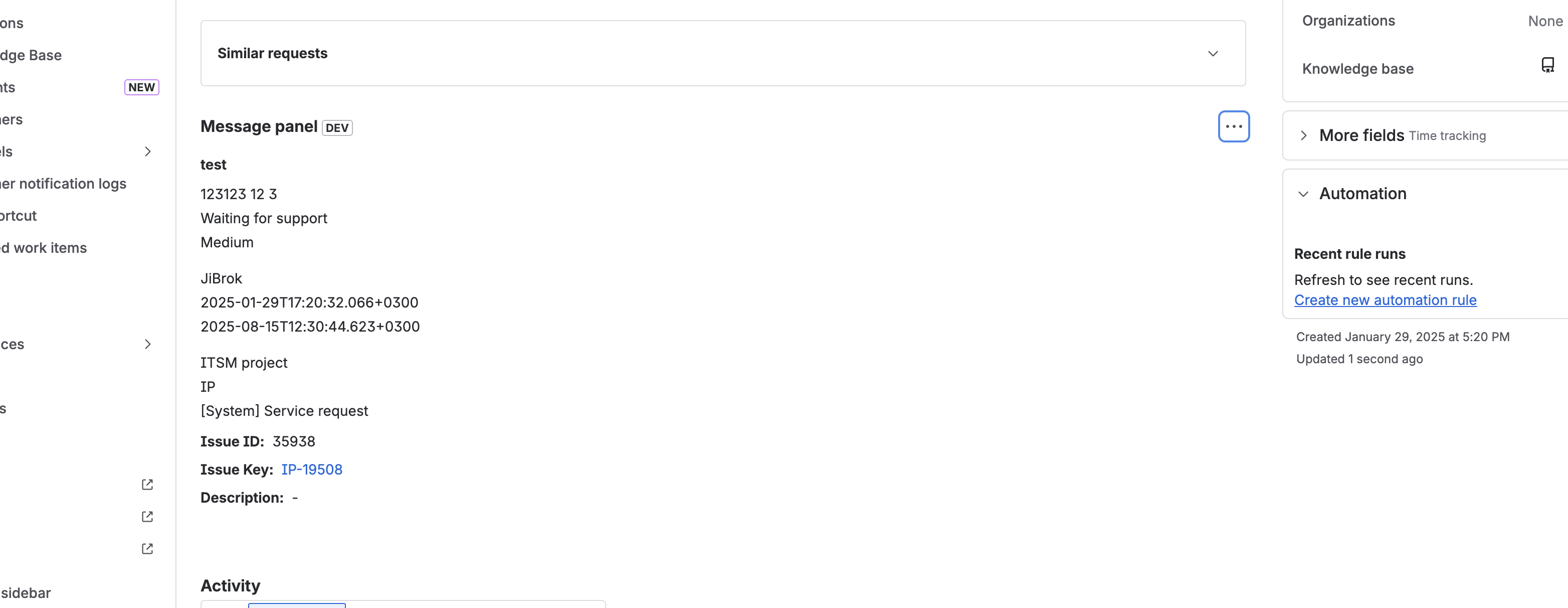
Features:
- Collapsible/expandable panels
- Supports modal windows
- Best for detailed information
Use for: Main data displays, linked issues tables, dashboards
Issue Activity
Location: Tab in Activity section
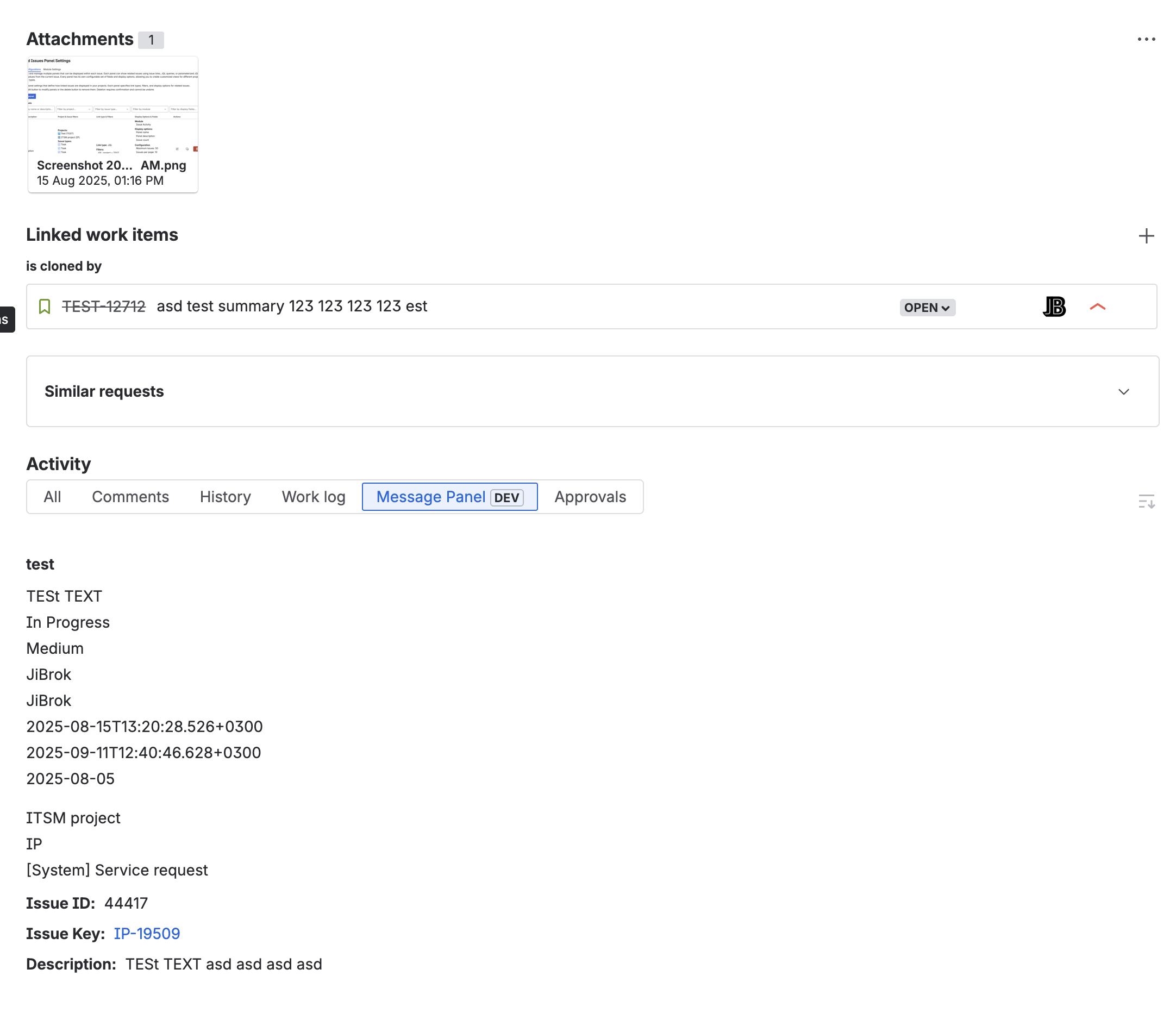
Features:
- Appears alongside Comments, History tabs
- Inline display
- Good for activity context
Use for: Recent changes, timeline context
Issue Context
Location: Right sidebar context panel
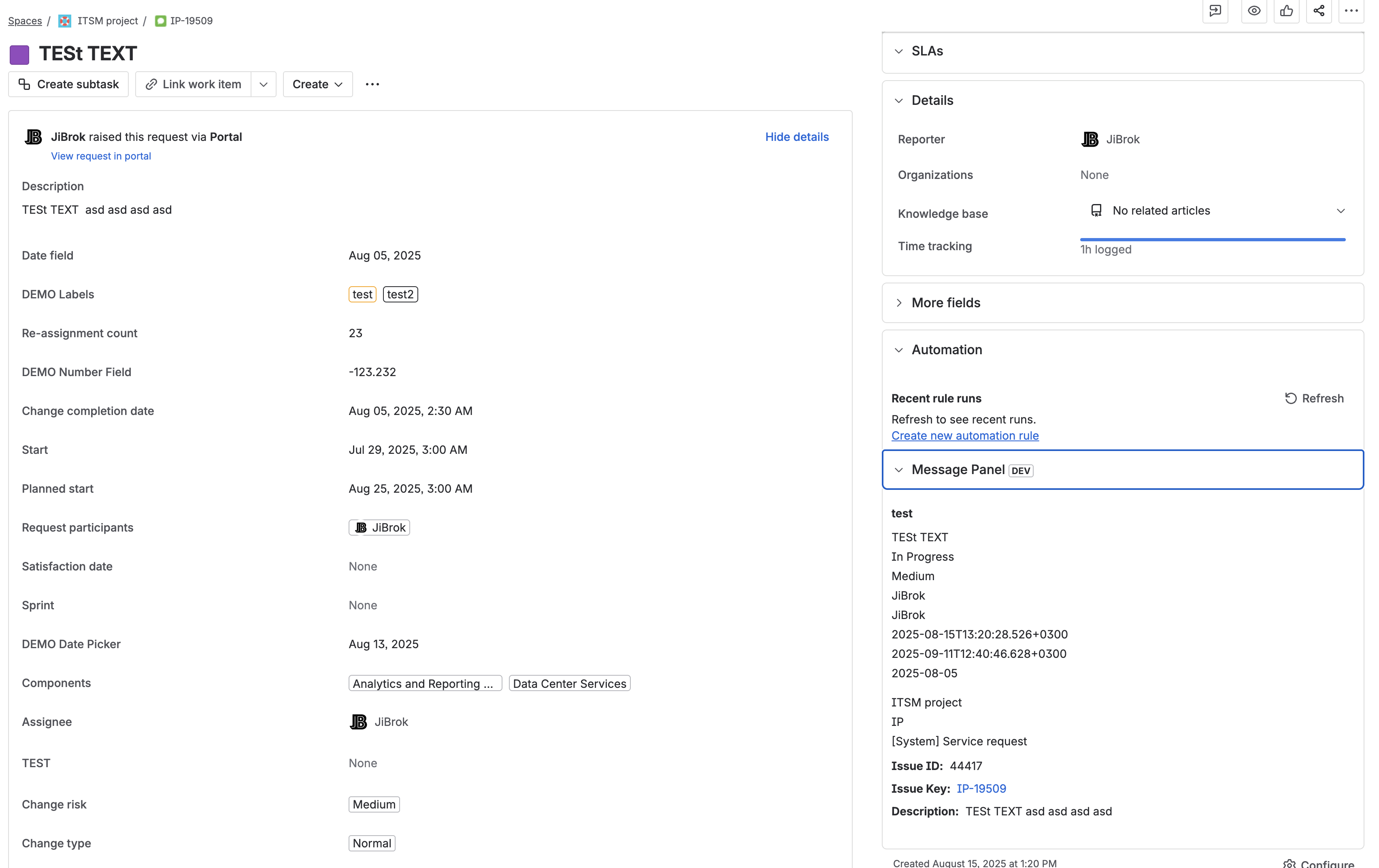
Features:
- Collapsible section
- Alongside Details, Automation panels
- Quick access
Use for: Reference data, supplementary details
Issue Action
Location: Issue toolbar
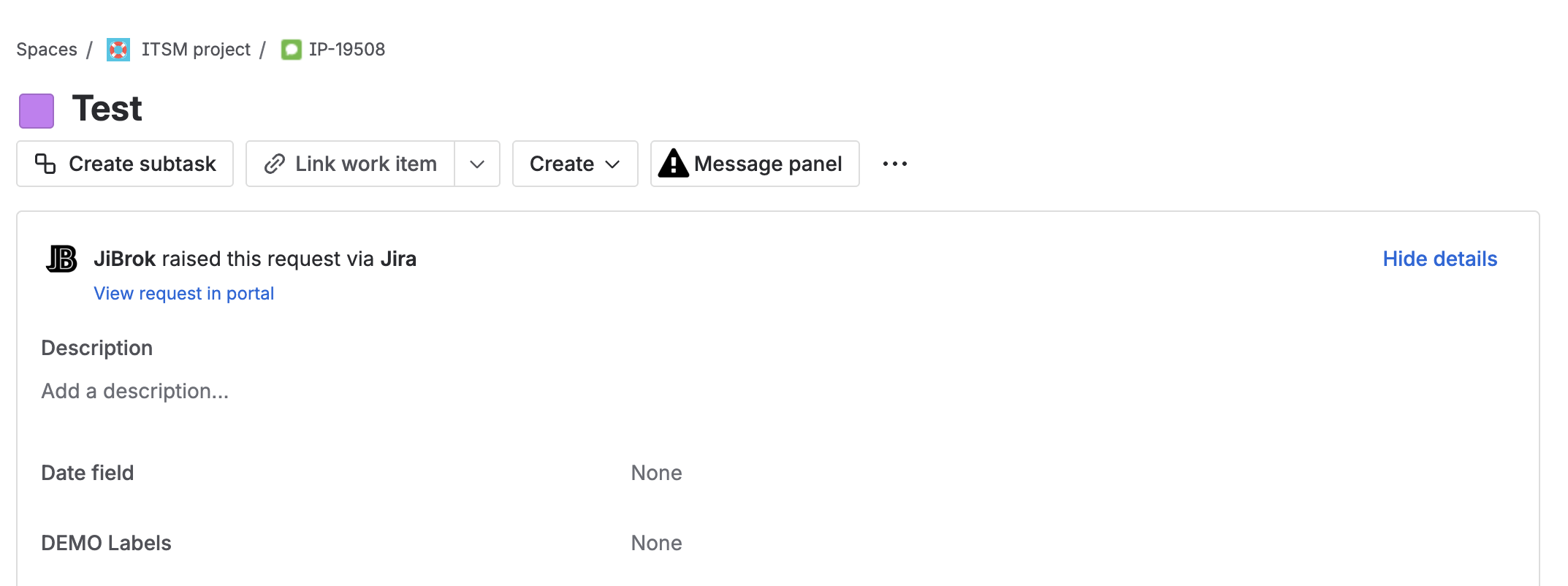
Features:
- Custom action button
- Opens on click
- User-initiated
Use for: On-demand queries, interactive tools
JSM Portal Modules
These modules display on the customer-facing Jira Service Management portal.
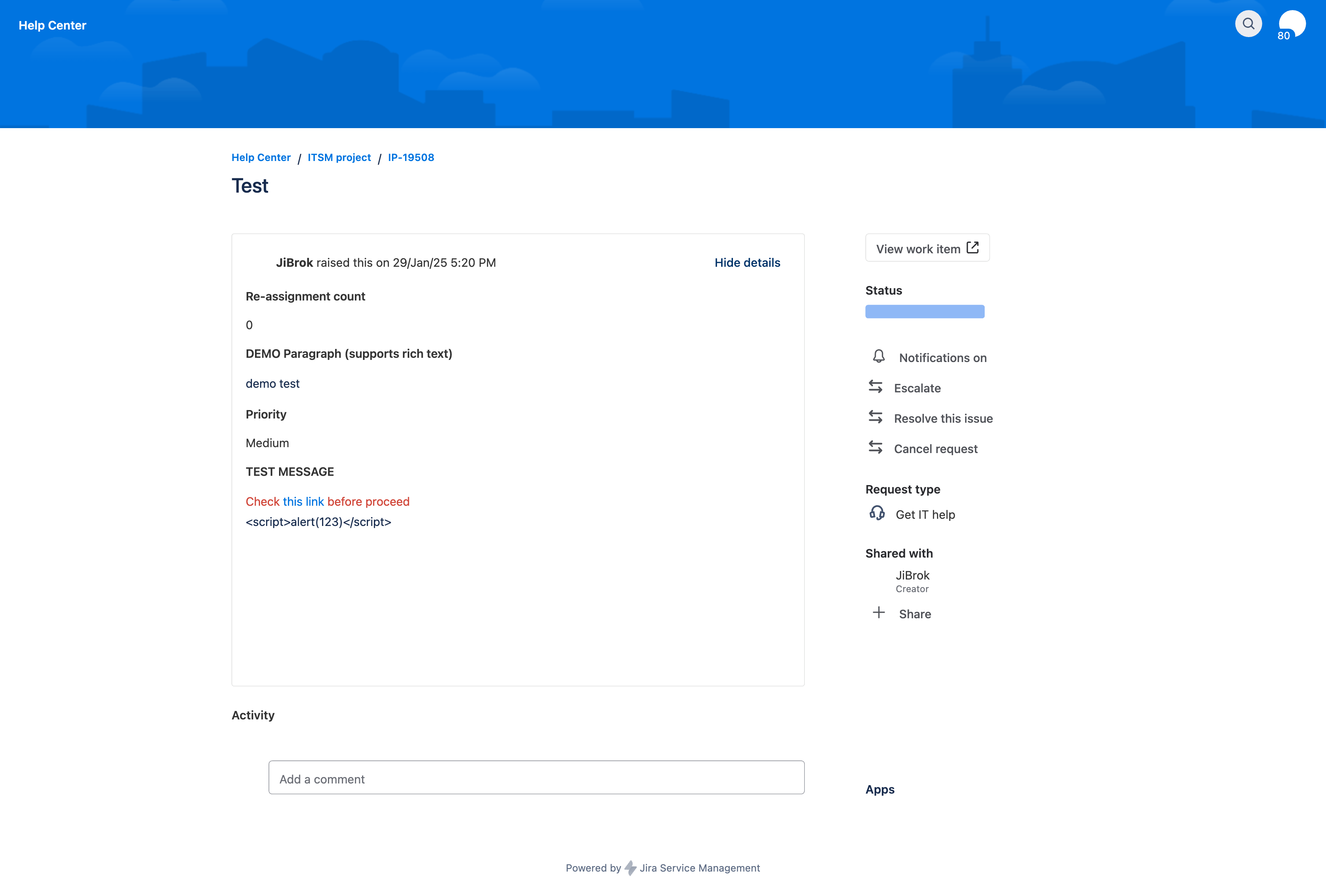
Portal Request Detail Panel
Location: Request details page in customer portal
Features:
- Visible to customers viewing their requests
- Shows alongside request details
- Supports templates with request data
Use for:
- Customer instructions
- SLA information
- Related articles or links
Portal Footer
Location: Bottom of portal pages
Features:
- Appears on all portal pages
- Global visibility
- Static or dynamic content
Use for:
- Contact information
- Legal notices
- Help links
Portal Subheader
Location: Below portal header
Features:
- Prominent placement
- Visible before request details
- Good for announcements
Use for:
- Service announcements
- Maintenance notices
- Important updates
JSM Create Modules
These modules display on the request creation form in JSM portals - before the issue is created.
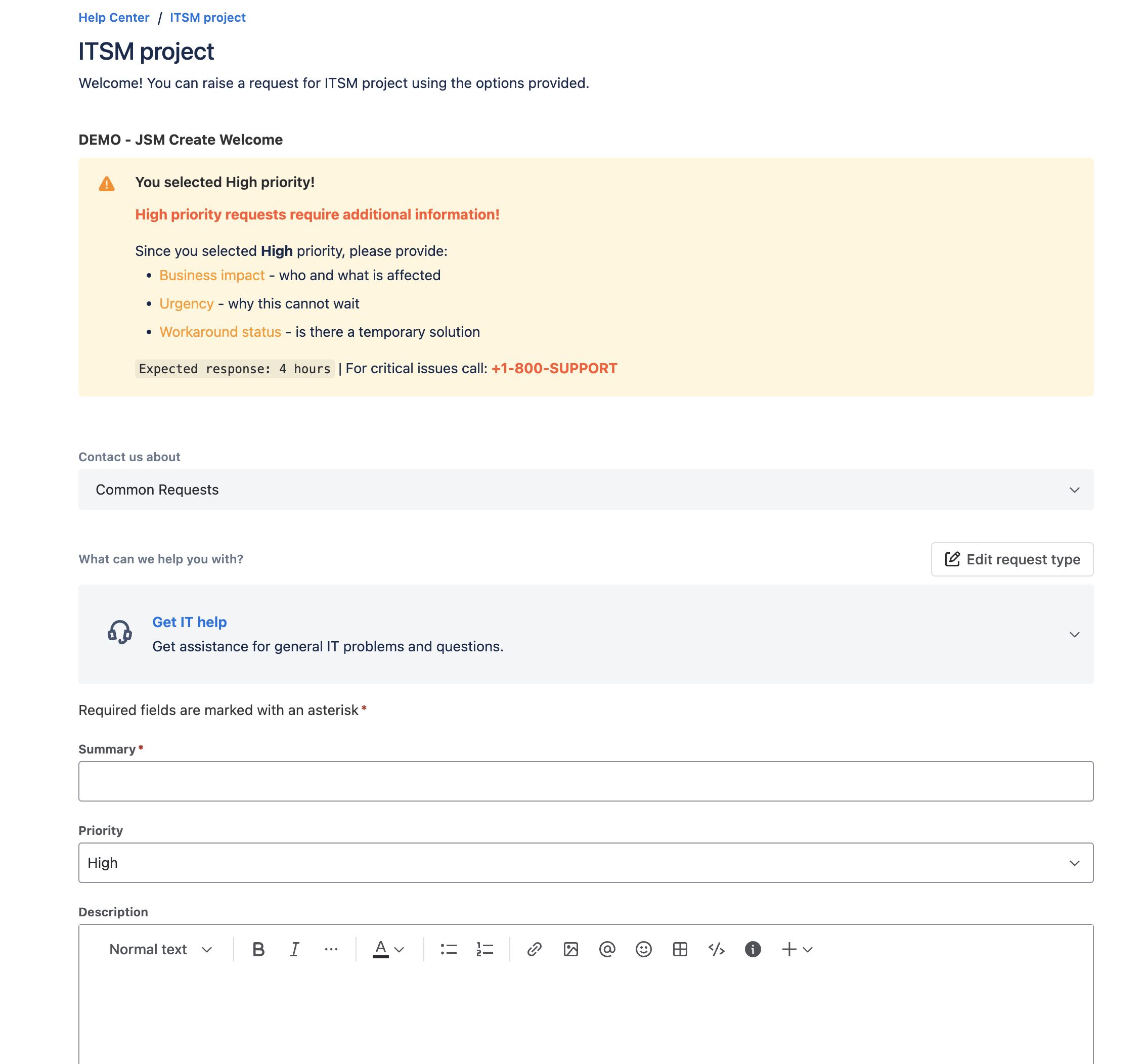
Portal Subheader (Create)
Location: Below the title on the request creation form
Features:
- Visible during request submission
- Access to form field values via UIM (UI Modifications)
- Dynamic content based on request type and form data
Use for:
- Pre-submission instructions
- Request type guidance
- Required information reminders
Portal Footer (Create)
Location: Bottom of the request creation form
Features:
- Below form fields, before submit button
- Access to form field values via UIM
- Good for terms and conditions
Use for:
- Terms and conditions links
- Submission guidelines
- Legal notices
JSM Create Module Constraints
JSM Create modules have specific limitations because the issue doesn’t exist yet:
| Feature | Available | Notes |
|---|---|---|
| Display JQL | No | No issue to query |
| User Fields Filter | No | No issue fields to check |
| Issue Data | No | Use UIM form data instead |
| Portals Filter | Required | Must select at least one portal |
| Request Type Filter | Yes | Filter by request types |
| Display Condition | Yes | Use fields.* for UIM form values |
Using Form Data in Templates
On create pages, use fields.* to access current form values:
{% if fields.summary %}
Summary: {{ fields.summary }}
{% endif %}

{% if fields.priority %}
Priority: {{ fields.priority.name }}
{% endif %}
Note: Field values update as the user fills out the form.
Custom Field Module
Location: Displays as a Jira custom field value on issue view, create, edit, and transition screens
Features:
- Per-context configuration - different messages for different project/issue type combinations
- Works on create and transition screens, not just issue view
- Automatic cleanup of orphaned configurations when fields or contexts are deleted
Use for: Embedded contextual information, form guidance, field-level messages and warnings
For full setup instructions, see Custom Fields.
UIM Management
UI Modifications (UIMs) are used by Message Field to display content in JSM portals. The Modules page includes a management section for monitoring and troubleshooting UIMs.
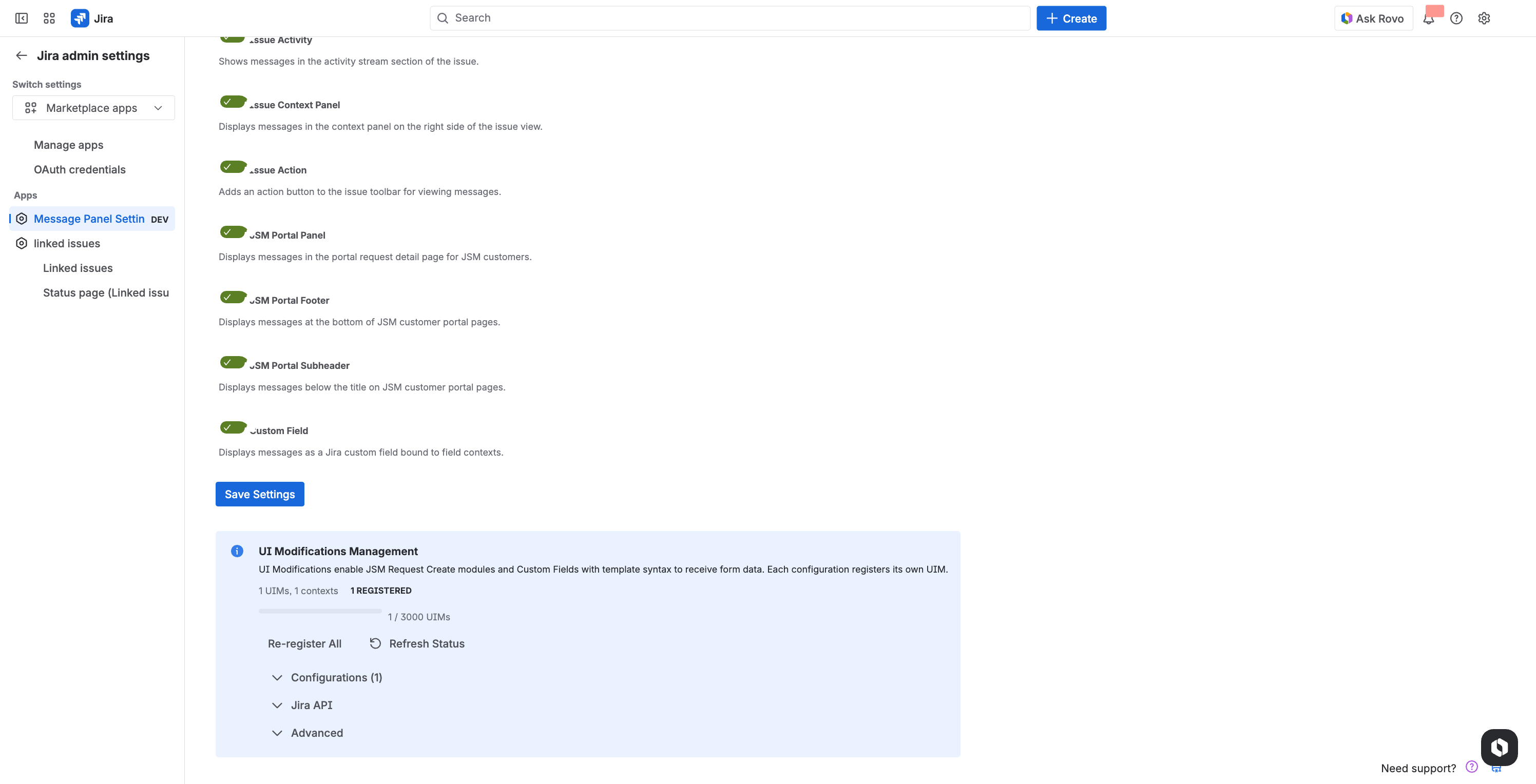
UIM Status
The Modules page shows the current status of registered UIMs, including:
- Total number of registered UIMs
- Status indicators (normal, warning, or danger levels)
Jira API UIMs
Expand the Jira API UIMs section to view all UIMs currently registered with Jira. This is useful for verifying that modules are properly registered.
Bulk UIM Operations
The following operations are available for troubleshooting and cleanup:
| Operation | Description |
|---|---|
| Delete Jira UIMs | Remove all Jira-related UIMs |
| Delete JSM UIMs | Remove all JSM portal UIMs |
| Delete All UIMs | Remove all registered UIMs |
| Reregister All | Delete and re-create all UIMs |
When to use: These operations are primarily for troubleshooting. Use Reregister All if modules are not displaying correctly, or delete operations to clean up after configuration changes.
Enabling Modules
Global Settings
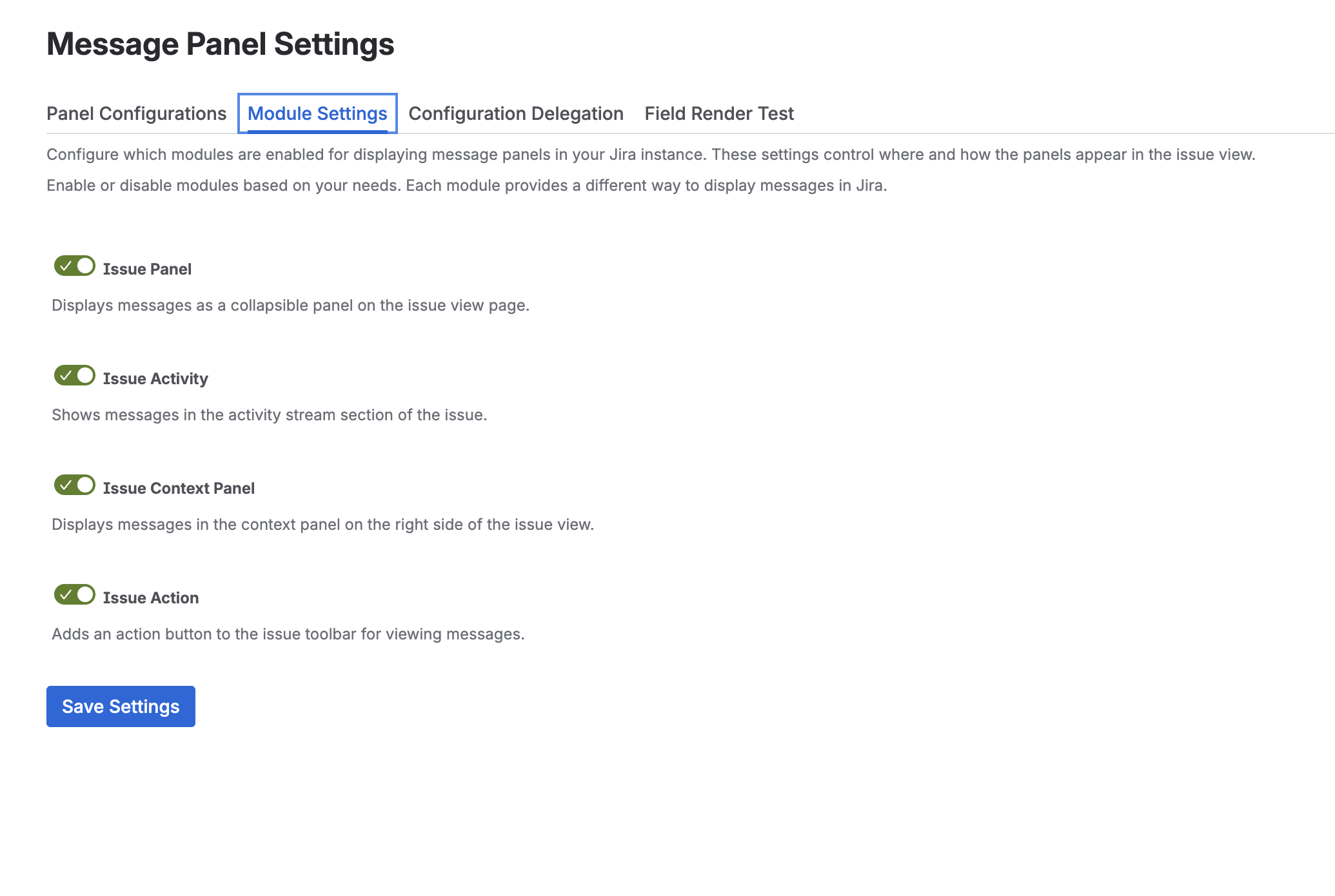
- Go to Apps → Message Field Settings
- Click the Module Settings tab
- Toggle modules on/off
- Click Save Settings
Disabled modules won’t display anywhere, even with configurations targeting them.
Per-Configuration
Each configuration specifies its display module:
- Edit or create a configuration
- Find Display Module dropdown
- Select one module
- Save
Visibility Rules
A panel appears when ALL conditions are met:
- Module is enabled globally
- Configuration targets that module
- Project filter matches (if specified)
- Issue type filter matches (if specified)
- Display JQL condition matches (if specified)
- User field condition matches (if specified)
- Request type matches (JSM only, if specified)
Example: Panel with:
- Module: Issue Panel
- Projects: “Marketing”
- Display JQL:
status = "In Progress"
Shows in right sidebar only for Marketing issues with status “In Progress”.
Multiple Panels
Multiple configurations can target the same module. Here’s how they interact:
- Order: By weight (lower first), then alphabetically by name for equal weights
- Collapsing: Each panel collapses independently (Issue Panel only)
- Independence: Each panel loads its own data source and renders independently
- No limit: There is no hard limit on the number of panels per module, but performance degrades with many active panels
Ordering with Weight
Use the Weight setting to control display order:
| Weight | Position |
|---|---|
| Negative values (-1000 to -1) | Appear first (top) |
| 0 (default) | Middle |
| Positive values (1 to 1000) | Appear last (bottom) |
Panels with the same weight are sorted alphabetically by name.
Tip: Use weight increments of 10 to leave room for future insertions.
Next Steps
- Configuration Basics - Create panel configurations
- Custom Fields - Use Message Field as a custom field
- Context Filters - Control when panels appear
- Modal Windows - Pop-up dialogs (Issue Panel only)
- JSM Integration - Detailed JSM setup



