 Message Field for Jira Cloud
- How Filters Work
- Filter Overview
- Project Filter
- Issue Type Filter
- Request Type Filter (JSM)
- Portal Filter (JSM)
- User Field Visibility
- Combining Filters
- Troubleshooting
- Next Steps
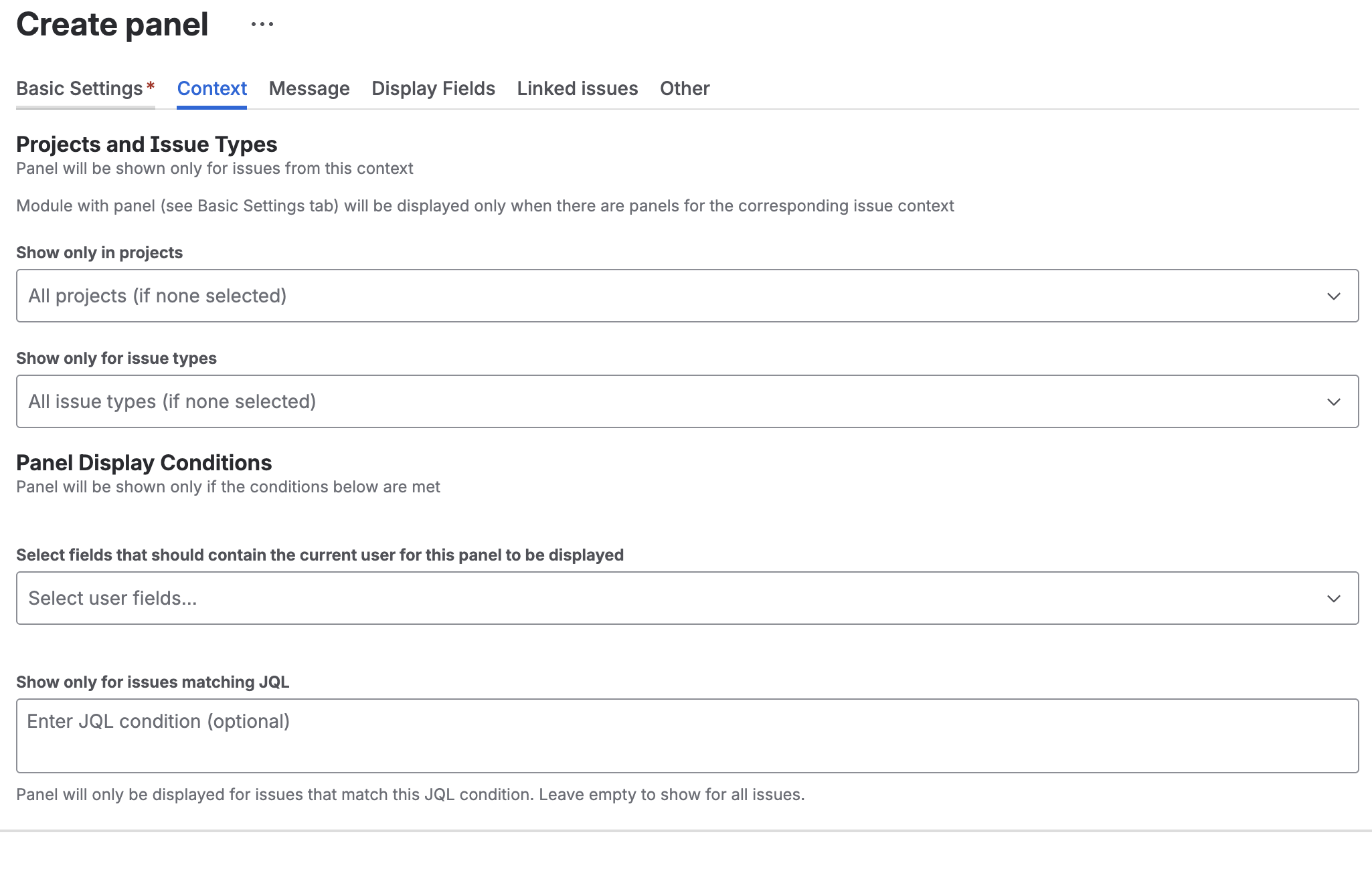
Context filters control when your panel appears. A panel shows only when all filter conditions are met.
How Filters Work
Filter Evaluation
When a user views an issue, all enabled filters are evaluated. A panel shows only when all filter conditions pass. If any check fails, the panel is hidden.
Filter Logic
| Between filters | Logic |
|---|---|
| Projects AND Issue Types AND Display JQL AND User Fields AND Display Condition AND Portals | AND |
| Within a filter | Logic |
|---|---|
| Multiple Projects | OR (any selected project) |
| Multiple Issue Types | OR (any selected type) |
| Multiple Request Types | OR (any selected type) |
| Multiple User Fields | OR (user in any selected field) |
| Multiple Portals | OR (any selected portal) |
Filter Overview
| Filter | Purpose | Empty = |
|---|---|---|
| Projects | Limit to specific projects | All projects |
| Issue Types | Limit to specific types | All types |
| Request Types | Limit to JSM request types | All request types |
| Portals | Limit to specific JSM portals | All portals |
| Display JQL | Dynamic JQL condition | Always match |
| Display Condition | Dynamic template condition | Always match |
| User Fields | Show only to users in specific fields | All users |
Leave all filters empty to show the panel for all issues to all users.
Project Filter
Show panel only in selected projects.
Configuration
- Open Context tab
- Find Show only in projects
- Select one or more projects
- Leave empty for all projects
Example
Select “Marketing” and “Sales” projects → Panel appears only on issues from these projects.
Issue Type Filter
Show panel only for selected issue types.
Configuration
- Open Context tab
- Find Show only for issue types
- Select types (Bug, Story, Epic, etc.)
- Leave empty for all types
Example
Select “Epic” → Panel appears only on Epic issues.
Request Type Filter (JSM)
For JSM Portal modules, filter by request types.
Configuration
- Select a JSM Portal module
- Find Show only for request types
- Select request types from your service desks
Example
Select “IT Help” and “Hardware Request” → Panel appears only for these request types in the customer portal.
Note: This filter only applies to JSM Portal modules (Portal Panel, Footer, Subheader).
Portal Filter (JSM)
For JSM modules, filter by customer portals (service desks).
How It Works
Portals filter restricts which JSM customer portals show the panel. This is the JSM equivalent of the Projects filter for Jira modules.
Note: For JSM Create modules, at least one portal must be selected.
Configuration
- Select a JSM module (Portal Panel, Footer, Subheader, or Create variants)
- Find Show only in portals
- Select one or more portals
- Leave empty for all portals (not available for Create modules)
Examples
| Selected Portals | Behavior |
|---|---|
| (empty) | Shows on all portals |
| “IT Support” | Shows only on IT Support portal |
| “IT Support”, “HR Help” | Shows on either portal |
Portals vs Projects
For JSM modules, portals and projects work differently:
| Filter | JSM Modules | Jira Modules |
|---|---|---|
| Projects | Ignored | Active |
| Portals | Active | Ignored |
User Field Visibility
Show panel only when the current viewing user is found in specific user-type fields.
How It Works
This filter checks if the user currently viewing the issue is listed in any of the selected fields. If yes, the panel is shown. If no, the panel is hidden.
Important: This is about WHO is viewing, not about the issue data itself.
Configuration
- Open Context tab
- Find Select fields that should contain the current user
- Select user fields (Assignee, Reporter, Watchers, custom user fields)
Supported Field Types
- Assignee - Single user
- Reporter - Single user
- Watchers - Multi-user (checks if viewer is watching)
- Custom User Picker - Single user custom fields
- Custom Multi-User Picker - Multi-user custom fields
Single Field Example
Select “Assignee”:
- User Alice views issue assigned to Alice → Panel shows
- User Bob views issue assigned to Alice → Panel hidden
Multiple Fields (OR Logic)
Select “Assignee” AND “Reporter”:
- User Alice (assignee) views → Panel shows
- User Bob (reporter) views → Panel shows
- User Charlie (neither) views → Panel hidden
Use Cases
| Scenario | User Fields |
|---|---|
| Show to assignee only | Assignee |
| Show to assignee or reporter | Assignee, Reporter |
| Show to watchers | Watchers |
| Show to team lead (custom field) | customfield_10050 |
Combining Filters
All filters work together with AND logic between different filter types.
Example: High-Priority Blockers for Developers
| Filter | Value |
|---|---|
| Projects | Development |
| Issue Types | Bug, Story |
| Display JQL | priority = High |
Result: Panel shows only on high-priority Bugs and Stories in the Development project.
Example: Personal Dashboard
| Filter | Value |
|---|---|
| Projects | (all) |
| Issue Types | (all) |
| User Fields | Assignee |
| Display JQL | status != Done |
Result: Panel shows only on open issues assigned to the current viewing user.
Example: Reporter Information
| Filter | Value |
|---|---|
| User Fields | Reporter |
Result: Panel shows only when the person who reported the issue is viewing it.
Troubleshooting
Tip: Use the Test Context button in the configuration editor to check all filter conditions for a specific issue at once. See Testing Panels for details.
Panel Not Showing
Check conditions in order:
- Module enabled? - Check Apps → Message Field Settings → Modules tab
- Configuration enabled? - Check the “Enabled” toggle on the configuration
- Project matches? - Is issue in one of the selected projects?
- Issue type matches? - Is issue type in the selected types?
- Display JQL matches? - Test the JQL in Issue Navigator with current issue
- User field matches? - Is the viewing user in selected fields?
Panel Showing Everywhere
You may have left all filters empty. Add at least one filter to limit visibility.
Panel Shows to Wrong Users
Check User Field filter - it uses OR logic between selected fields. If you want AND logic (user must be in ALL fields), use Display Condition instead.
Next Steps
- Display Conditions - JQL and template-based conditions
- Data Sources - Configure what data the panel shows
- Templates - Dynamic content syntax
- Modules - Display locations



