 Message Field for Jira Cloud
- Data Source Types
- Linked Issues
- JQL Query
- Empty (Message Only)
- Field Configuration
- Pagination and Limits
- Template Variables
- Custom Fields
- Next Steps
Choose what data your panel displays: linked issues, JQL results, or just a message.
Data Source Types
| Type | Shows Table | Use Case |
|---|---|---|
| Linked Issues | Yes | Display issues connected by link types |
| JQL Query | Yes | Display issues from any JQL search |
| Empty | No | Message-only panels |
Linked Issues
Display issues connected via Jira link types.
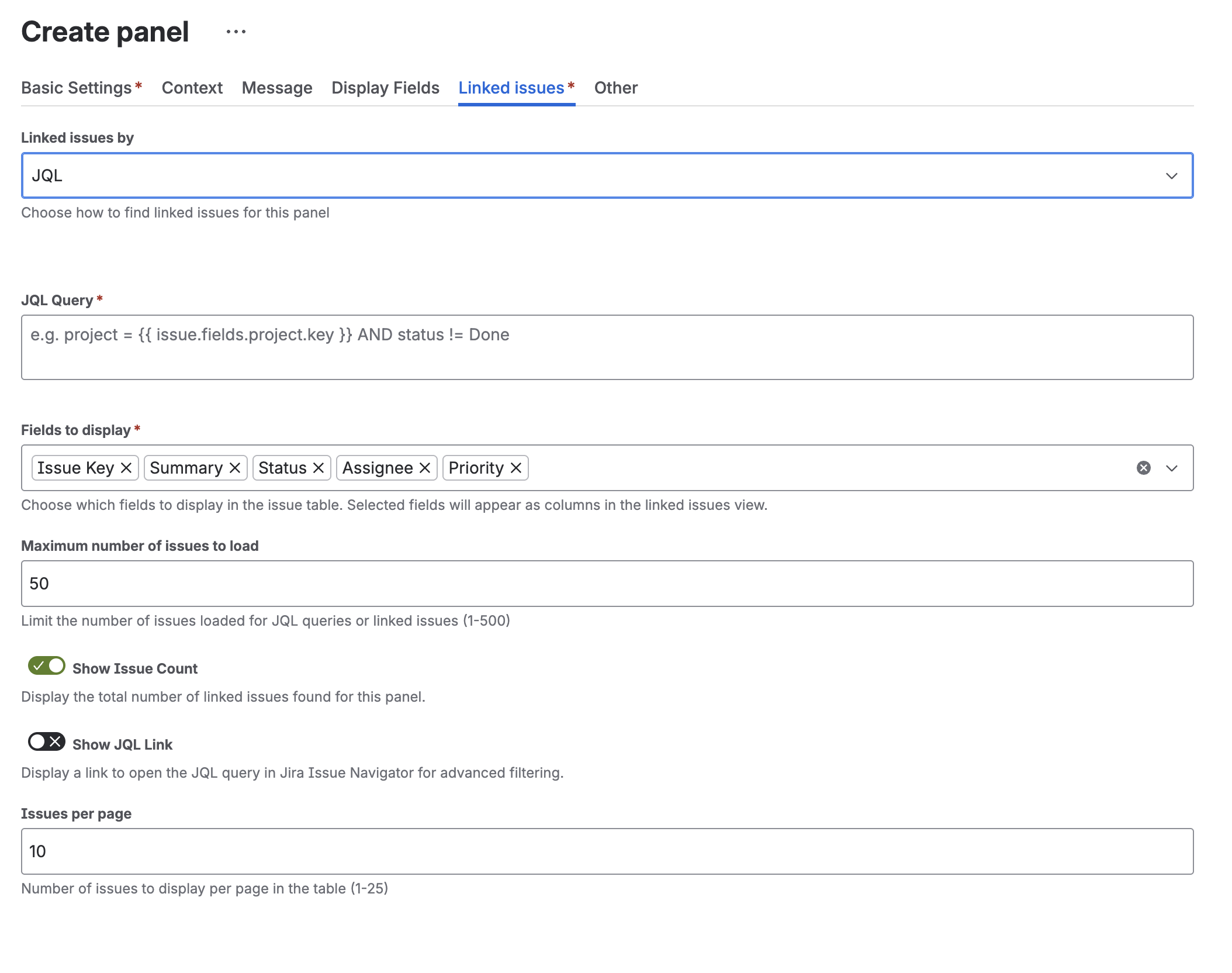
Configuration
- Select Linked Issues as data source
- Choose link types with direction:
- Inward: “is blocked by”, “is cloned by”
- Outward: “blocks”, “clones”
- Select table fields (columns to display)
- Optionally select display fields (fields shown above table)
- Configure pagination and limits
Link Type Selection
Each link type has two directions:
| Direction | Example | Description |
|---|---|---|
| Inward | “is blocked by” | Current issue is the target |
| Outward | “blocks” | Current issue is the source |
You can select multiple link types and directions. All matching linked issues are combined.
Example: Show Blockers
- Link Type: “is blocked by” (inward)
- Table Fields: Key, Summary, Status, Assignee
- Max Issues: 50
This shows all issues that block the current issue.
JQL Query
Display issues matching any JQL search.
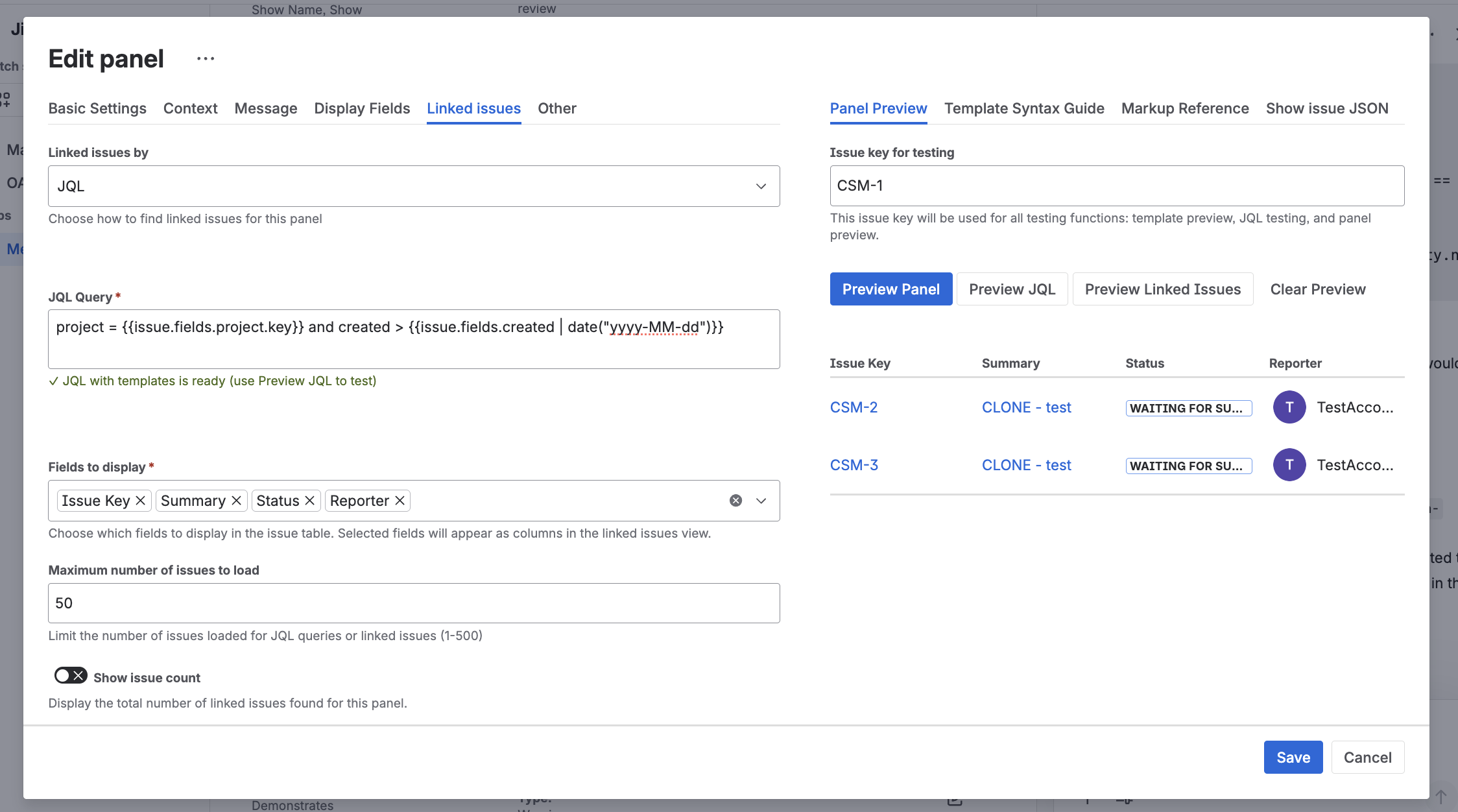
Basic Query
project = "Marketing" AND status = "In Progress"
Parametric Mode
Use template variables to create dynamic queries:
"Epic Link" = {{ issue.key }}
project = {{ issue.fields.project.key }} AND type = Bug
Available Variables in JQL
| Variable | Description |
|---|---|
{{ issue.key }} |
Current issue key (e.g., PROJ-123) |
{{ issue.id }} |
Current issue ID |
{{ issue.fields.project.key }} |
Project key |
{{ issue.fields.project.id }} |
Project ID |
{{ issue.fields.assignee.accountId }} |
Assignee account ID |
{{ issue.fields.reporter.accountId }} |
Reporter account ID |
{{ currentUser.accountId }} |
Current user account ID |
Shortcut syntax:
| Shortcut | Equivalent |
|---|---|
{{ key }} |
{{ issue.key }} |
{{ fields.project.key }} |
{{ issue.fields.project.key }} |
{{ project.key }} |
{{ issue.fields.project.key }} |
{{ assignee.accountId }} |
{{ issue.fields.assignee.accountId }} |
Example: Epic Children
"Epic Link" = {{ issue.key }} ORDER BY status
Shows all stories/tasks in an epic, ordered by status.
Example: Same Assignee
assignee = {{ issue.fields.assignee.accountId }} AND status != Done
Shows other open issues assigned to the same person.
Example: Current User’s Issues
assignee = {{ currentUser.accountId }} AND status != Done ORDER BY priority DESC
Shows open issues assigned to the person viewing the panel.
JQL Validation
When configuring a JQL query, Message Field provides inline validation:
- Syntax check - validates the JQL syntax before saving
- Issue count preview - shows how many issues match the query
- Error messages - displays Jira’s JQL error messages for invalid queries
For parametric JQL (using template variables), use the Test JQL feature in the Testing Panels page to verify the query resolves correctly with a real issue key.
Empty (Message Only)
Create panels without issue tables - just messages.
Use Cases
- Warning banners
- Instructions
- Status indicators
- Contextual help
- Conditional messages
Message Format
When using Empty data source, select the Message Render Type:
| Type | Description |
|---|---|
| Plain Text | Simple text, no formatting |
| HTML | Full HTML support |
| Markdown | GitHub-flavored markdown |
| ADF | Atlassian Document Format (structured) |
See Message Formats for detailed syntax and examples.
Example: Missing Description Warning
Message:
{% if not issue.fields.description %}
⚠️ This issue needs a description. Please add details about:
- What needs to be done
- Acceptance criteria
- Related context
{% endif %}
Example: Priority Warning
{% if issue.fields.priority.name == "Highest" %}
<div style="background: #ffebe6; padding: 12px; border-left: 4px solid #de350b;">
  <strong>Critical Priority</strong><br>
  This issue requires immediate attention.
</div>
{% endif %}
Field Configuration
Two Types of Fields
The panel supports two different field selections:
| Field Type | Where Displayed | Used For |
|---|---|---|
Table Fields (linkedIssuesFieldId) |
Columns in issue table | Linked Issues or JQL results |
Display Fields (displayFieldIds) |
Above the table | Current issue data |
Table Fields
Choose which columns appear in the issue table.
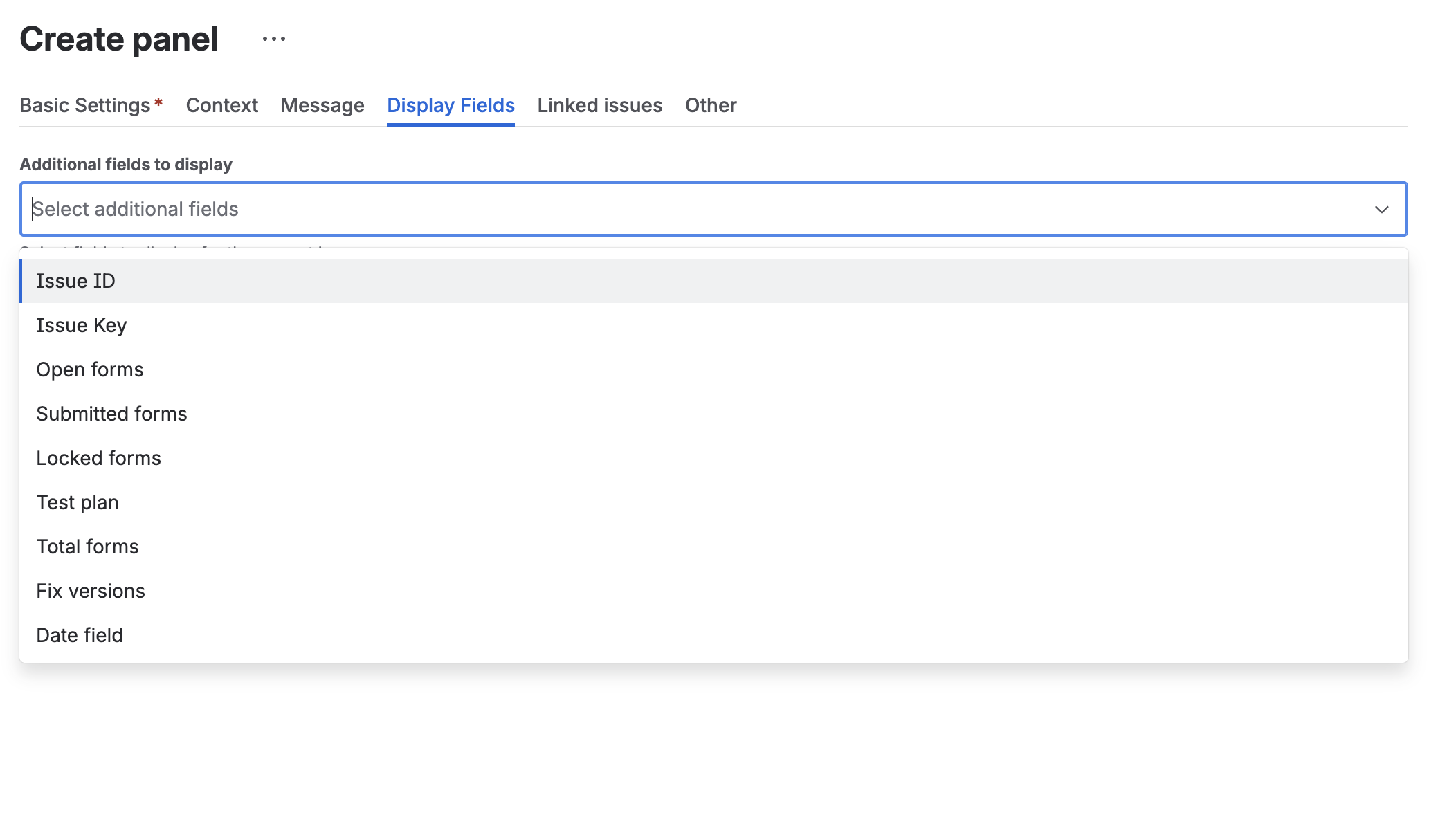
Steps:
- Click Select Fields
- Check/uncheck fields
- Drag to reorder
- Click Save
Available Fields:
- System: Key, Summary, Status, Priority, Assignee, Reporter, Created, Updated
- Custom: Any custom fields in your instance
- Form fields: Open forms, Submitted forms
- Date fields: Due date, Start date, etc.
Default Fields: Key, Summary, Status, Priority, Assignee
Limit: Maximum 50 table fields per configuration.
Display Fields
Show current issue data above the table.
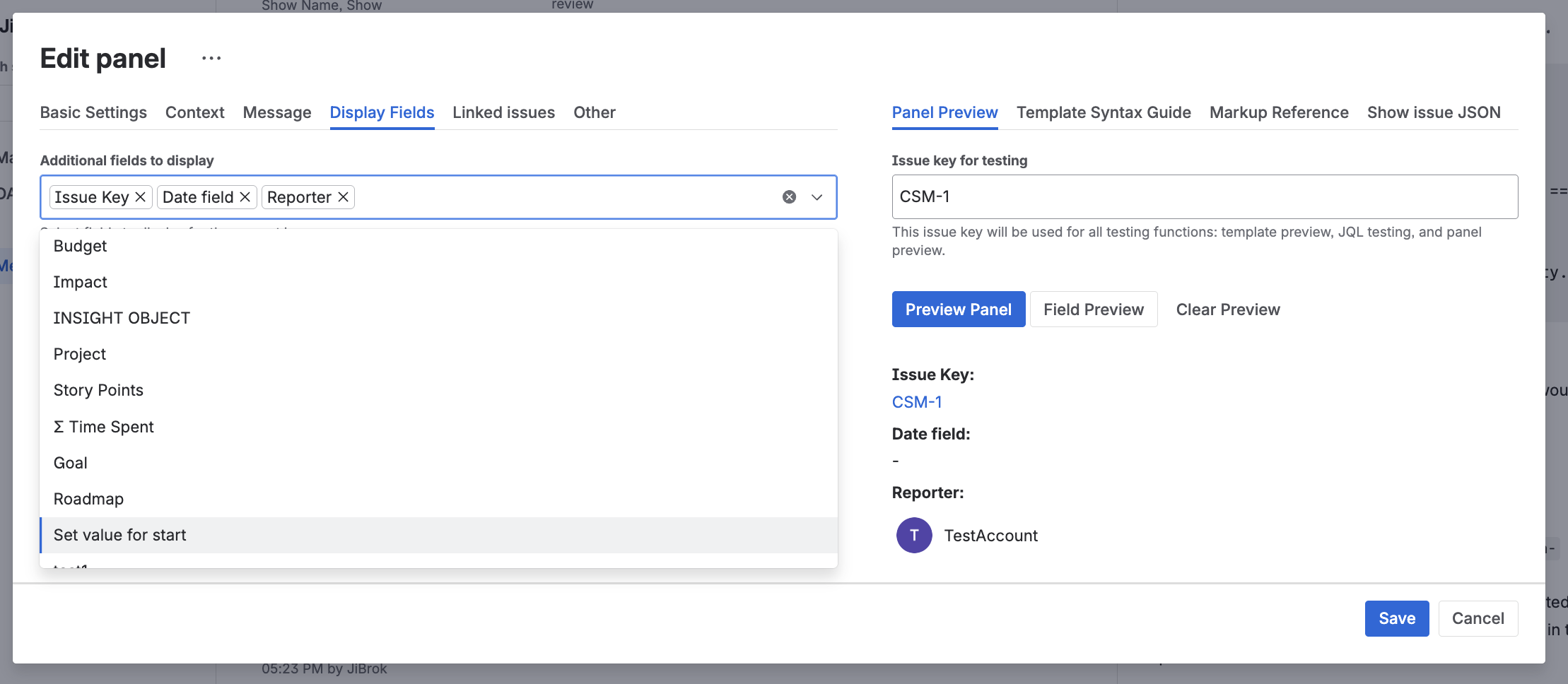
These are fields from the current issue (not the linked issues), displayed in a compact format above the table.
Use case: Show Epic name, Sprint, or other context when viewing linked issues.
Limit: Maximum 50 display fields per configuration.
Pagination and Limits
Max Issues vs Rows Per Page
| Setting | Purpose | Range | Default |
|---|---|---|---|
| Max Issues | Total issues loaded from Jira API | 1-1,000 | 50 |
| Rows Per Page | Issues displayed per page in table | 1-100 | 10 |
How they work together:
- Max Issues controls how many issues are fetched from Jira
- Rows Per Page controls pagination display
- The panel shows paginated results up to Max Issues limit
Example:
- Max Issues = 100, Rows Per Page = 10
- Panel fetches up to 100 issues
- Displays 10 per page with navigation
- User can browse through 10 pages maximum
Performance Recommendations
| Scenario | Max Issues | Rows Per Page |
|---|---|---|
| Quick overview | 25 | 5 |
| Standard use | 50 | 10 |
| Comprehensive lists | 200 | 25 |
| Large datasets | 1,000 | 50 |
Tip: Start with lower limits for better performance. Increase only if needed.
Template Variables
When creating messages or descriptions, you have access to these variables:
Issue Data
| Variable | Description |
|---|---|
{{ issue.key }} |
Issue key (PROJ-123) |
{{ issue.id }} |
Issue numeric ID |
{{ issue.fields.summary }} |
Summary text |
{{ issue.fields.description }} |
Description (may be ADF) |
{{ issue.fields.status.name }} |
Status name |
{{ issue.fields.priority.name }} |
Priority name |
{{ issue.fields.assignee.displayName }} |
Assignee name |
{{ issue.fields.reporter.displayName }} |
Reporter name |
{{ issue.fields.project.name }} |
Project name |
{{ issue.fields.project.key }} |
Project key |
{{ issue.fields.issuetype.name }} |
Issue type |
{{ issue.fields.created }} |
Created timestamp |
{{ issue.fields.updated }} |
Updated timestamp |
{{ issue.fields.duedate }} |
Due date |
Shortcuts
| Shortcut | Equivalent |
|---|---|
{{ key }} |
{{ issue.key }} |
{{ fields.summary }} |
{{ issue.fields.summary }} |
{{ priority.name }} |
{{ issue.fields.priority.name }} |
{{ status.name }} |
{{ issue.fields.status.name }} |
{{ project.key }} |
{{ issue.fields.project.key }} |
Current User
| Variable | Description |
|---|---|
{{ currentUser.accountId }} |
User’s account ID |
{{ currentUser.displayName }} |
User’s display name |
{{ currentUser.timeZone }} |
User’s timezone |
{{ currentUser.locale }} |
User’s locale (e.g., “en-US”) |
is an alias for.
Linked Issues (for Linked Issues/JQL sources)
| Variable | Description |
|---|---|
{{ linkedIssues }} |
Array of all loaded issues |
{{ linkedIssues.length }} |
Count of issues |
Loop example:
{% for linked in linkedIssues %}
  {{ linked.key }}: {{ linked.fields.summary }}
{% empty %}
  No linked issues found.
{% endfor %}
Loop Variables
| Variable | Description |
|---|---|
{{ loop.index }} |
0-based index |
{{ loop.index1 }} |
1-based index |
{{ loop.first }} |
True for first item |
{{ loop.last }} |
True for last item |
{{ loop.length }} |
Total items in loop |
See Templates for complete syntax reference.
Custom Fields
Access custom fields by ID or name:
{{ issue.fields.customfield_10001 }}
{{ issue.fields["Story Points"] }}
Finding Field IDs
- In configuration, click Download Issue Data
- Search for the field name in JSON
- Note the
customfield_XXXXXID
Common Custom Fields
{{ issue.fields.customfield_10001 }}          {# Story Points #}
{{ issue.fields.customfield_10002.value }}    {# Select field value #}
{{ issue.fields.customfield_10003 | date }}   {# Date field #}
{{ issue.fields["Epic Link"] }}               {# Epic link key #}
Next Steps
- Context Filters - Control when panels appear
- Templates - Dynamic content syntax
- Use Cases - Ready-to-use examples
- Message Formats - HTML, Markdown, ADF syntax
- Limits - Data limits and performance tips



