 Message Field for Jira Cloud
- Available Formats
- Plain Text
- HTML
- Markdown
- ADF (Atlassian Document Format)
- Format Comparison
- Tips
- Next Steps
Choose how your message content is rendered.
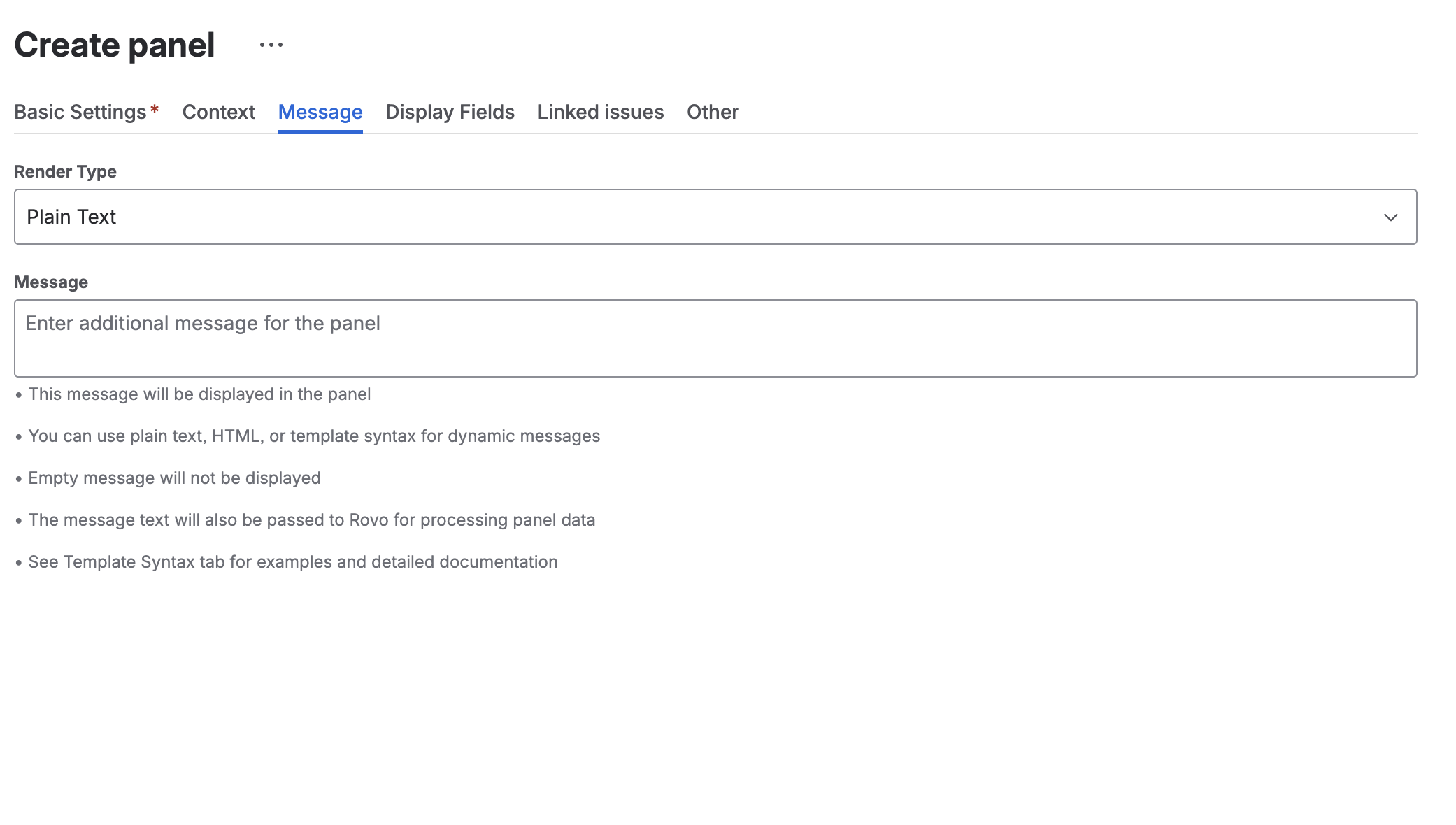
Available Formats
| Format | Best For |
|---|---|
| Plain Text | Simple messages, no formatting needed |
| HTML | Rich formatting with full control |
| Markdown | Easy formatting with simple syntax |
| ADF | Advanced Atlassian formatting |
Plain Text
No formatting applied. Text displays exactly as written.
Example
Input:
This is a warning message.
Please check the issue details.
Output:
This is a warning message.
Please check the issue details.
When to Use
- Simple informational messages
- When formatting is not needed
- Quick messages without styling
HTML
Full HTML support with inline styles.
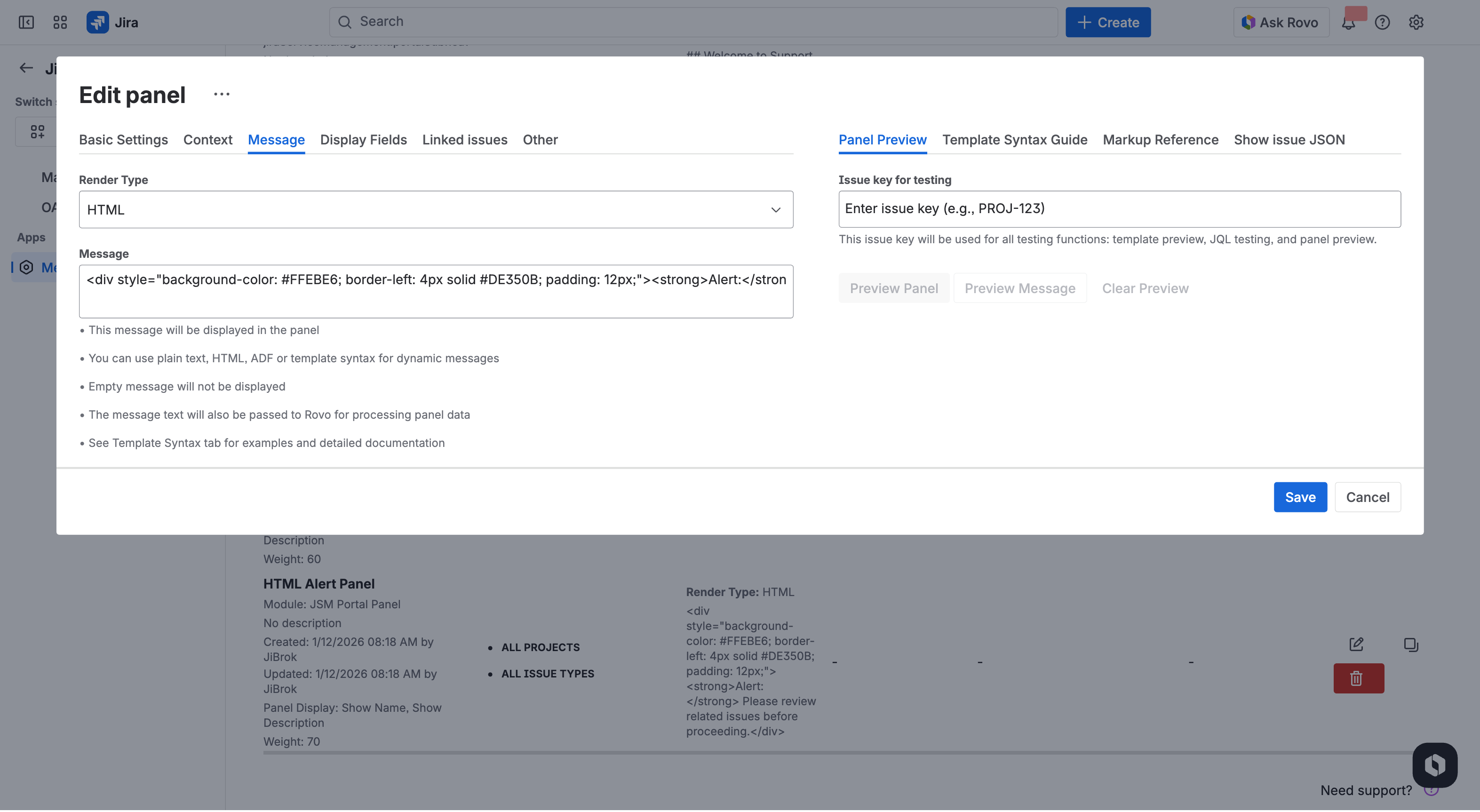
Basic Tags
<b>Bold text</b>
<i>Italic text</i>
<u>Underlined text</u>
<br> Line break
Styled Box
<div style="padding: 12px; background: #FFFAE6; border-left: 4px solid #FF8B00; margin: 8px 0;">
  <strong>Warning:</strong> {{ issue.fields.summary }}
</div>
Colored Text
<span style="color: #DE350B;">Critical issue</span>
<span style="color: #00875A;">Completed</span>
<span style="color: #0052CC;">In progress</span>
Table
<table style="width: 100%; border-collapse: collapse;">
  <tr style="background: #F4F5F7;">
    <th style="padding: 8px; text-align: left;">Field</th>
    <th style="padding: 8px; text-align: left;">Value</th>
  </tr>
  <tr>
    <td style="padding: 8px;">Status</td>
    <td style="padding: 8px;">{{ issue.fields.status.name }}</td>
  </tr>
  <tr>
    <td style="padding: 8px;">Priority</td>
    <td style="padding: 8px;">{{ issue.fields.priority.name }}</td>
  </tr>
</table>
Alert Styles
Success (Green):
<div style="padding: 12px; background: #E3FCEF; border-left: 4px solid #00875A;">
  ✅ All blockers resolved
</div>
Warning (Yellow):
<div style="padding: 12px; background: #FFFAE6; border-left: 4px solid #FF8B00;">
  ⚠️ Due date approaching
</div>
Error (Red):
<div style="padding: 12px; background: #FFEBE6; border-left: 4px solid #DE350B;">
  ❌ SLA breach detected
</div>
Info (Blue):
<div style="padding: 12px; background: #DEEBFF; border-left: 4px solid #0052CC;">
  ℹ️ This issue is part of Sprint 12
</div>
Section Messages
Use the <section-message> tag for Atlassian-styled highlighted message blocks with icons.
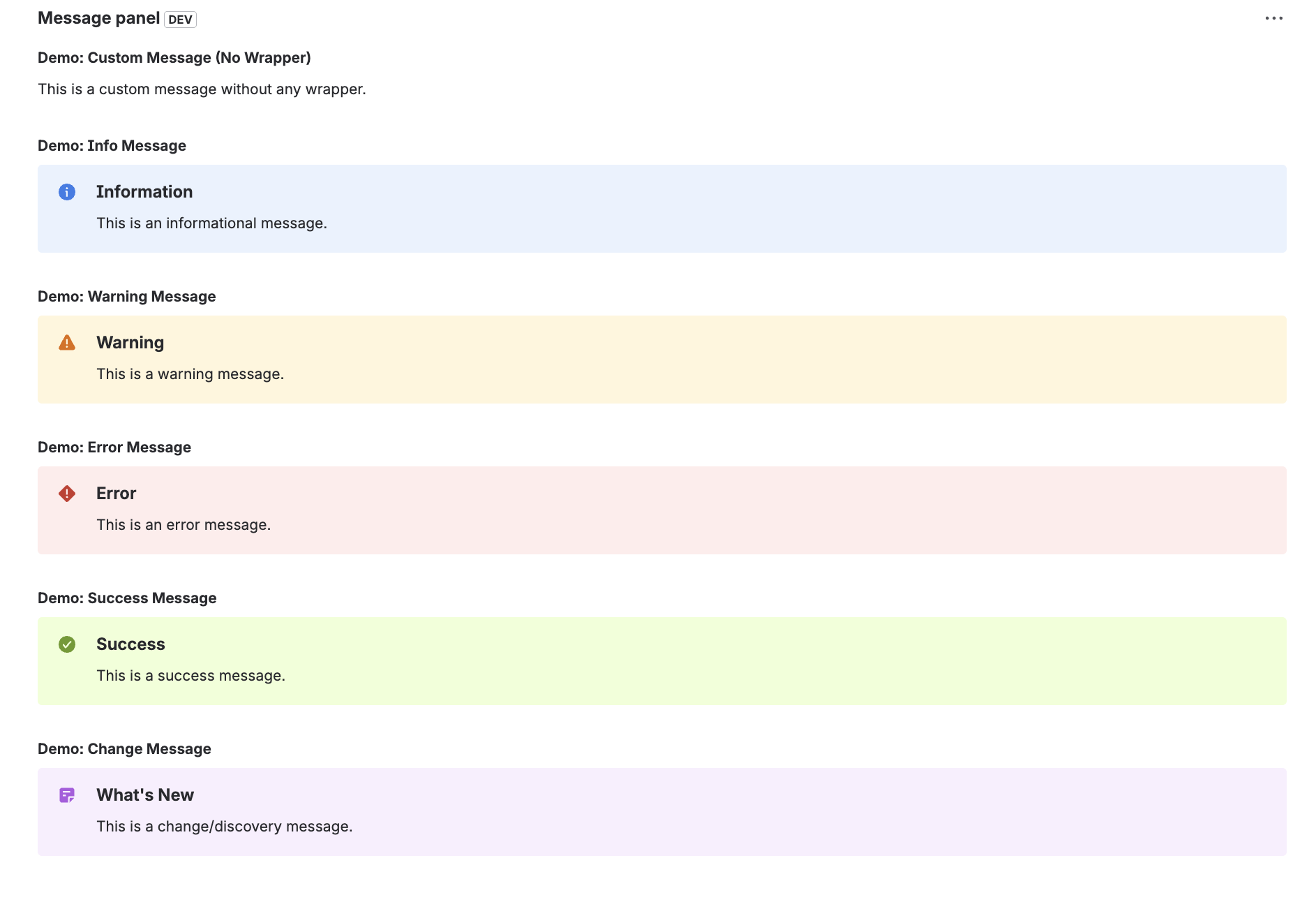
Basic Syntax:
<section-message appearance="warning" title="Attention">
  This issue requires review before release
</section-message>
Available Appearances:
| Appearance | Description | Aliases |
|---|---|---|
info |
Blue informational message | information |
warning |
Yellow warning message | - |
error |
Red error message | - |
success |
Green success message | confirmation |
change |
Purple change/discovery message | discovery, note |
Examples:
<!-- Info message with title -->
<section-message appearance="info" title="Note">
  This issue is part of the current sprint
</section-message>

<!-- Warning without title -->
<section-message appearance="warning">
  Due date is approaching - {{ issue.fields.duedate | date("MMM dd") }}
</section-message>

<!-- Error message -->
<section-message appearance="error" title="Blocked">
  This issue is blocked by {{ linkedIssues | len }} unresolved issues
</section-message>

<!-- Success message -->
<section-message appearance="success">
  All acceptance criteria have been met
</section-message>

<!-- Change/Discovery message -->
<section-message appearance="change" title="Update">
  New feature available in this release
</section-message>
Tip: Section messages provide native Atlassian styling without writing custom CSS. They’re the recommended way to create highlighted message blocks.
When to Use HTML
- Complex layouts and styling
- Custom colors and backgrounds
- Tables and structured data
- Maximum formatting control
Markdown
GitHub-flavored Markdown syntax.
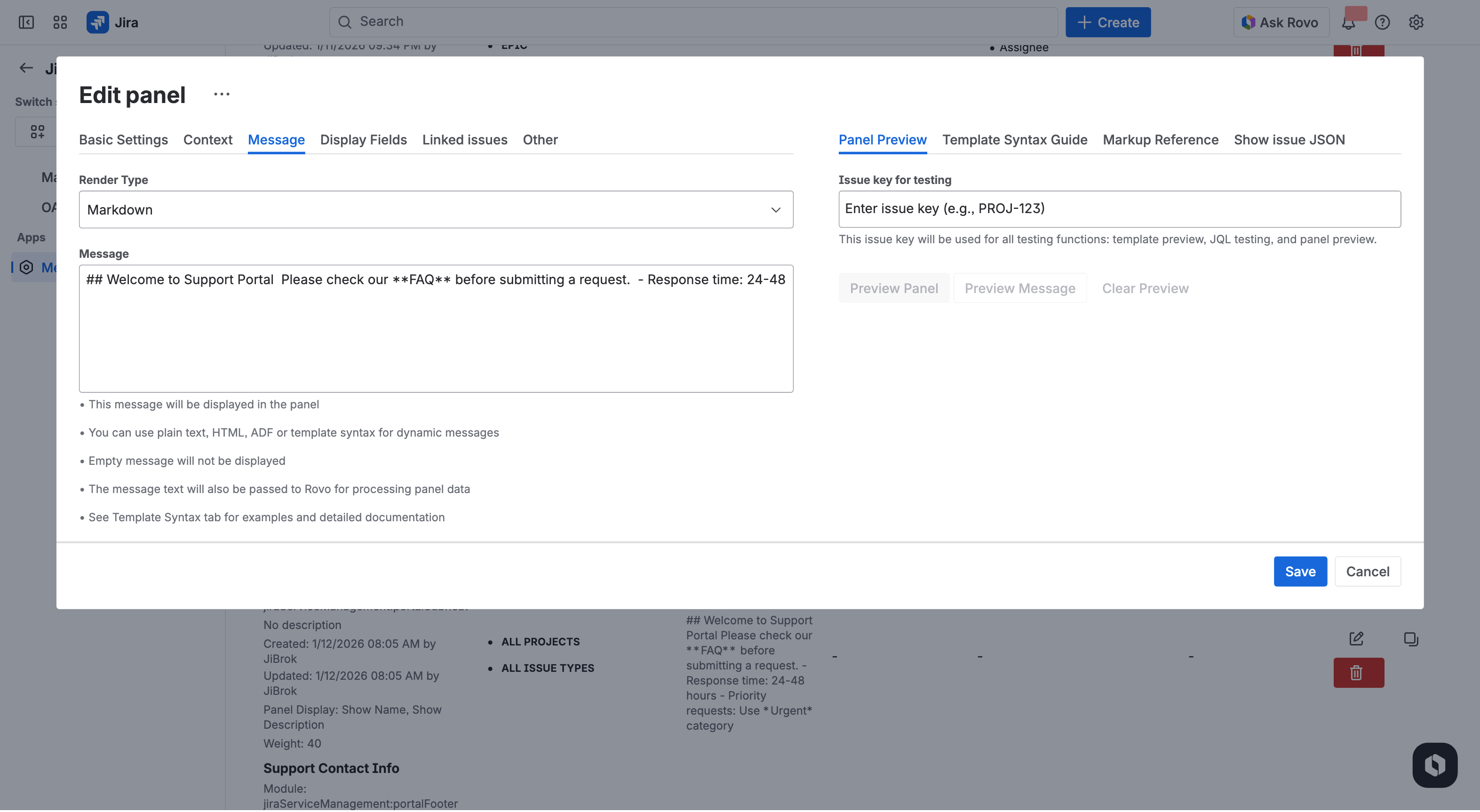
Basic Formatting
**Bold text**
*Italic text*
~~Strikethrough~~
`Code`
Headers
# Heading 1
## Heading 2
### Heading 3
Lists
- Bullet item 1
- Bullet item 2
  - Nested item

1. Numbered item 1
2. Numbered item 2
Links
[Link text](https://example.com)
Code Blocks
Code block
Full Example
## {{ issue.fields.summary }}

**Status**: {{ issue.fields.status.name }}
**Priority**: {{ issue.fields.priority.name }}

{% if issue.fields.assignee %}
**Assigned to**: {{ issue.fields.assignee.displayName }}
{% endif %}

---

### Linked Issues
{% for linked in linkedIssues %}
- [{{ linked.key }}] {{ linked.fields.summary }}
{% endfor %}
When to Use Markdown
- Easy-to-write formatted content
- Simple formatting without HTML knowledge
- Lists and structured text
- Readable source text
ADF (Atlassian Document Format)
JSON-based format for advanced Atlassian-native formatting.
Basic Structure
{
  "version": 1,
  "type": "doc",
  "content": [
    {
      "type": "paragraph",
      "content": [
        {
          "type": "text",
          "text": "Hello World"
        }
      ]
    }
  ]
}
Paragraph with Bold
{
  "version": 1,
  "type": "doc",
  "content": [
    {
      "type": "paragraph",
      "content": [
        {
          "type": "text",
          "text": "Important: ",
          "marks": [{"type": "strong"}]
        },
        {
          "type": "text",
          "text": "This is a critical issue."
        }
      ]
    }
  ]
}
Info Panel
{
  "version": 1,
  "type": "doc",
  "content": [
    {
      "type": "panel",
      "attrs": {"panelType": "info"},
      "content": [
        {
          "type": "paragraph",
          "content": [
            {"type": "text", "text": "This is an info panel"}
          ]
        }
      ]
    }
  ]
}
Panel Types
info- Blue info panelnote- Purple note panelwarning- Yellow warning panelerror- Red error panelsuccess- Green success panel
When to Use ADF
- Native Atlassian panels and styling
- Complex document structures
- Integration with Jira’s native formatting
- Maximum compatibility with Atlassian products
Format Comparison
| Feature | Plain Text | HTML | Markdown | ADF |
|---|---|---|---|---|
| Ease of use | Easy | Medium | Easy | Hard |
| Formatting | None | Full | Basic | Full |
| Colors | No | Yes | No | Limited |
| Tables | No | Yes | Yes | Yes |
| Atlassian panels | No | Yes* | No | Yes |
| Template support | Yes | Yes | Yes | Limited |
*HTML supports Atlassian-styled panels via <section-message> tag.
Tips
Dynamic Content
All formats support template syntax:
Status: {{ issue.fields.status.name }}
Escaping HTML in Templates
- Use
{{ value }}for auto-escaped output (safe) - Use
{{{ value }}}for raw output (HTML formatting preserved)
Testing
Use Preview Panel to test your message formatting before saving.
Next Steps
- Templates - Dynamic content syntax
- Template Filters - Transform values with filters
- Use Cases - Ready-to-use examples
- Configuration Basics - Panel settings



