 Message Field for Jira Cloud
- Panel Preview
- JQL Parameter Preview
- Message Parameter Preview
- Context Preview
- Testing Display Conditions
- Testing JSM Portal Panels
- Display Fields Preview
- Show Issue JSON
- Template Syntax Guide
- Common Errors
- Debugging Tips
- Next Steps
Panel Preview
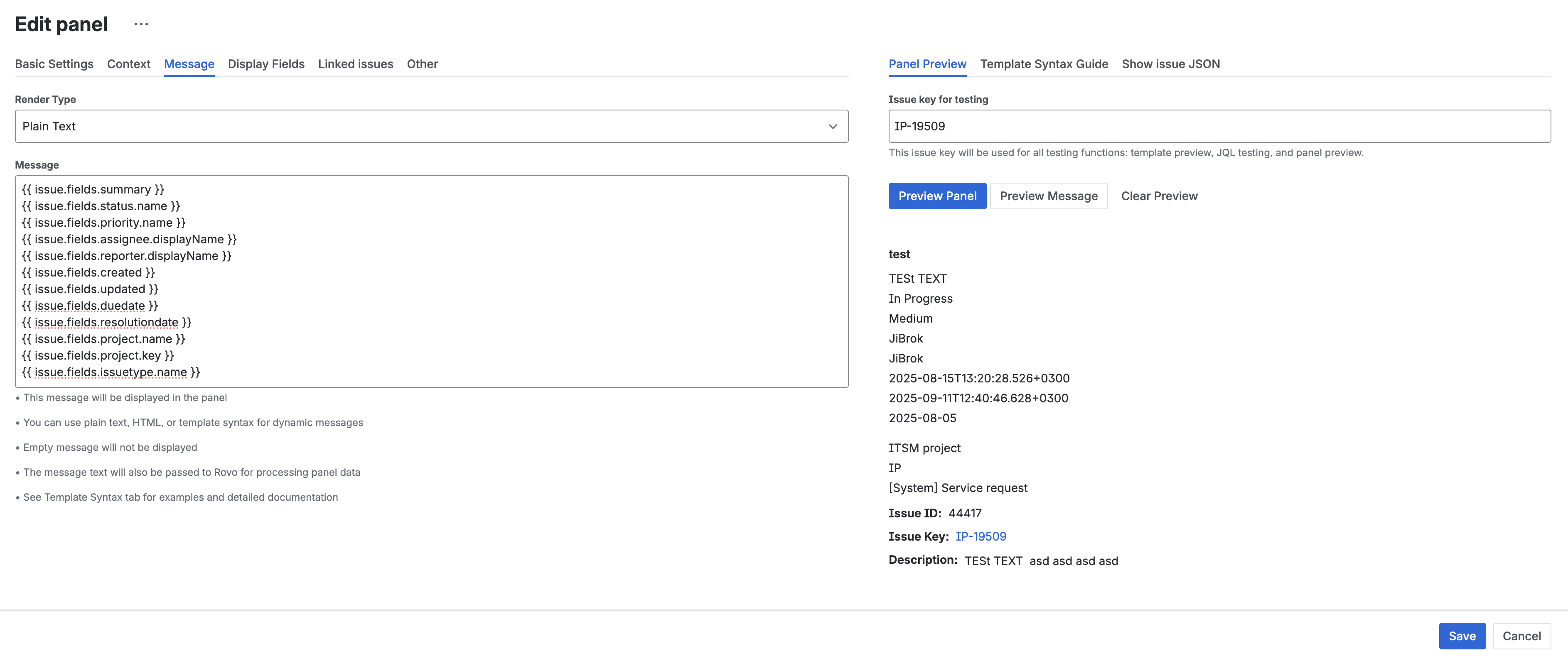
Test with real issue data:
- Enter an Issue key (e.g., PROJ-123)
- Click Preview Panel
- View rendered result
The preview shows exactly how the panel will appear on the issue, including:
- Applied templates with actual data
- JQL query results
- Message formatting and styling
JQL Parameter Preview
For panels using parametric JQL (JQL with template variables), use the Test JQL feature to verify the query resolves correctly.
How to test:
- Enter an Issue key in the preview field
- Click Test JQL
- The template variables are replaced with real values from the specified issue
- The resolved JQL is shown along with the number of matching issues
Example:
Your JQL template:
"Epic Link" = {{ issue.key }} AND status != Done
With issue key PROJ-100, resolves to:
"Epic Link" = PROJ-100 AND status != Done
The result shows how many issues match and whether the JQL is valid.
Tip: If the resolved JQL returns 0 results, verify the issue has the expected relationships or data.
Message Parameter Preview
Test how your message template renders with real issue data.
How to test:
- Enter an Issue key in the preview field
- Click Preview Panel
- Template variables are replaced with actual values from the issue
- The rendered message is displayed exactly as it would appear on the issue
This is especially useful for:
- Verifying conditional blocks (
{% if %}) show the correct branch - Checking date formatting and calculations
- Testing loop output with real linked issues data
- Validating HTML/Markdown rendering
Context Preview
The Test Context feature checks all filter conditions for a specific issue to determine whether a panel would be visible.
How to test:
- Enter an Issue key
- Click Test Context
- View results for each filter condition:
- Project filter - does the issue’s project match?
- Issue type filter - does the issue type match?
- Display JQL - does the issue match the JQL condition?
- User field filter - does the current user match?
- Portal/Request type filter (JSM) - do the portal settings match?
Each condition shows a pass/fail status, making it easy to identify which filter is preventing a panel from appearing.
Tip: If all conditions pass but the panel still doesn’t show, verify the display module is enabled in Module Settings.
Testing Display Conditions
Display conditions use template syntax to conditionally show or hide panels. To test them:
- Configure a Display Condition using template syntax (see Display Conditions)
- Enter a test Issue key in the preview
- Click Preview Panel - the preview respects display conditions
- If the condition evaluates to false, the preview shows that the panel would be hidden
Testing tips:
- Start with a simple condition and build up complexity
- Use the Issue JSON view to verify field values before writing conditions
- Test with multiple issues to verify both the “show” and “hide” cases
- Remember that display conditions fail open by default - if the template has an error, the panel shows
Testing JSM Portal Panels
JSM portal panels have additional considerations when testing:
- Portal filter - ensure the correct portal is selected in context filters
- Request type filter - verify the request type matches
- Customer vs Agent view - portal panels are visible to customers; test from the customer portal if possible
- Unlicensed access - JSM portal panels use
unlicensedAccess, so the viewer doesn’t need a Jira license
Tips for testing JSM panels:
- Use Preview Panel with a service desk issue key to test message rendering
- Verify the portal and request type filters match in Test Context
- Open the customer portal in a separate browser/incognito window to see the actual customer view
- For JSM Create modules, test by navigating to the request creation form in the portal
Display Fields Preview
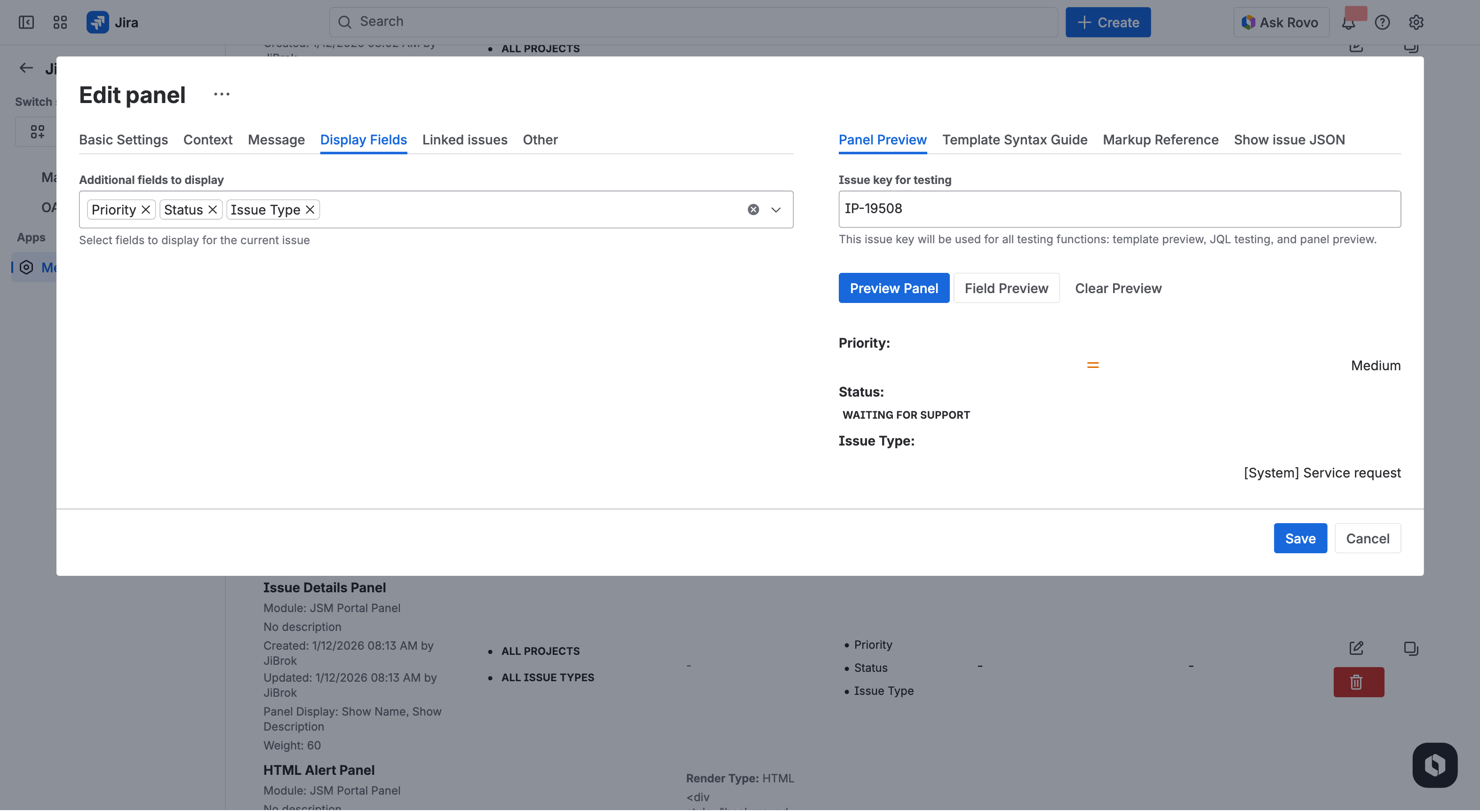
When configuring Display Fields (fields from the current issue shown above the table), you can preview how they render:
- Select the display fields you want to show
- Enter an Issue key in the preview
- Click Preview Panel
- The display fields appear above the issue table with real data
Show Issue JSON

View complete data structure:
- Enter issue key
- Click Download Issue Data
- Explore available fields
Useful for:
- Finding field IDs for templates
- Understanding data format
- Discovering available fields
- Debugging template expressions
Template Syntax Guide
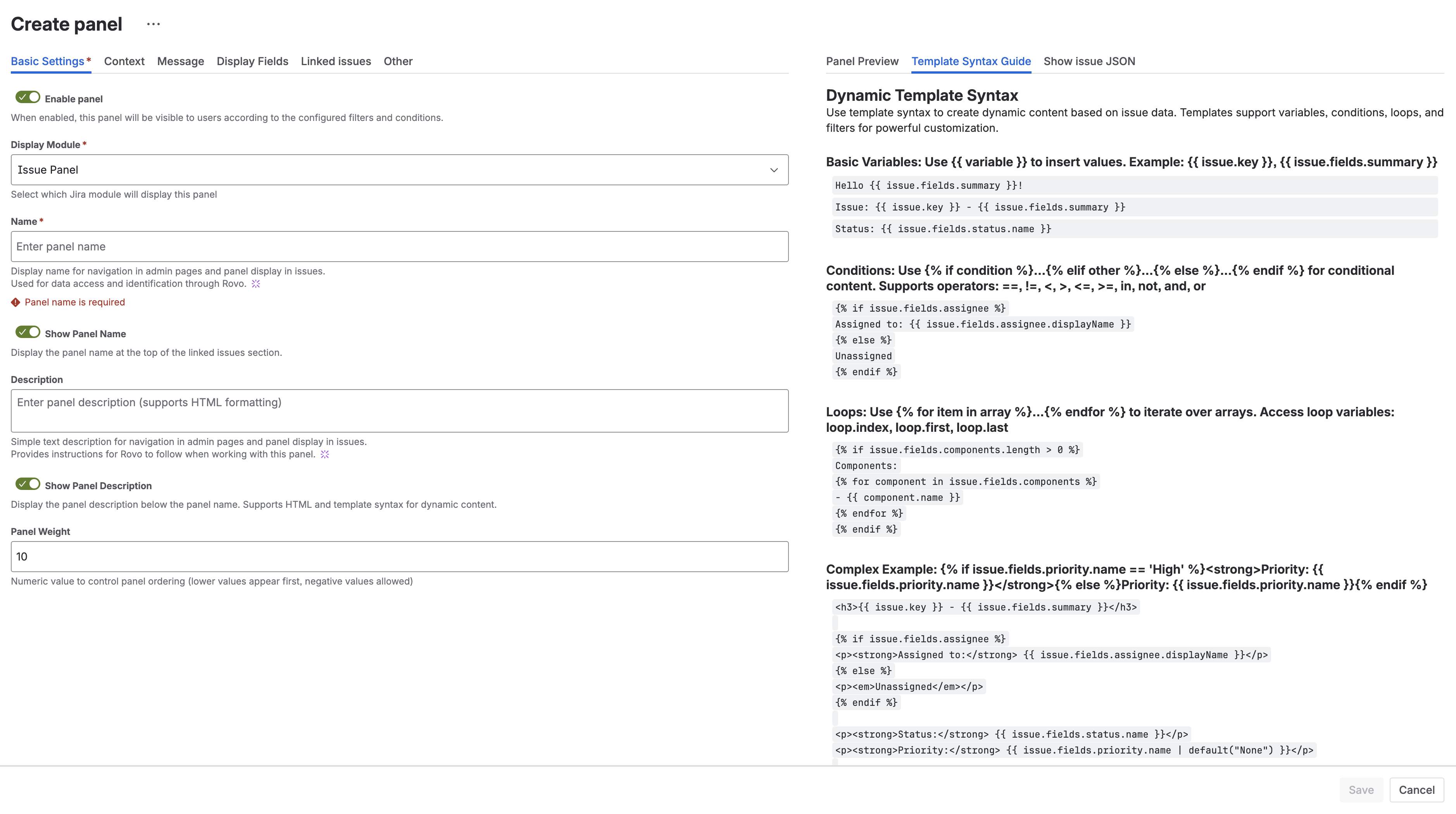
Quick reference panel with:
- Variable syntax
- Condition examples
- Loop patterns
- Filter functions
Access the syntax guide directly from the configuration editor for quick reference while building templates.
Common Errors
Template Syntax Errors
When a template has a syntax error, the panel displays an error message instead of the rendered content.
Common causes:
- Missing closing tags:
{% if ... %}without{% endif %} - Typo in variable name:
{{ isue.key }}instead of{{ issue.key }} - Invalid filter:
{{ value | nonexistentFilter }} - Unclosed string:
{% if status == "Open %}
How to fix:
- Check the error message - it typically includes the line number and description
- Use the Template Syntax Guide panel for correct syntax
- Start with a minimal template and add complexity incrementally
- Use Preview Panel after each change to catch errors early
JQL Errors
JQL errors appear when the query syntax is invalid or references nonexistent fields.
Common causes:
- Referencing a custom field that doesn’t exist:
"Custom Field Name" = value - Invalid JQL function:
status = inProgress()(not a valid function) - Parametric JQL where the template variable resolves to an empty value
How to fix:
- Test the JQL in Jira’s Issue Navigator first
- For parametric JQL, use Test JQL to see the resolved query
- Ensure custom field names match exactly (case-sensitive)
- Check that template variables have
| defaultfallbacks for potentially empty values
Display Condition Errors
Display conditions use the same template engine as messages. Errors in display conditions cause the condition to fail open - the panel shows regardless.
How to fix:
- Use Test Context to check the condition evaluation
- Verify the condition returns a truthy/falsy value
- Test the condition in the message template first to debug, then move it to the display condition field
Debugging Tips
Template Not Rendering
- Check template syntax - use the Syntax Guide panel
- Verify field names match the Issue JSON data
- Test with a simple template first:
{{ issue.key }}
Panel Not Appearing
- Verify configuration is Enabled
- Check Context Filters match the test issue
- Ensure the Display Module is enabled globally
- Test Display JQL condition separately in Issue Navigator
- Use Test Context to check all conditions at once
JQL Query Returns No Results
- Test the JQL in Issue Navigator first
- Use Test JQL to see the resolved parametric query
- Verify linked issues exist if using link-based queries
- Check that the executing user has permission to see the target issues
Next Steps
- Configuration Basics - Basic panel settings
- Bulk Operations - Export and import configurations
- Templates - Dynamic content syntax
- Context Filters - Control when panels appear
- FAQ - Common issues and troubleshooting



