 Message Field for Jira Cloud
- Overview
- Enabling JSM Modules
- JSM Portal Example
- Portal Request Detail Panel
- Portal Footer
- Portal Subheader
- Filtering by Request Type
- Portal Filtering
- JSM-Specific Templates
- Unlicensed Access
- Best Practices
- Troubleshooting
- Next Steps
Display information panels on the customer-facing Jira Service Management portal.
Overview
Message Field supports five JSM portal locations:
| Module | Location | Visibility |
|---|---|---|
| Portal Request Detail Panel | Request details page | Customers viewing requests |
| Portal Footer | Bottom of portal pages | All portal visitors |
| Portal Subheader | Below portal header | All portal visitors |
| Portal Subheader (Create) | Request creation form, below title | Users creating requests |
| Portal Footer (Create) | Request creation form, bottom | Users creating requests |
For Create modules, see JSM Create Modules.
Enabling JSM Modules
- Go to Apps → Message Field Settings
- Click Module Settings tab
- Enable JSM modules:
- JSM Portal Panel
- JSM Portal Footer
- JSM Portal Subheader
- Click Save
JSM Portal Example
Here’s how Message Field looks on the customer portal with multiple panels configured:
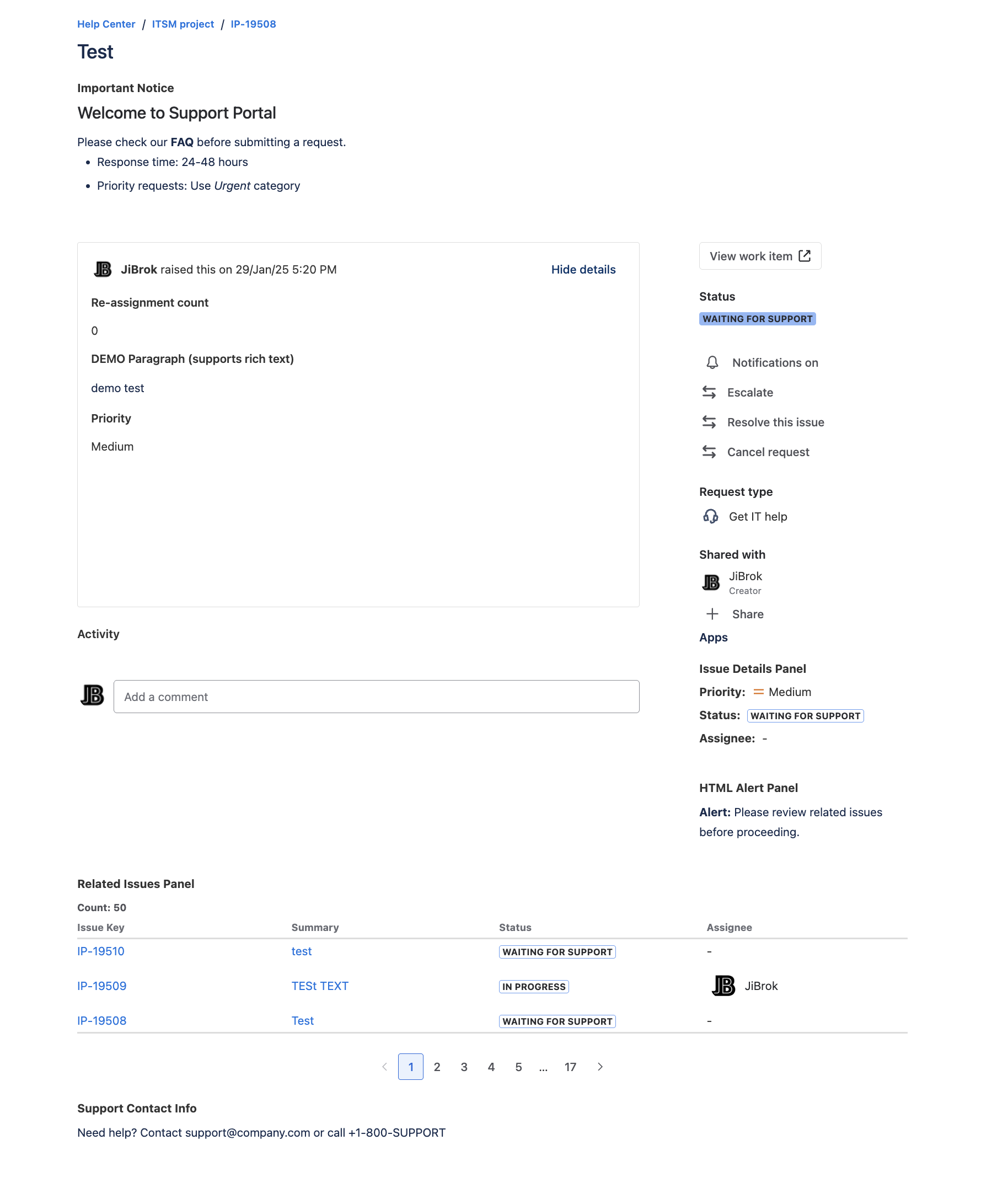
This example shows:
- Subheader with important notice
- Request Detail Panels in the sidebar (Issue Details Panel, HTML Alert Panel)
- Related Issues Panel with linked issues table
- Footer with support contact information
Portal Request Detail Panel
Displays on the request details page when customers view their requests.
Configuration
- Create new configuration
- Select JSM Portal Panel as Display Module
- Configure data source and message
- Set context filters (request types, projects)
- Save
Use Cases
Customer Instructions:
Thank you for your request!

We typically respond within {{ issue.fields.customfield_10001 | default("24") }} hours.

Please ensure you've provided:
- Detailed description of the issue
- Screenshots if applicable
- Contact information for follow-up
Related Articles:
<div style="padding: 12px; background: #F4F5F7; border-radius: 4px;">
  <strong>Helpful Resources:</strong>
  <ul>
    <li><a href="https://support.example.com/faq">FAQ</a></li>
    <li><a href="https://support.example.com/status">System Status</a></li>
  </ul>
</div>
Request Status Info:
**Current Status**: {{ issue.fields.status.name }}

{% if issue.fields.status.name == "Waiting for customer" %}
We need more information from you. Please check the comments and respond.
{% elif issue.fields.status.name == "In Progress" %}
Our team is working on your request.
{% elif issue.fields.status.name == "Resolved" %}
This request has been resolved. Please reopen if you need further assistance.
{% endif %}
Portal Footer
Displays at the bottom of all portal pages.
Configuration
- Create new configuration
- Select JSM Portal Footer as Display Module
- Add your footer content
- Save
Use Cases
Contact Information:
<div style="text-align: center; padding: 16px; color: #666;">
  <p>Need urgent help? Call us at <strong>1-800-SUPPORT</strong></p>
  <p>Business hours: Monday-Friday, 9AM-5PM EST</p>
</div>
Legal Links:
<div style="text-align: center; font-size: 12px; color: #999;">
  <a href="/privacy">Privacy Policy</a> |
  <a href="/terms">Terms of Service</a> |
  <a href="/contact">Contact Us</a>
</div>
Portal Subheader
Displays below the portal header, visible prominently on all pages.
Configuration
- Create new configuration
- Select JSM Portal Subheader as Display Module
- Add announcement content
- Save
Use Cases
Service Announcement:
<div style="padding: 12px; background: #FFFAE6; border-left: 4px solid #FF8B00; margin: 8px 0;">
  <strong>Scheduled Maintenance:</strong>
  Our systems will be offline on Saturday, March 15 from 2AM-6AM EST for upgrades.
</div>
Holiday Notice:
<div style="padding: 12px; background: #DEEBFF; border-left: 4px solid #0052CC;">
  <strong>Holiday Hours:</strong>
  Support will be limited December 24-26. Response times may be longer than usual.
</div>
Emergency Alert:
<div style="padding: 12px; background: #FFEBE6; border-left: 4px solid #DE350B;">
  <strong>Known Issue:</strong>
  We are experiencing elevated response times. Our team is working to resolve this.
  <a href="/status">View status page</a>
</div>
Filtering by Request Type
Show panels only for specific request types.
Configuration
- Edit your JSM panel configuration
- Go to Context tab
- Find Show only for request types
- Select request types from your service desks
Example
Filter for “IT Help” and “Hardware Request” → Panel only appears for those request types.
Portal Filtering
Restrict configurations to specific JSM customer portals.
How Portal Filtering Works
Portal filtering is the JSM equivalent of project filtering. It restricts which customer portals show the panel.
- Empty portals list: Shows on all portals (not allowed for Create modules)
- Selected portals: Shows only on selected portals
Configuration
- Edit your JSM configuration
- Go to Context tab
- Find Show only in portals
- Select one or more portals
Portals vs Projects
For JSM modules, use portals instead of projects:
| Filter | JSM Modules | Jira Modules |
|---|---|---|
| Projects | Ignored | Used for filtering |
| Portals | Used for filtering | Ignored |
JSM-Specific Templates
Request Type Information
{# Field ID varies by installation - use Download Issue Data to find yours #}
{% if issue.fields["Request Type"] %}
Request Type: {{ issue.fields["Request Type"].requestType.name }}
{% endif %}
SLA Status (if available)
{# SLA field ID varies by installation #}
{% set sla = issue.fields["Time to resolution"] %}
{% if sla %}
SLA Status: {{ sla.ongoingCycle.breached ? "Breached" : "On Track" }}
{% endif %}
Customer-Friendly Status
{% switch issue.fields.status.name %}
  {% case "Open" %}
    Your request has been received and is in our queue.
  {% case "In Progress" %}
    An agent is actively working on your request.
  {% case "Waiting for customer" %}
    We need additional information from you.
  {% case "Pending" %}
    Your request is waiting for internal approval.
  {% case "Resolved" %}
    Your request has been resolved.
  {% default %}
    Status: {{ issue.fields.status.name }}
{% endswitch %}
Unlicensed Access
JSM portal modules support unlicensed access, meaning customers viewing the portal don’t need a Jira license to see panel content. This is handled automatically by the app.
Actor Configuration for Portal Panels
When configuring panels that show JQL results or linked issue data on the portal, consider the Actor setting:
| Actor | Behavior | Best For |
|---|---|---|
| Viewing user | JQL runs as the portal customer - may have limited permissions | Simple messages without data queries |
| Application user | JQL runs as a service account with broader access | Portal panels that need to display issue data |
Tip: Use the Application user actor for JSM portal panels that need consistent data access regardless of who is viewing the request.
Best Practices
For Portal Panel
- Keep messages concise and customer-friendly
- Avoid technical jargon
- Provide actionable information
- Include self-service links when possible
For Footer
- Keep footer content minimal
- Include essential contact information
- Use consistent styling
For Subheader
- Use sparingly for important announcements
- Remove outdated announcements promptly
- Use appropriate colors for message severity
General
- Test how panels appear in the customer portal
- Consider mobile users
- Use HTML format for better styling control
Troubleshooting
Panel Not Showing on Portal
- Check that JSM module is enabled globally
- Verify the panel targets correct request types
- Ensure project filter includes JSM projects
- Log in as a customer to test visibility
Panel Shows for Wrong Requests
- Review request type filter
- Check project filter settings
- Verify Display JQL condition
Next Steps
- JSM Create Modules - Panels on request creation forms
- Context Filters - Filter by request types
- Message Formats - HTML formatting for portal
- Templates - Dynamic content syntax
- FAQ - JSM portal troubleshooting
- Permissions & Security - Portal access and permissions



