 JiBrok Studio for Jira Cloud
- Overview
- Code editor
- Autocomplete
- Running scripts
- Output and results
- Sandbox mode
- Run As (execution identity)
- Issue key context
- Syntax check
- Saving scripts
- Script engine reference
- Console tabs
- Variables popup
- Local draft
- Next steps
Overview
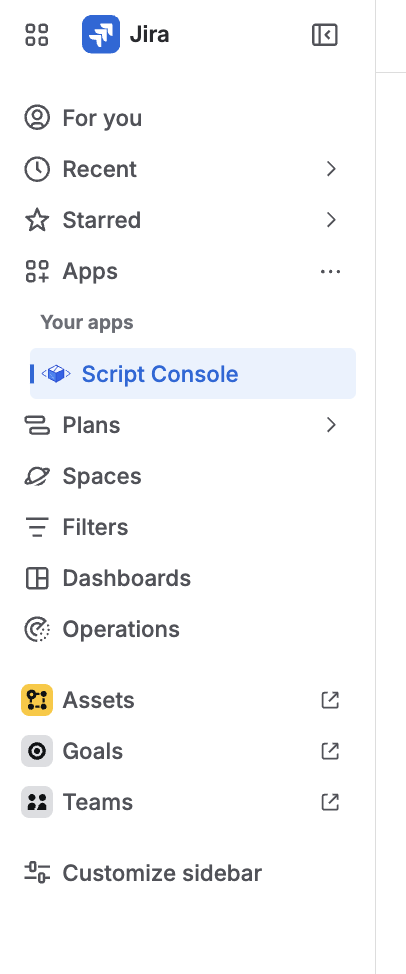
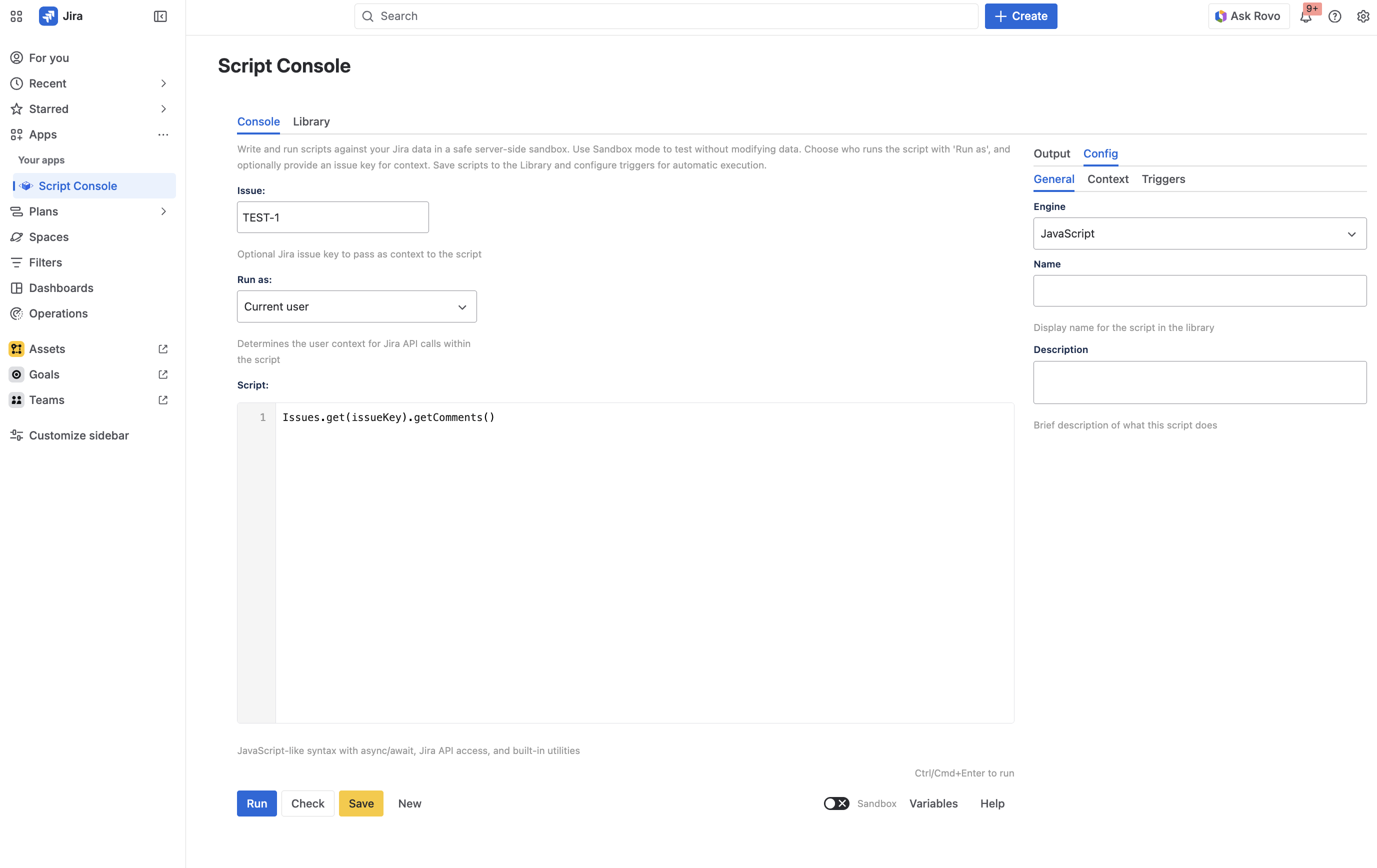
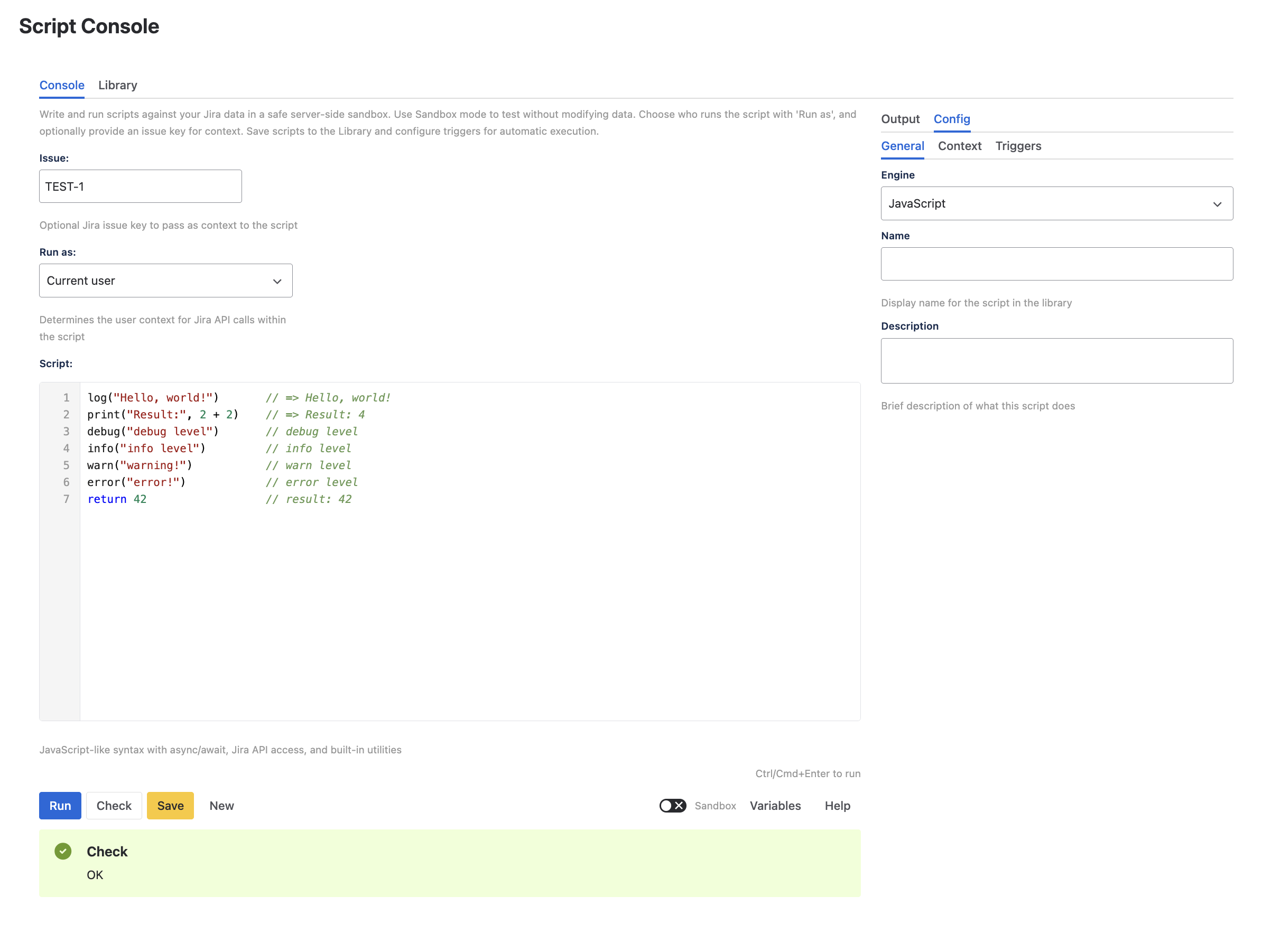
Use the Console to write and run scripts interactively. It provides a code editor with syntax highlighting, execution controls, output display, and configuration options.
Code editor
The editor supports:
- Syntax highlighting for the scripting language
- Script engine selection - choose between JavaScript (primary), Python, and Groovy engines. Jira Expressions are available exclusively with the Workflow Condition trigger
- Variables popup - insert available variable names into the editor
- Local draft auto-save - drafts are saved to browser localStorage automatically
Autocomplete
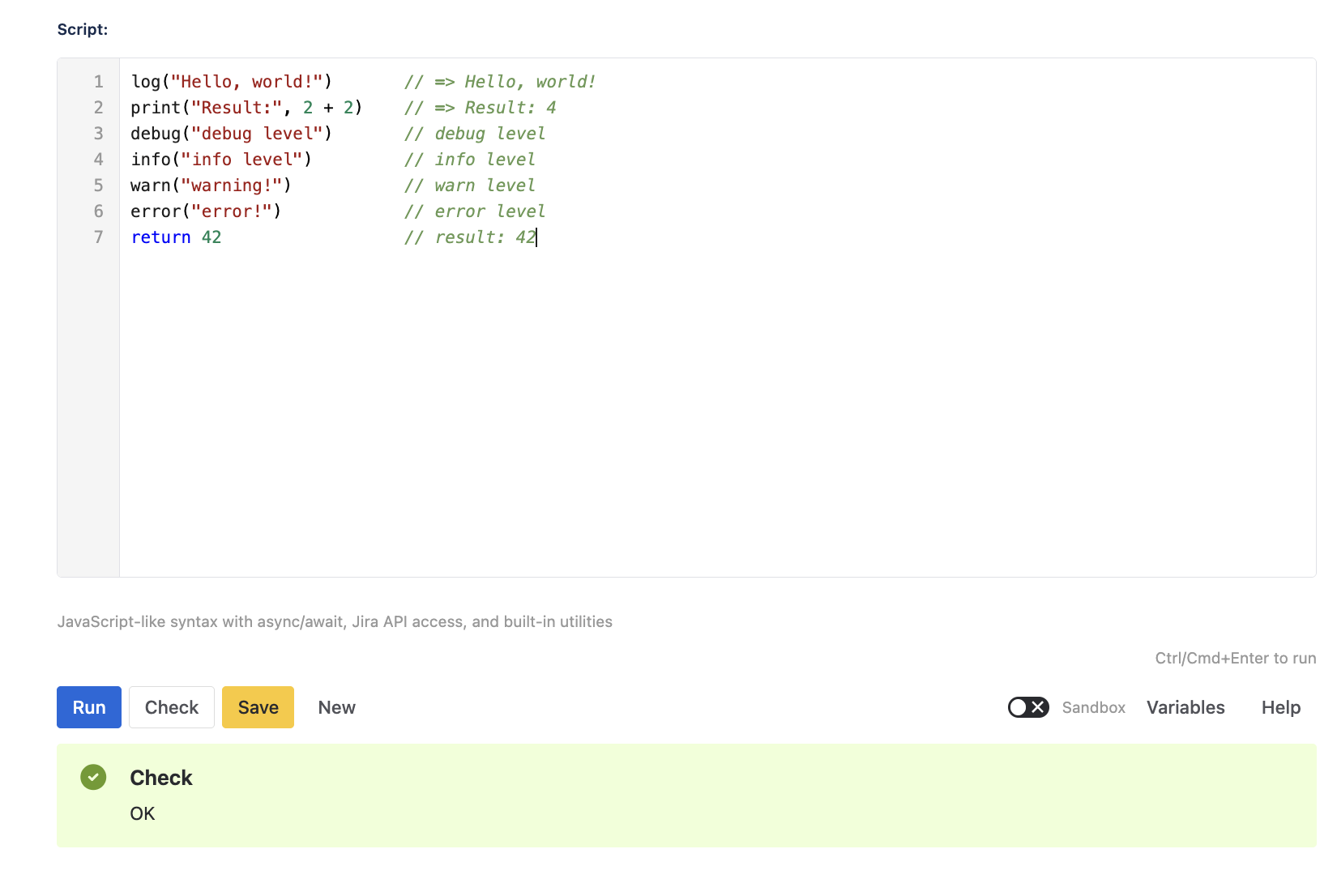
The editor provides context-aware autocomplete that works with all script engines (JavaScript, Python, Groovy):
- On-type suggestions - completions appear as you type, or press Ctrl+Space to trigger manually
- Dot completion - type
issue.to see available properties and methods for that object - Signature help - parameter hints appear when calling functions (e.g.,
Issues.search(shows expected arguments) - Return type awareness - the editor knows return types of API calls, so
Issues.get("PROJ-123").suggests RichIssue methods - Engine-specific - completions match the selected script engine, showing Python builtins/modules, Groovy classes/GDK methods, or JavaScript APIs accordingly
Running scripts
Click the Run button to execute the current script. During execution:
- The Run button shows a loading state
- Output appears in real-time in the Output tab
- The result is displayed when execution completes
- Errors are shown with descriptive messages
Keyboard shortcuts
Press Cmd+Enter (Mac) or Ctrl+Enter (Windows/Linux) to run scripts quickly without clicking the button.
Output and results
Log output
Scripts produce output through logging functions:
| Function | Level | Use for |
|---|---|---|
log() / print() |
log | General output |
debug() |
debug | Verbose debugging |
info() |
info | Status updates |
warn() |
warn | Warnings |
error() |
error | Error messages |
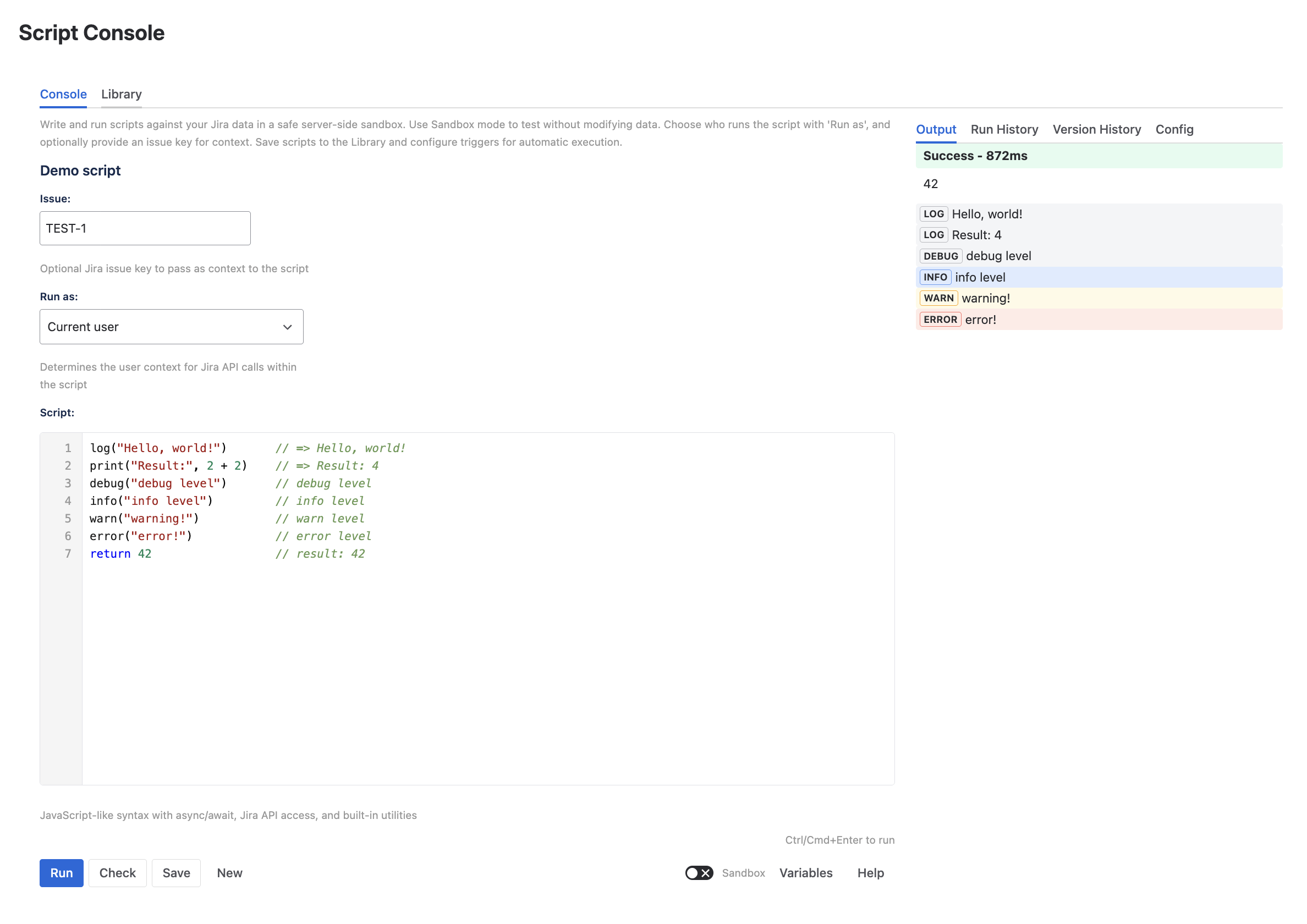
Each level has distinct styling in the output panel. Multiple arguments are joined with a space.
Script result
The result field shows either:
- The value of the last expression (implicit return)
- The value passed to
return(explicit return)
Complex objects are displayed as formatted JSON.
Execution metadata
After each run, the console shows:
- Duration - total script execution time
- Result - the value of the last expression or explicit
return - Log output - messages from
log(),debug(),info(),warn(),error()
Sandbox mode
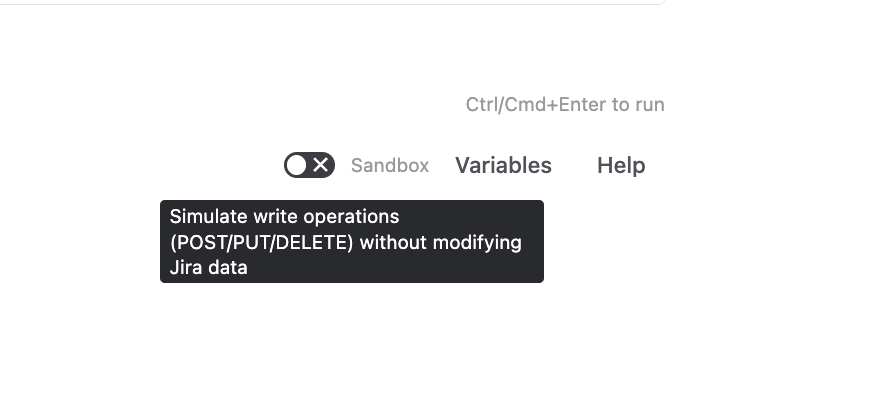
Toggle Sandbox Mode to simulate write operations without modifying Jira data.
When sandbox mode is active:
- Read operations (GET requests) execute normally
- Write operations (POST, PUT, DELETE) are simulated
- A banner shows the count of simulated requests
- Script output still reflects the simulated results
This is useful for testing bulk update scripts before running them for real, verifying script logic without side effects, and debugging write operations safely.
Run As (execution identity)
The Run As dropdown controls which identity the script uses when making Jira API calls.
| Mode | Description |
|---|---|
| Current User | Script runs with your permissions (default) |
| Application | Script runs with app-level permissions (if enabled by admin) |
| Pre-configured User | Select from admin-defined user list (if configured) |
| Specific User | Search for any Jira user (if enabled by admin) |
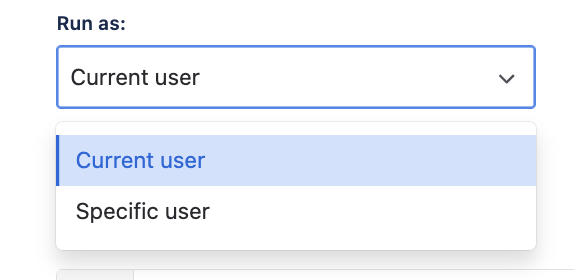
Note: Available modes are controlled by the site administrator in Administration. If a mode is disabled after being selected, a warning is shown.
Issue key context
The Issue Key field (e.g., PROJ-123) provides context to your script:
- The
issueKeyvariable is set to the entered value - The
issuevariable is automatically initialized with the issue data (fields, status, summary, etc.) - Leave empty if your script doesn’t need issue context
// Both issueKey and issue are available when an issue key is entered
log("Working with:", issueKey)
log("Summary:", issue.summary)
log("Status:", issue.status)
Syntax check
Click the Check button to validate your script without executing it. This catches:
- Syntax errors (missing brackets, invalid tokens)
- Script complexity violations
- Input size violations
Check is faster than Run because it only parses the script without executing it.
Saving scripts
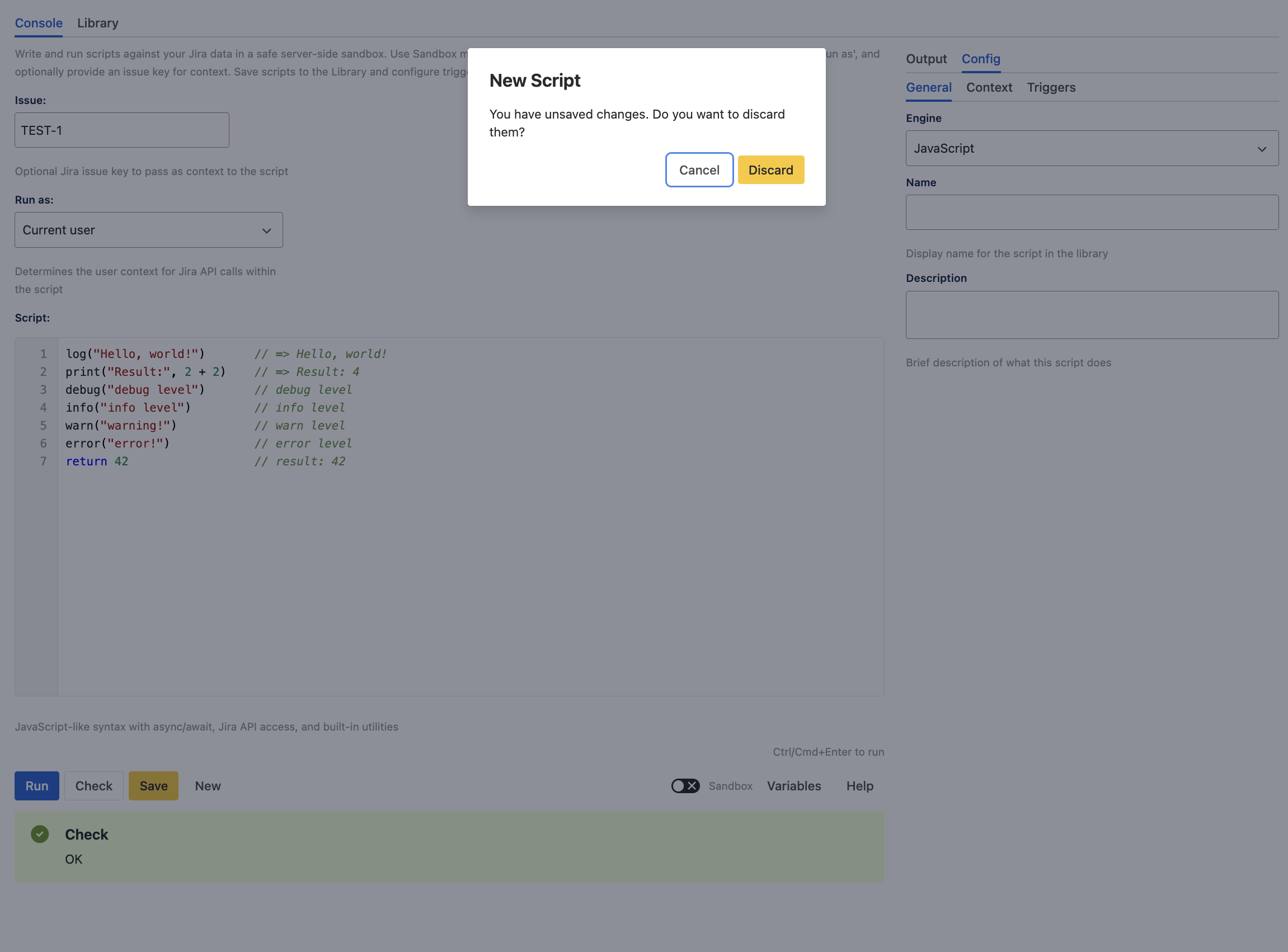
Click the Save button to save the script to the Library. If the script has unsaved changes, the Save button is highlighted.
New scripts
When saving a new script, you will be prompted to set a name in the Config tab first.
Existing scripts
When saving an existing script, a dialog appears where you can add an optional version note (up to 2,000 characters) describing the changes. Each save creates a new version entry in the Version History.
Validation on save
Before saving, the script is automatically checked for syntax errors. If issues are found, a warning is shown - you can still save the script, but it may not execute correctly.
Script engine reference
Click the Help button in the toolbar to open the Script Engine Reference - a built-in, searchable reference panel with examples for all script engines.
See Script Engine Reference for a detailed overview of all categories and engine-specific content.
Console tabs
Output
Shows the execution output - log messages and the script result. Cleared on each new run.
History
Session-level history of recent executions. Each entry shows timestamp, script preview, execution status (success/error), and result preview. Click an entry to view full details.
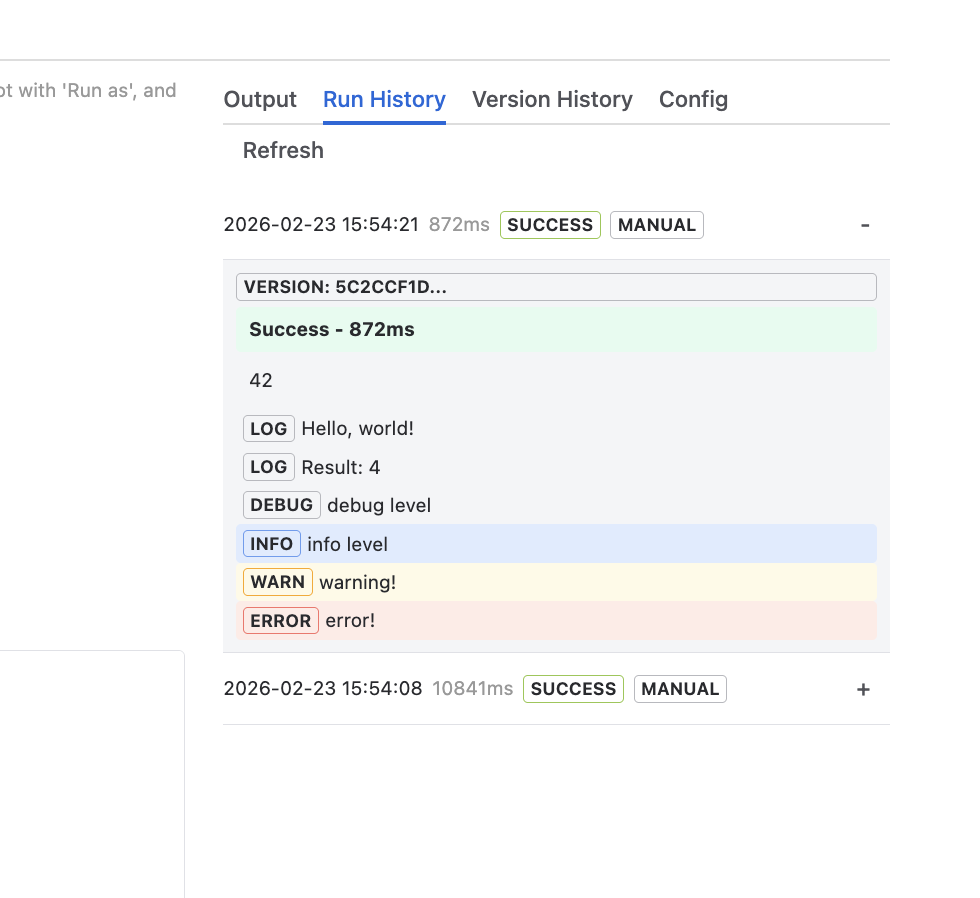
Run history
Persistent execution history across all sessions:
- Date and time
- Duration
- Status (success/error)
- Trigger type (console, scheduled, event, etc.)
- Issue key (if provided)
Version history
All saved versions of the current script:
- Date and author
- Change description
- Diff view between versions
- Restore to any previous version (up to 50 versions; restoring creates a new version entry)
Config
Script metadata and configuration:
- Name, description, enabled status
- Engine selection
- Labels and folder
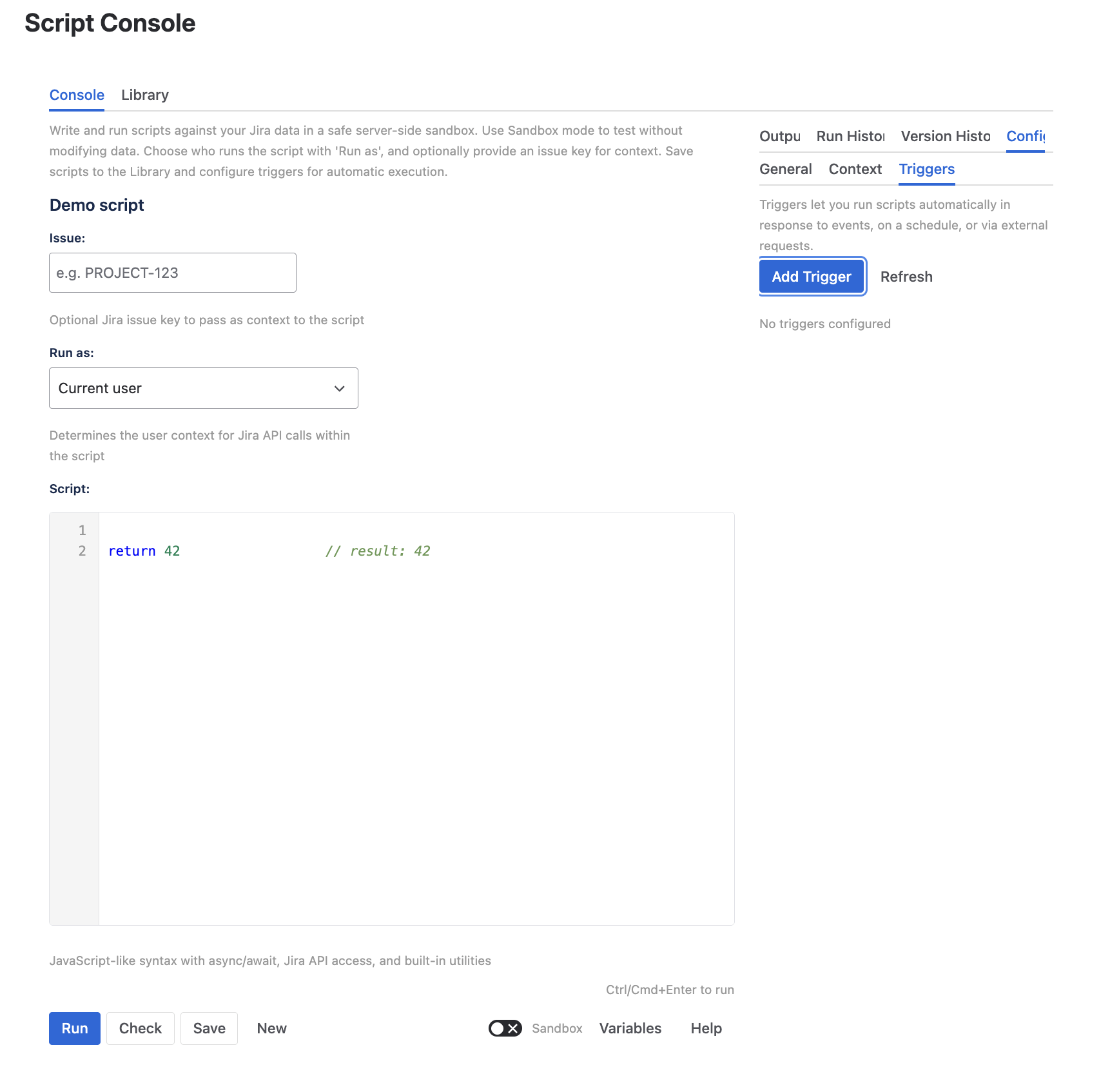
- Trigger configuration
- Context restrictions (projects, issue types)
- API restrictions (whitelist/blacklist profiles)
- Execution identity (Run As)
Variables popup
The Variables button in the editor toolbar opens a popup showing all available variables grouped by section:
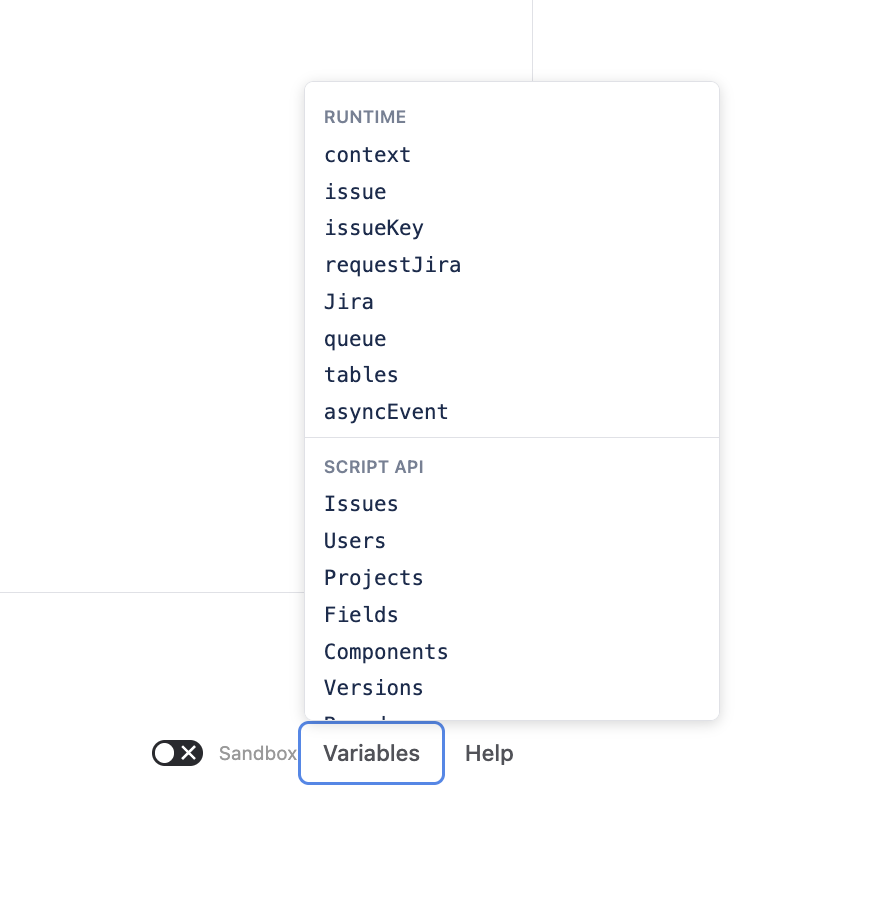
| Section | Description | Examples |
|---|---|---|
| Runtime | Core runtime variables and API objects | context, issue, requestJira, Jira, queue, tables, asyncEvent |
| Script API | High-level API namespaces | Issues, Users, Projects, Fields, Components, Versions, Boards, Sprints, DateUtils, CSV |
| Trigger Variables | Variables injected based on configured triggers | event (event triggers), uim/uimData (UIM triggers) |
| Global Variables | Variables from the global variables script | Loaded dynamically from server |
- Trigger Variables are shown only when the script has relevant triggers configured
- Global Variables are fetched dynamically when the popup opens
- Clicking a variable inserts its name at the cursor position
- Each variable shows a tooltip with a brief description
Local draft
When working in draft mode (no saved script open), the Console automatically saves your work to the browser’s localStorage.
Saved fields:
- Script source code (debounced 500ms)
- Issue key
- Actor (Run As setting)
- Sandbox mode toggle
- Script engine language
Behavior:
- Restored automatically when you return to the Console
- Cleared when you save the script to the Library
- Not synchronized between devices or browsers
Next steps
- Script Library - Manage saved scripts
- Triggers - Automate script execution
- Administration - Configure Run As modes and security
- Scripting Language - Language reference
- Script Engine Reference - Built-in reference panel



