 JiBrok Studio for Jira Cloud
- Overview
- Setup
- Action inputs
- Output smart values
- Example automation rule
- Run Script (List) action
- Important notes
- Next steps
Overview
JiBrok Studio integrates with Jira Automation as a custom action. You can add the “Run JiBrok Studio Script” action to any automation rule to execute a script from your library.
Scripts run with the configured actor (defaults to Application). This makes them ideal for system-level automations that don’t depend on a specific user’s permissions.
Setup
1. Enable the Automation Trigger Type
In the Administration panel, ensure the Automation trigger type is enabled globally.
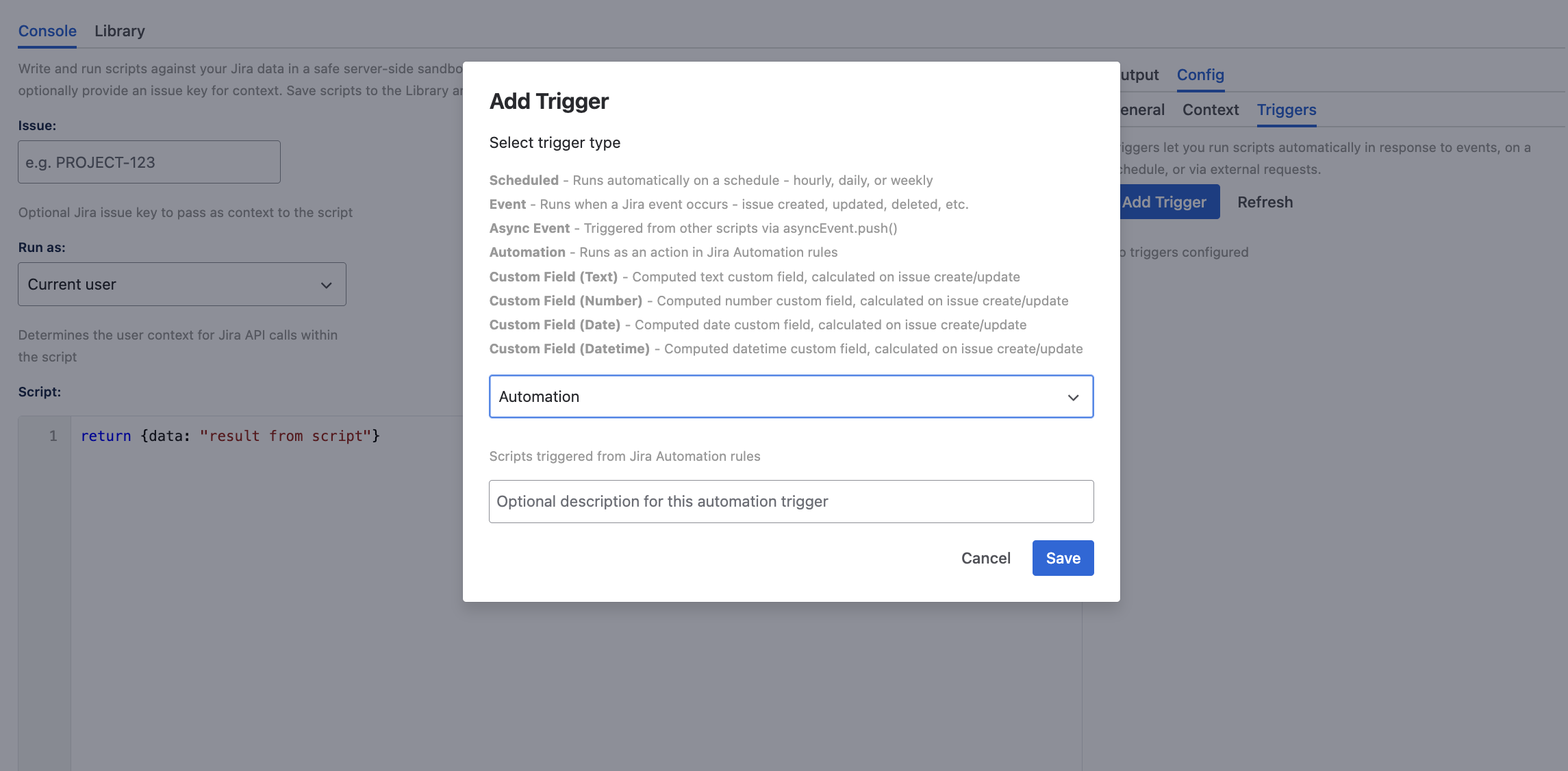
2. Add an Automation Trigger to a Script
- Open a script in the Console
- Go to the Config tab
- Click Add Trigger and select Automation
- Save the script
The script must be enabled and have an enabled Automation trigger to be available in Jira Automation.
3. Create an Automation Rule
- In Jira, go to Project Settings > Automation (or global automation)
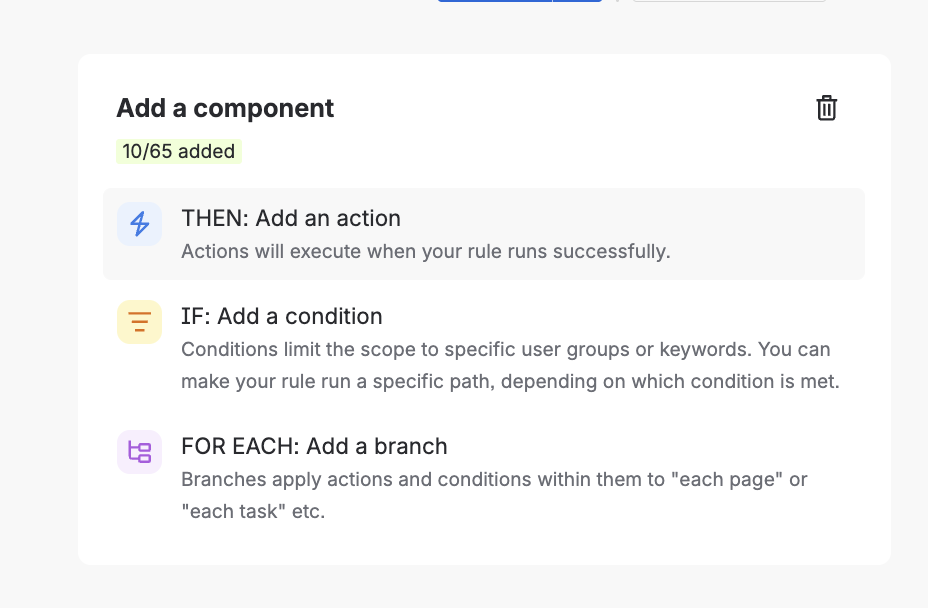
- Create or edit a rule
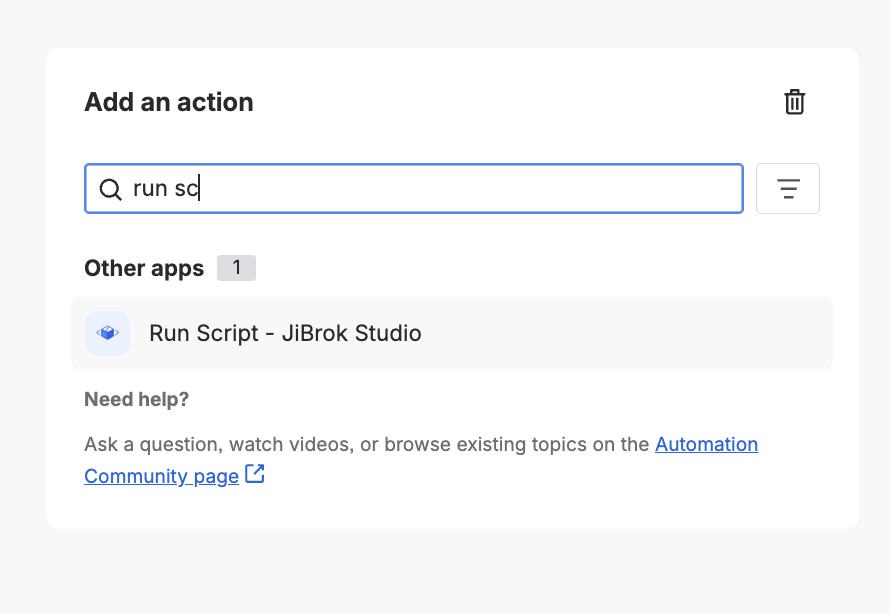
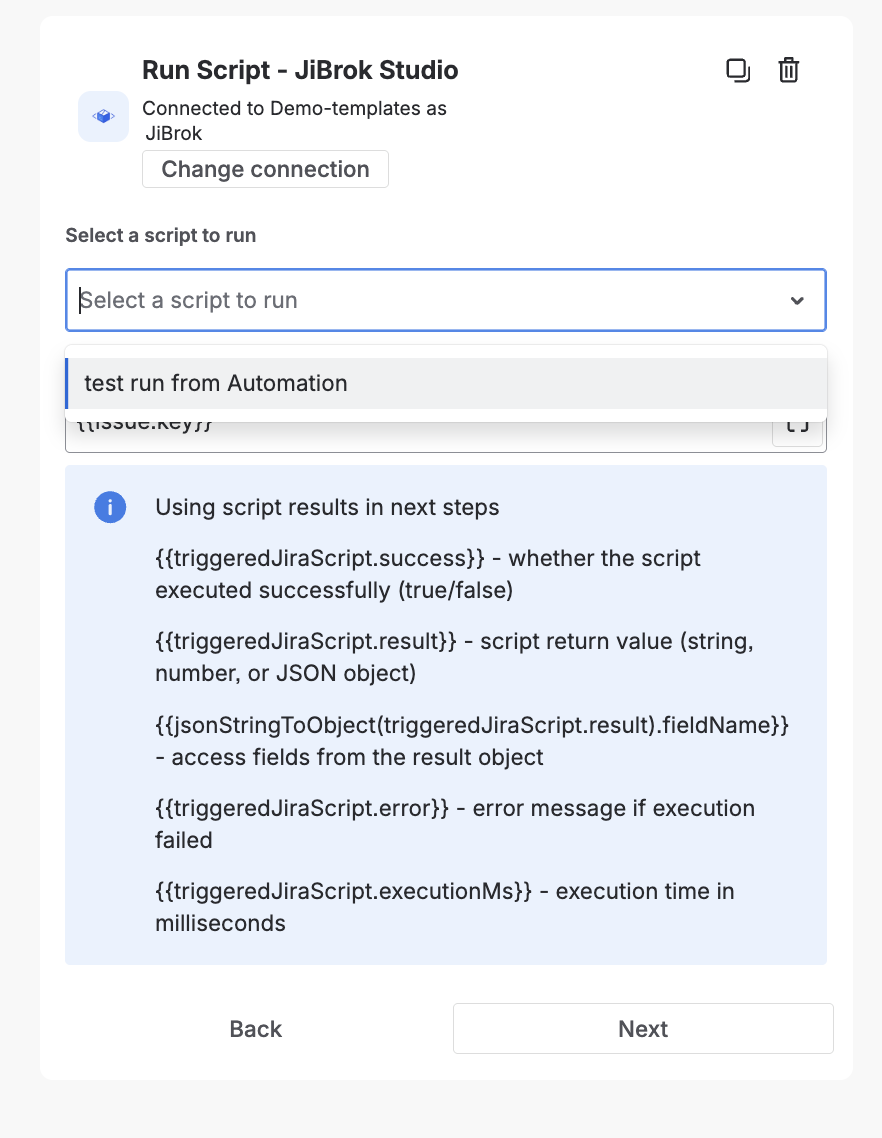
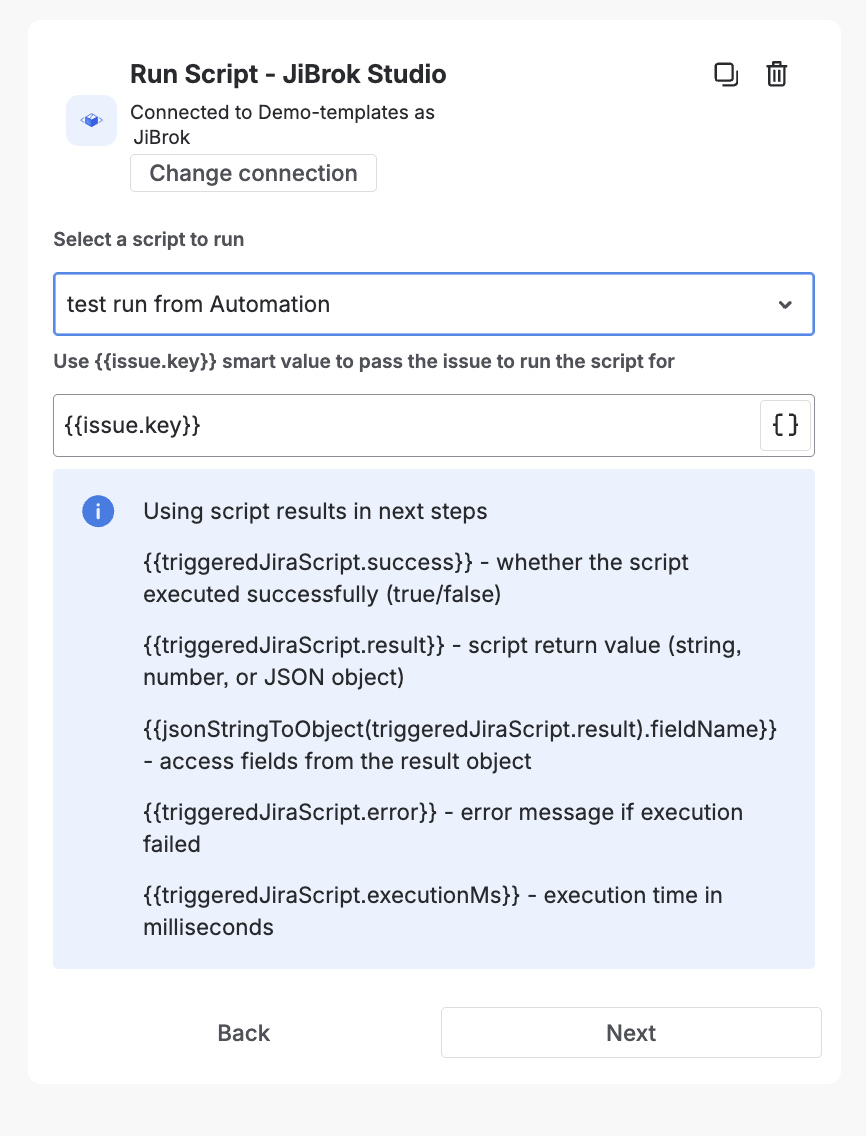
- Add the action “Run Script - JiBrok Studio”
- Configure the inputs (see below)
Action inputs
| Input | Required | Description |
|---|---|---|
| Script | Yes | The script to execute (selected by script ID) |
| Issue Key | No | The issue key to pass to the script. Use {{issue.key}} smart value to pass the triggering issue |
| Action Input | No | Additional data passed to the script as params.actionInput. Supports smart values - use it to pass custom strings, JSON, or any value from earlier rule components |
Inside the script, read the Action Input via params.actionInput:
// Passed via Action Input: {{issue.summary}} - {{now}}
log("Received:", params.actionInput)
Output smart values
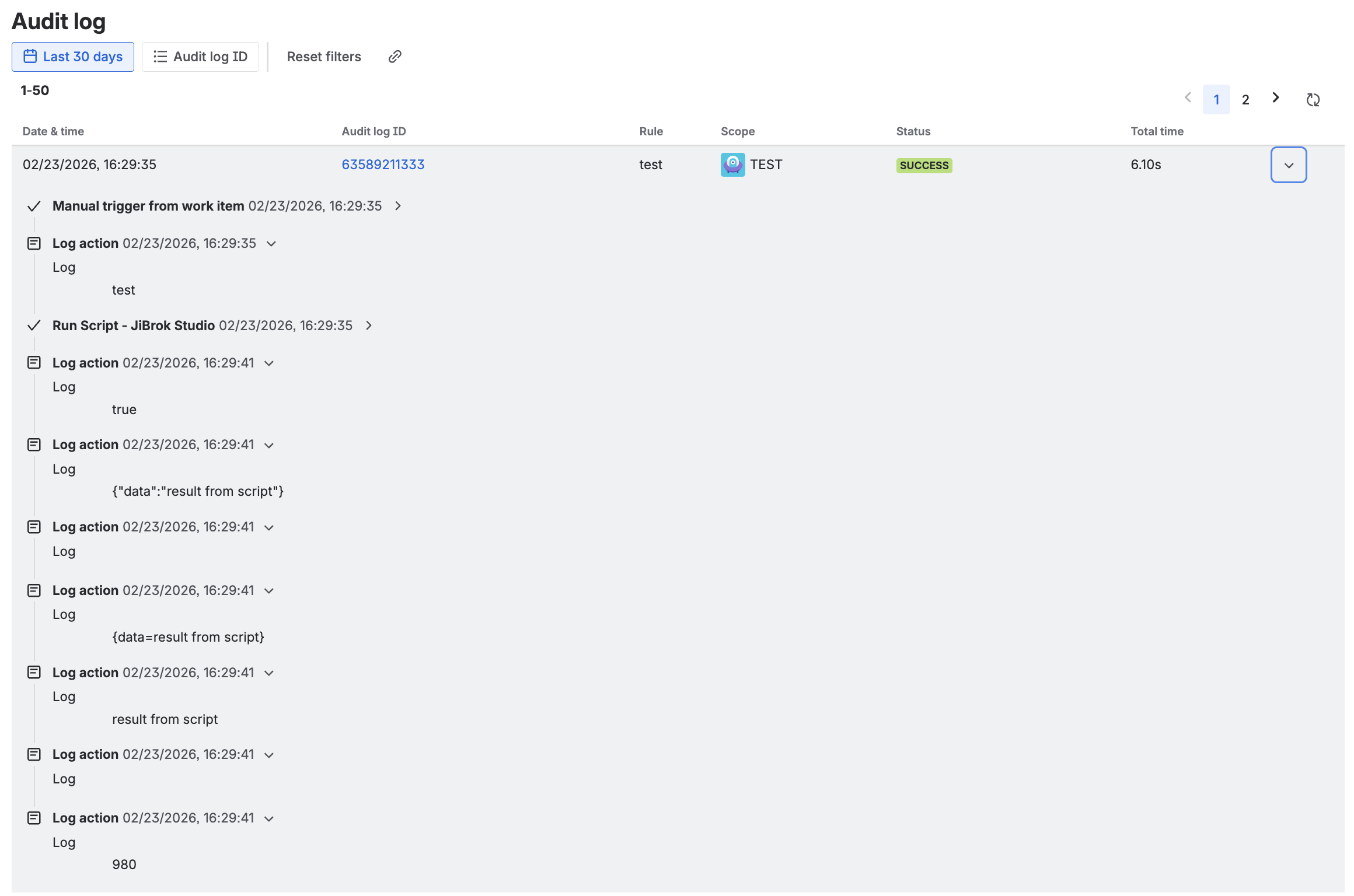
The action produces smart values available to subsequent rule components:
| Smart value | Type | Description |
|---|---|---|
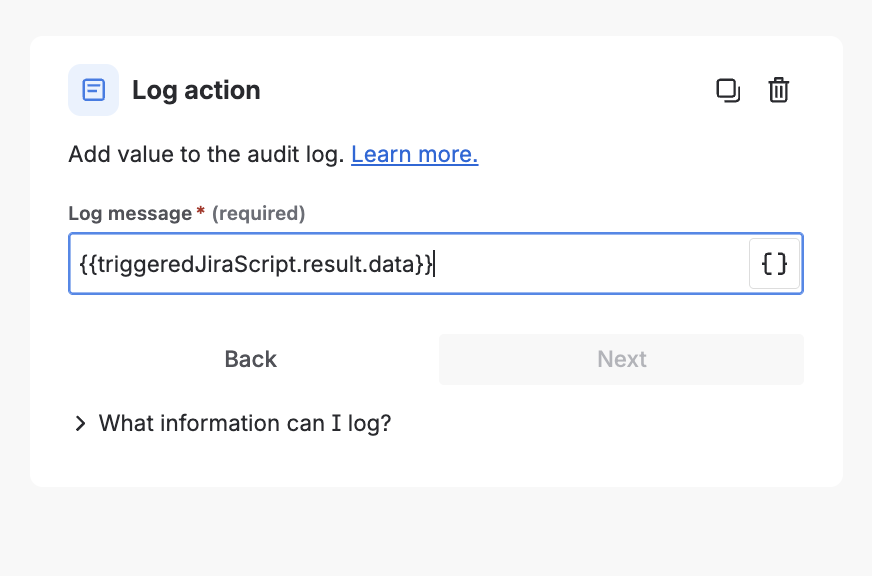
{{triggeredJiraScript.success}} |
boolean | Whether the script executed successfully |
{{triggeredJiraScript.result}} |
string | Script return value (string, number, or JSON object) |
{{triggeredJiraScript.error}} |
string | Error message if script execution failed |
{{triggeredJiraScript.executionMs}} |
integer | Script execution time in milliseconds |
Accessing fields from a JSON result
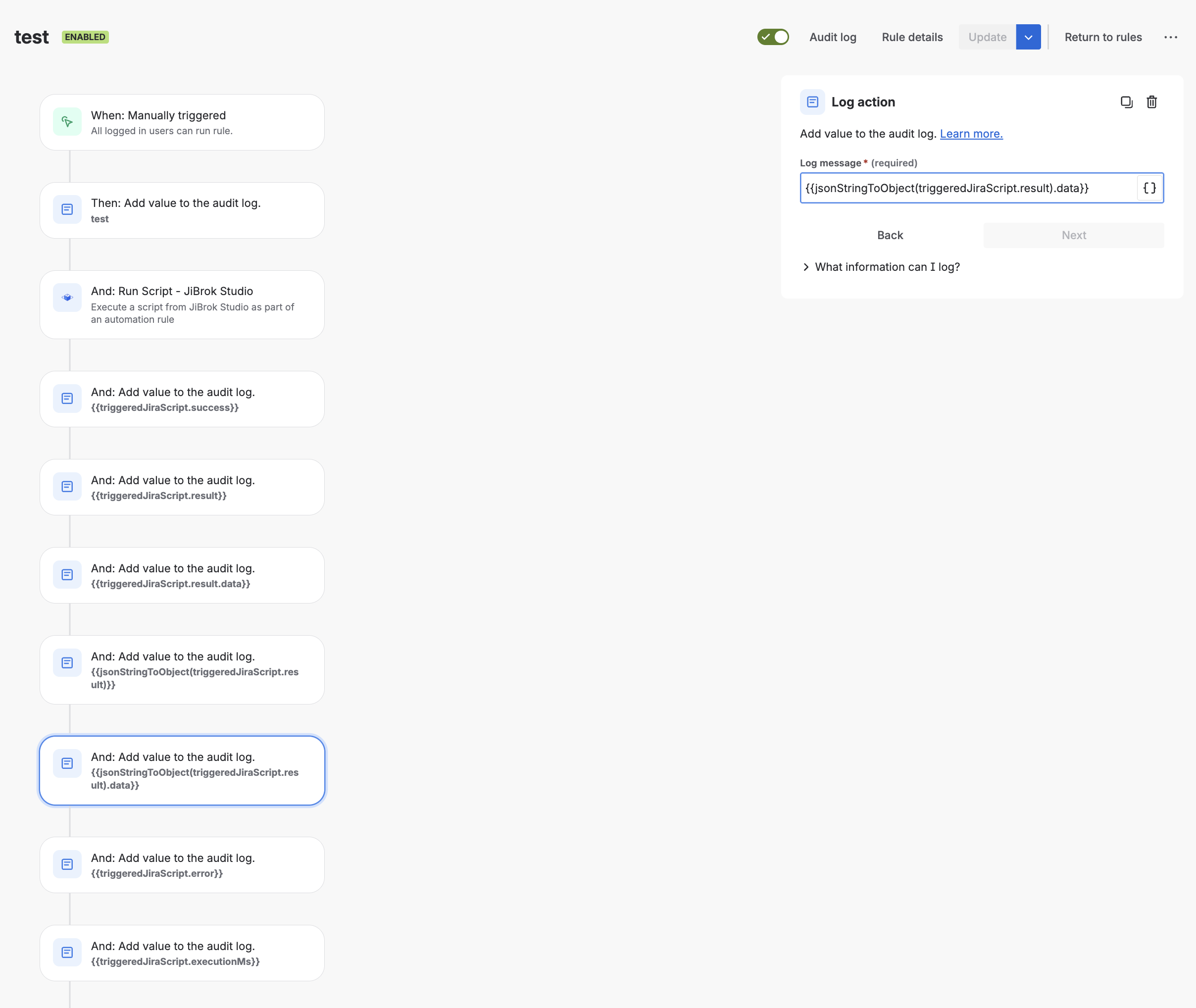
If your script returns an object (e.g. return { status: "done", count: 5 }), the result is delivered as a JSON string. Use jsonStringToObject() to parse it and access individual fields:
{{jsonStringToObject(triggeredJiraScript.result)}}- the parsed object{{jsonStringToObject(triggeredJiraScript.result).status}}- access a specific field{{jsonStringToObject(triggeredJiraScript.result).count}}- access another field
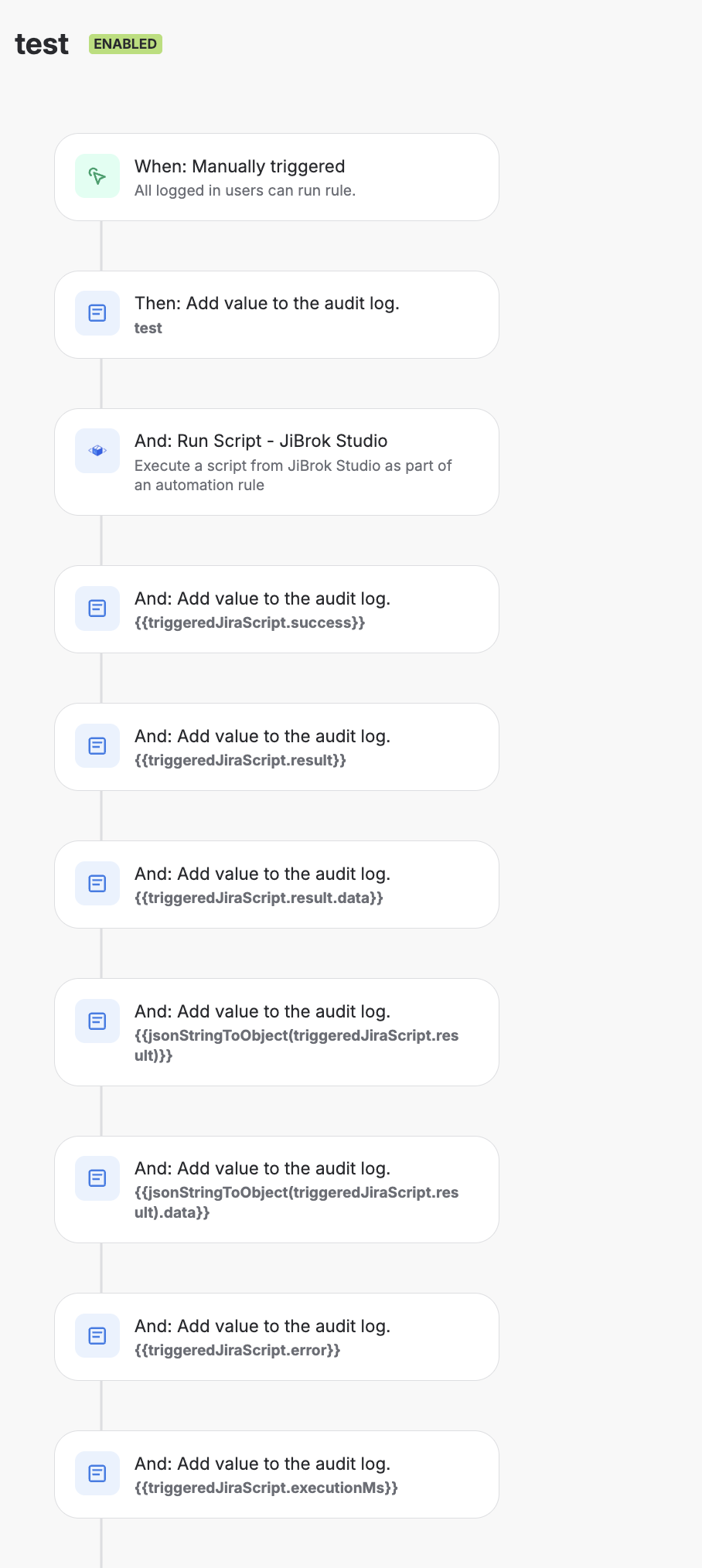
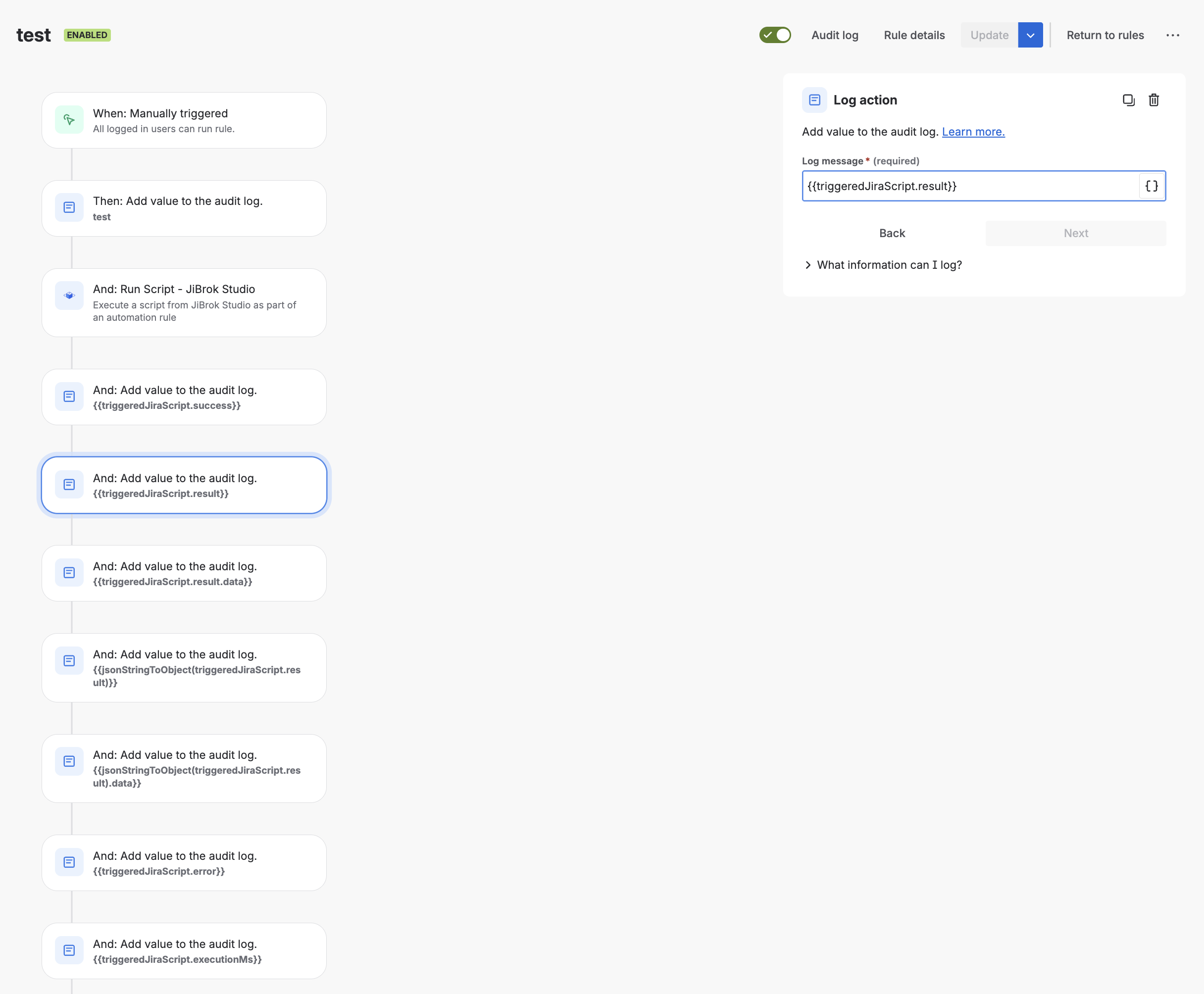
Example automation rule
Scenario: When a high-priority issue is created, run a script that assigns a reviewer and posts a Slack-style comment.
- Trigger: Issue created
- Condition: Priority = Highest or High
- Action: Run Script - JiBrok Studio
- Script: “Auto-assign reviewer”
- Issue Key:
{{issue.key}}
- Condition:
{{triggeredJiraScript.success}}equalstrue - Action: Log or send notification with
{{triggeredJiraScript.result}}
Run Script (List) action
In addition to Run Script - JiBrok Studio, the app also provides Run Script (List) - JiBrok Studio - a variant that iterates over an array returned by the script and runs subsequent rule branches once per element.
Use it when a script computes a list of items and you want the rest of the automation rule (send email, add comment, create sub-task, etc.) to execute for each item.
How it works
- The script must
returnan array - each array element becomes one iteration. - Inside the following rule branches, each element is exposed via the list smart values.
- Primitive elements (strings, numbers) are stringified; object elements are serialized to JSON.
Action inputs
| Input | Required | Description |
|---|---|---|
| Script | Yes | The script to execute - must return an array |
| Issue Key | No | Issue key to pass to the script. Use `` smart value |
| Action Input | No | Same as for the single-script action - forwarded to params.actionInput. Supports smart values |
List smart values
| Smart value | Type | Description |
|---|---|---|
value |
string | String representation of the list item (JSON if element is an object) |
index |
integer | Zero-based index of the item in the array |
Example
// Script: return a list of overdue issue keys
return Issues.search('duedate < now() AND resolution is EMPTY')
  .map(i => i.key)
Then in the automation rule:
- Action: Run Script (List) - JiBrok Studio -> the script above
- Following branches run once per returned key, with the key available as a list smart value
Important notes
- Scripts run with the configured actor (defaults to Application) - see the script’s Config tab to change the execution identity
- The script must have an enabled Automation trigger - otherwise the action will fail
- The Automation trigger type must be enabled in Administration
- Standard execution limits apply
Next steps
- Triggers - All trigger types
- Administration - Enable/disable Automation trigger type
- Scripting Language - Language and API reference
- Limits - Execution limits



