 JiBrok Studio for Jira Cloud
Overview
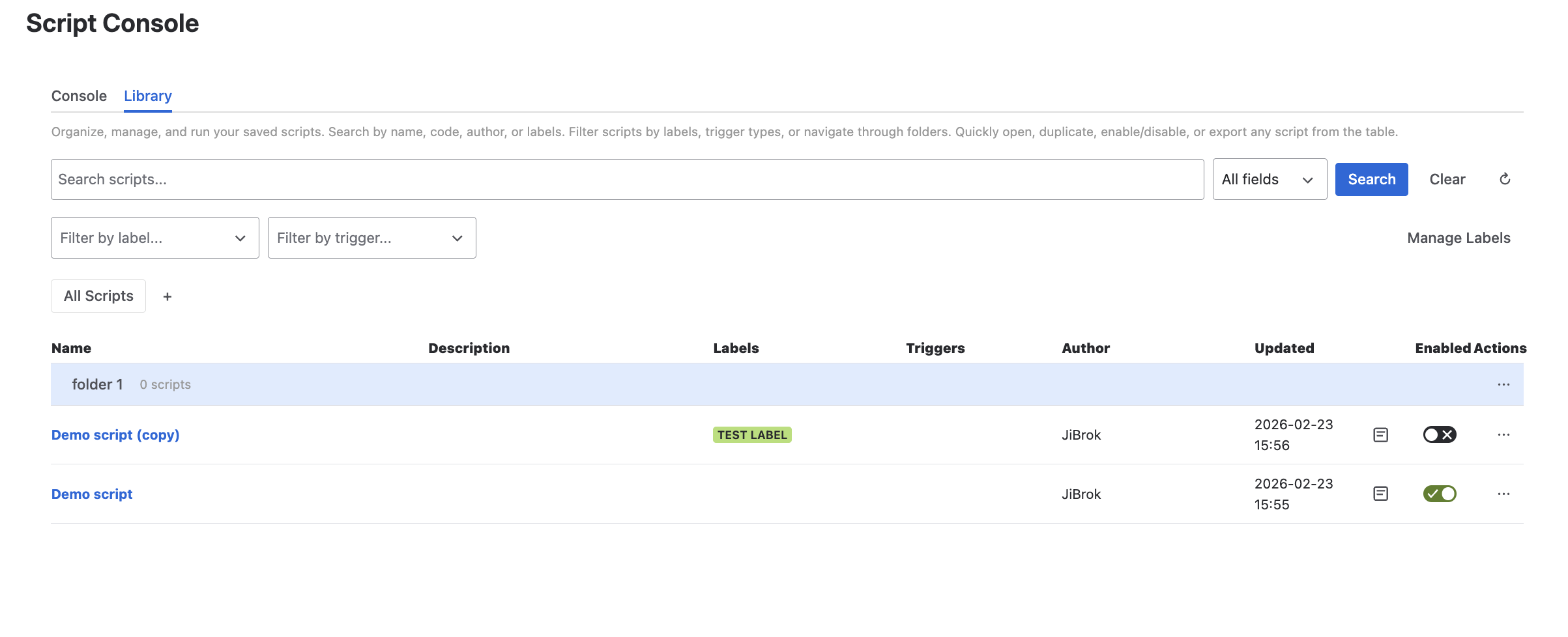
Manage all your saved scripts from the Library. It provides a table view with search, filtering, folder navigation, labels, and version history.
Script list
The Library displays all saved scripts in a table:
| Column | Description |
|---|---|
| Name | Script name (clickable to open) |
| Preview | First lines of script source code |
| Created | Creation date |
| Updated | Last modification date |
| Author | Who created or last edited the script |
| Enabled | On/off toggle |
| Labels | Assigned label tags |
| Triggers | Configured trigger types |
Search and filtering
Search
Search across multiple fields:
- Script name
- Script source code
- Author name
- Label names
Results are highlighted to show which criteria matched.
Filtering
- By labels - select one or more labels to filter
- By trigger type - show only scripts with specific triggers
- By folder - navigate into folders via breadcrumb navigation
Folders
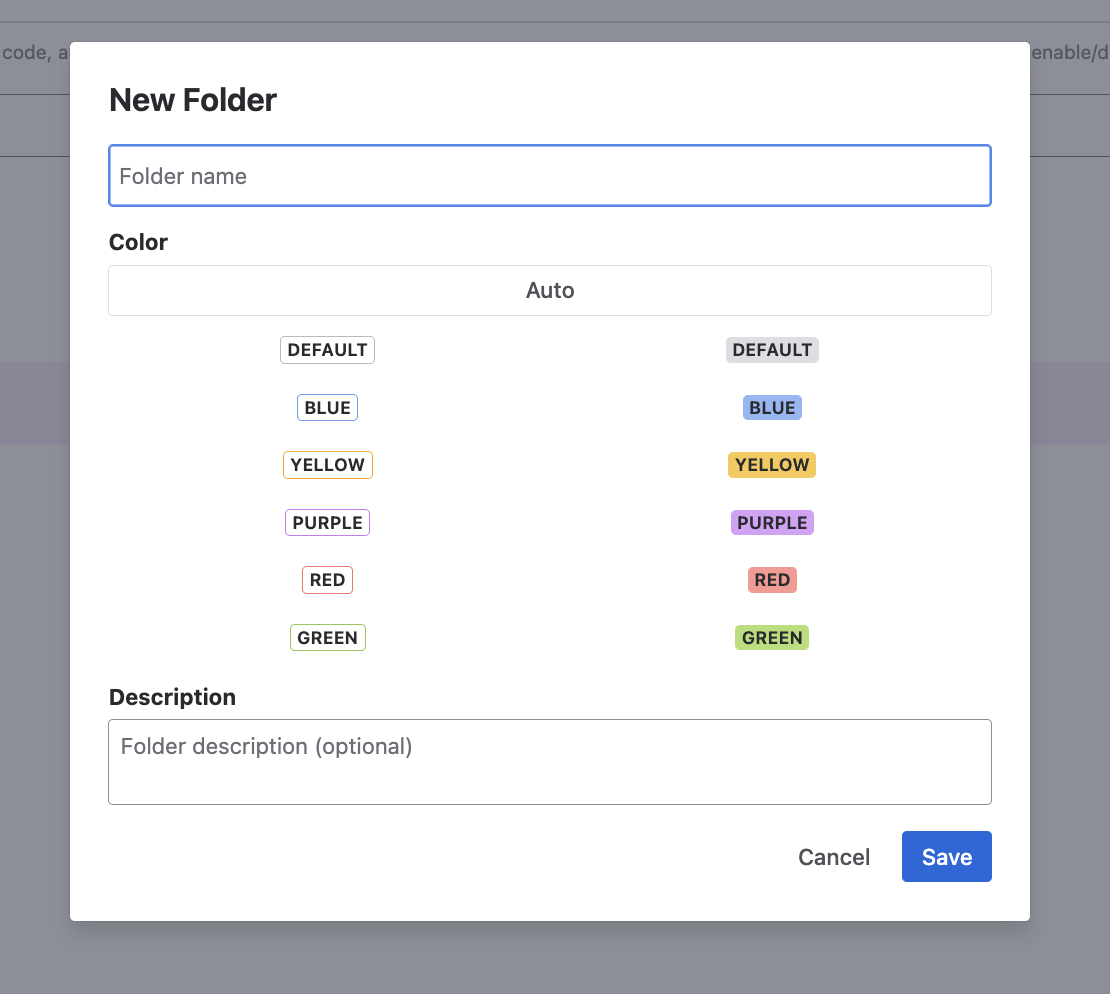
Folders provide a hierarchical structure for organizing scripts.
Creating folders
- In the Library, click Create Folder
- Enter a folder name
- Choose a parent folder (or leave at root)
Navigation
- Use the breadcrumb bar to navigate the folder hierarchy
- Click folder names to enter them
- “All Scripts” returns to the root
Moving scripts
Drag scripts between folders or use the script’s Config tab to set the folder.
Names must be unique within the same parent folder. When deleting a folder, its scripts and subfolders move to the parent folder (or root). See Limits for folder limits.
Labels
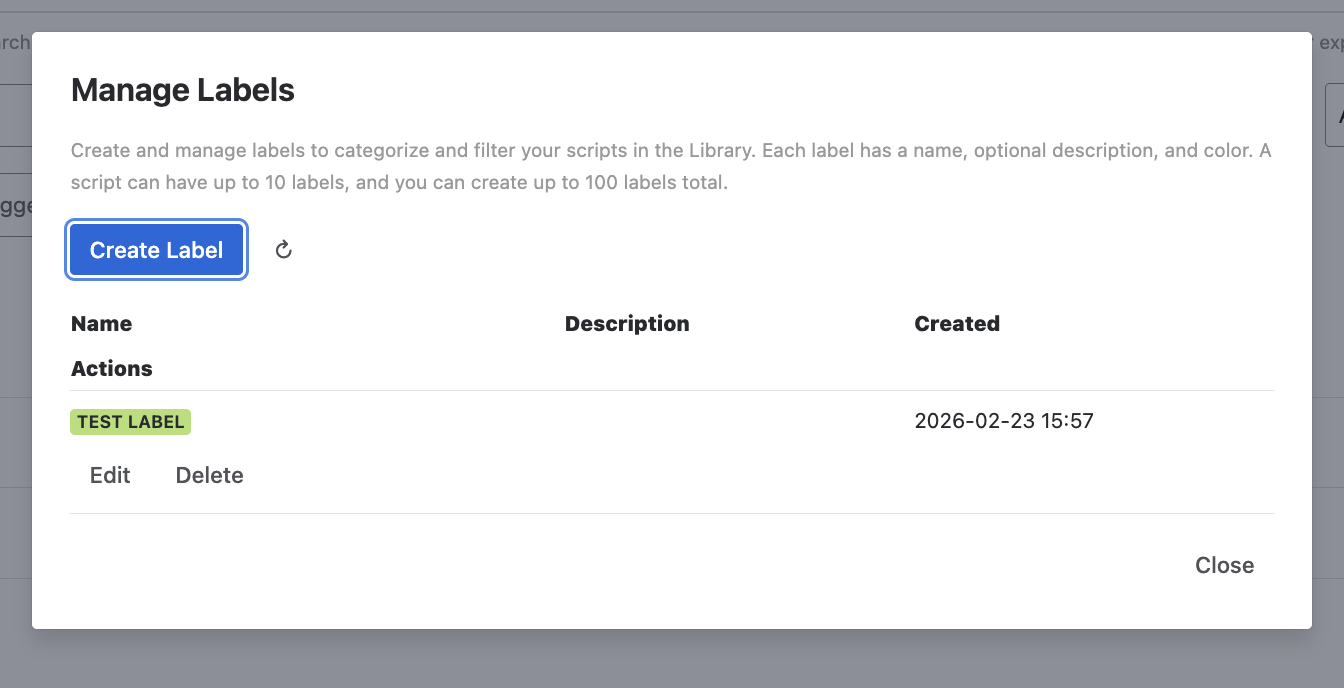
Labels are color-coded tags for categorizing scripts. Unlike folders, one script can have multiple labels, and one label can be on multiple scripts.
Creating labels
- Go to the Admin tab > Labels section
- Click Create Label
- Enter a name and optional color
Available colors
Auto, Default, Blue, Yellow, Purple, Red, Green. Each color has a regular and bold variant.
Assigning labels
Assign labels in the script’s Config tab. Select from available labels in the Labels dropdown.
Filtering by label
In the Library, click a label name to filter scripts by that label. Multiple labels can be selected.
Label names are normalized to lowercase. Deleting a label removes it from all scripts. See Limits for label limits.
Version history
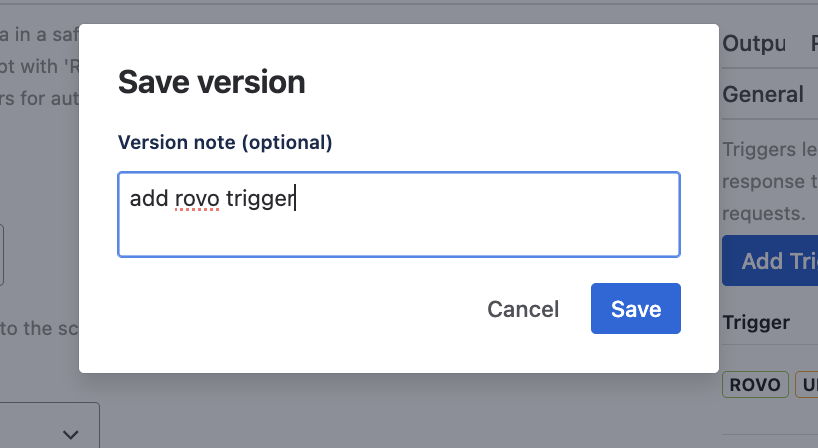
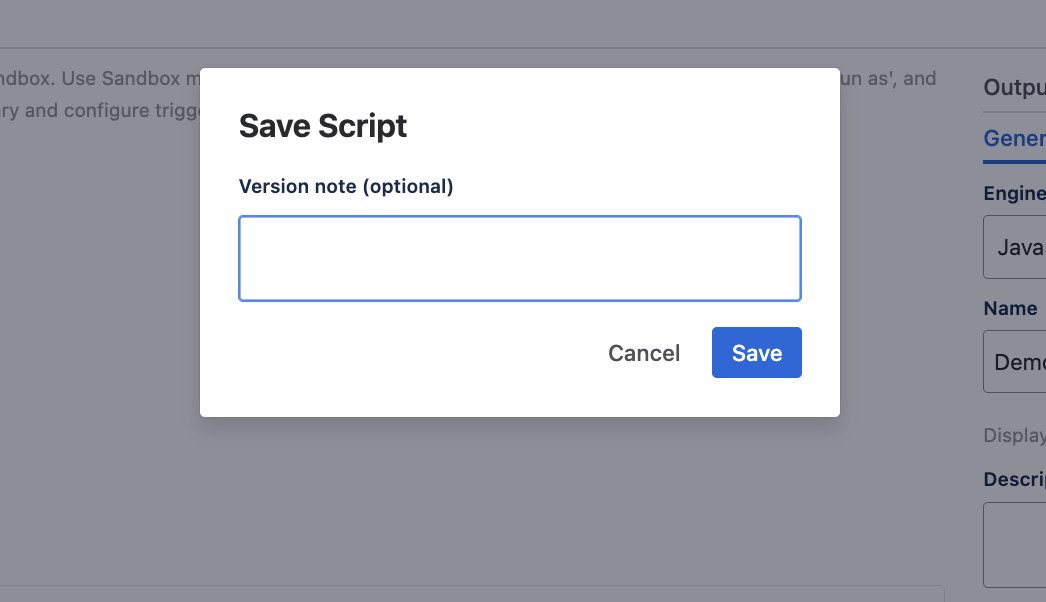
Every time you save a script, a version snapshot is created automatically.
Viewing versions
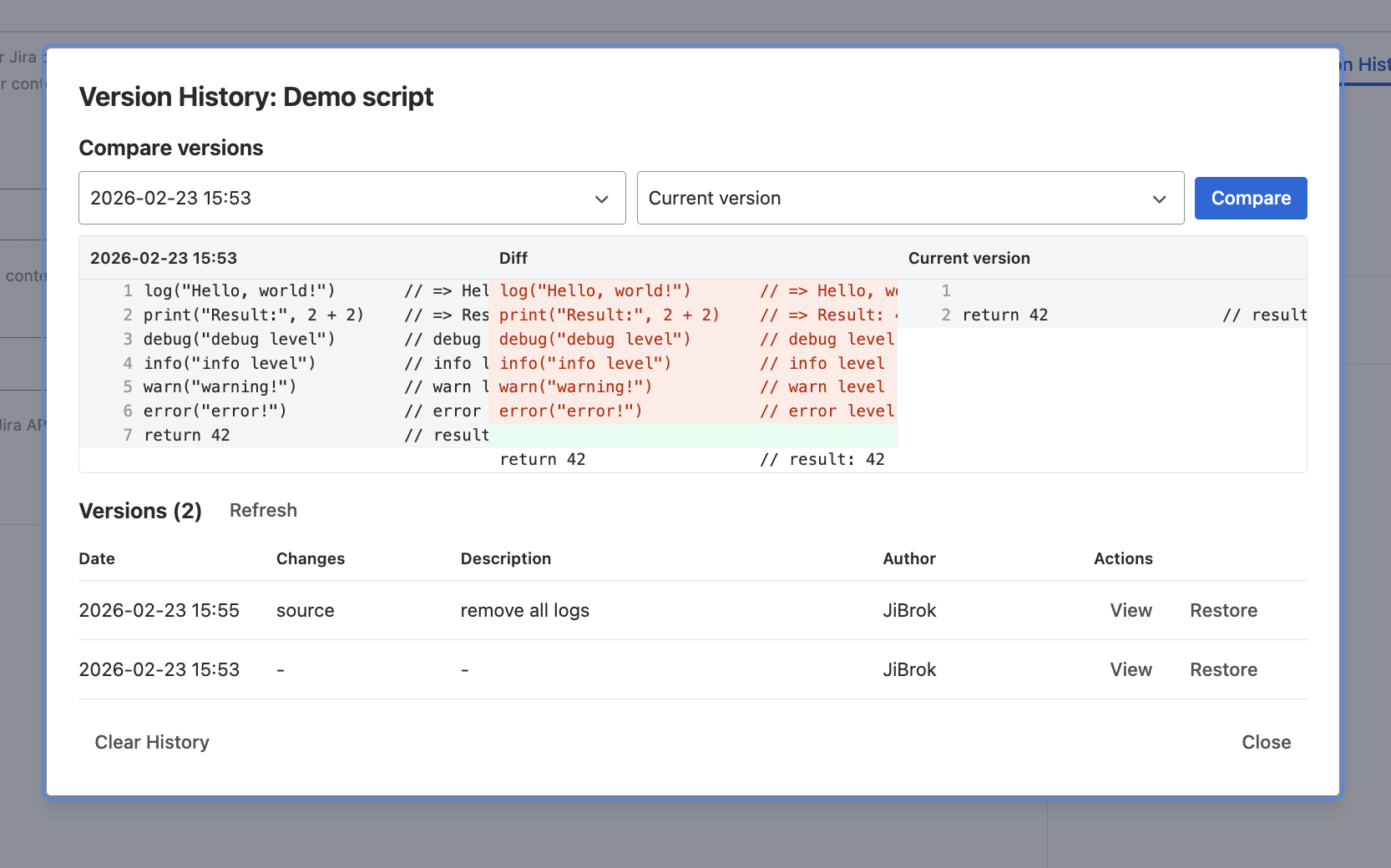
Open a script and go to the Version History tab to see all saved versions with date, author, and description.
Comparing versions
Select two versions to see a diff view highlighting what changed between them.
Restoring versions
Restore any previous version - this creates a new version entry (the restored content becomes the latest version, preserving the full history).
When the limit is reached, the oldest version is removed automatically. See Limits for version history limits.
Script actions
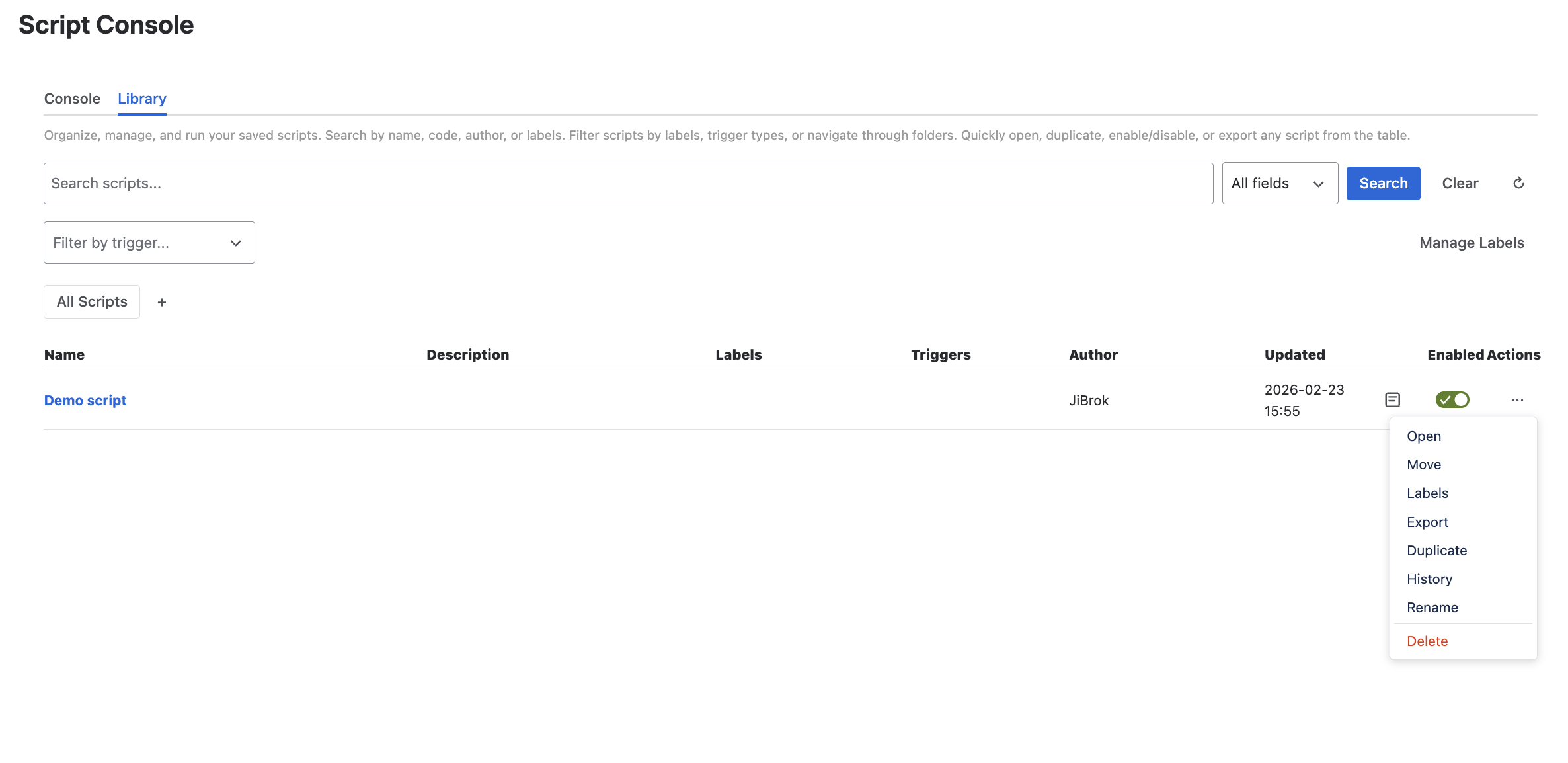
Each script has a quick actions menu:
| Action | Description |
|---|---|
| Open | Open in Console editor |
| Duplicate | Create a copy with “(copy)” suffix |
| Where Used | Show where the script is used (workflows, custom fields) |
| Enable/Disable | Toggle script execution |
| Delete | Remove from Library (with confirmation) |
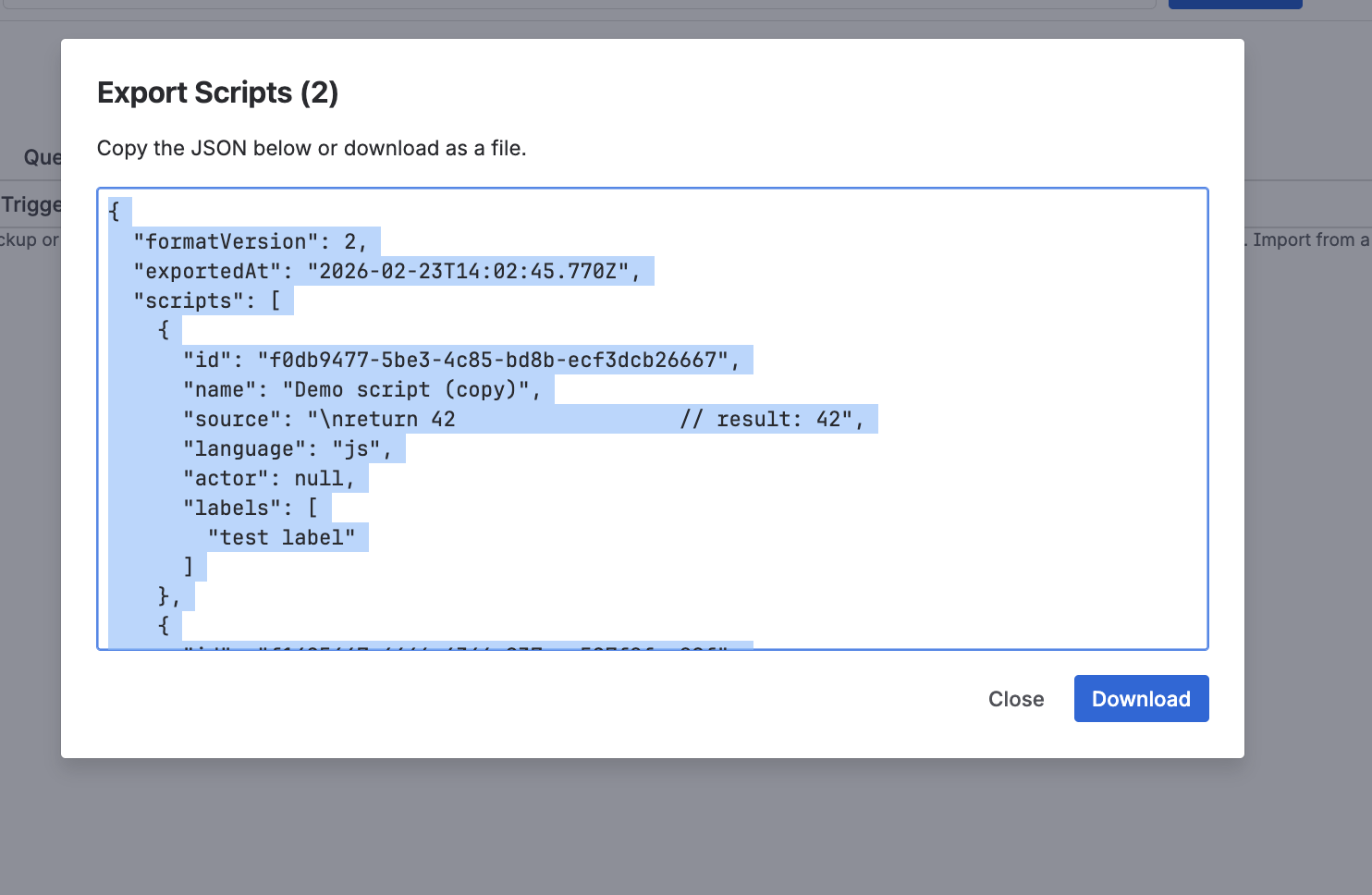
| Export | Export as JSON |
Where used
The Where Used action opens a dialog showing all locations where the script is referenced:
- Workflow rules - post functions, validators, and conditions that use this script, with links to the workflow editor
- Custom fields - scripted fields bound to this script
Each entry shows the usage type, location, and version status (whether the deployed version matches the latest saved version).
Tip: For a site-wide view of all script usage, see Script Usage in the Admin tab.
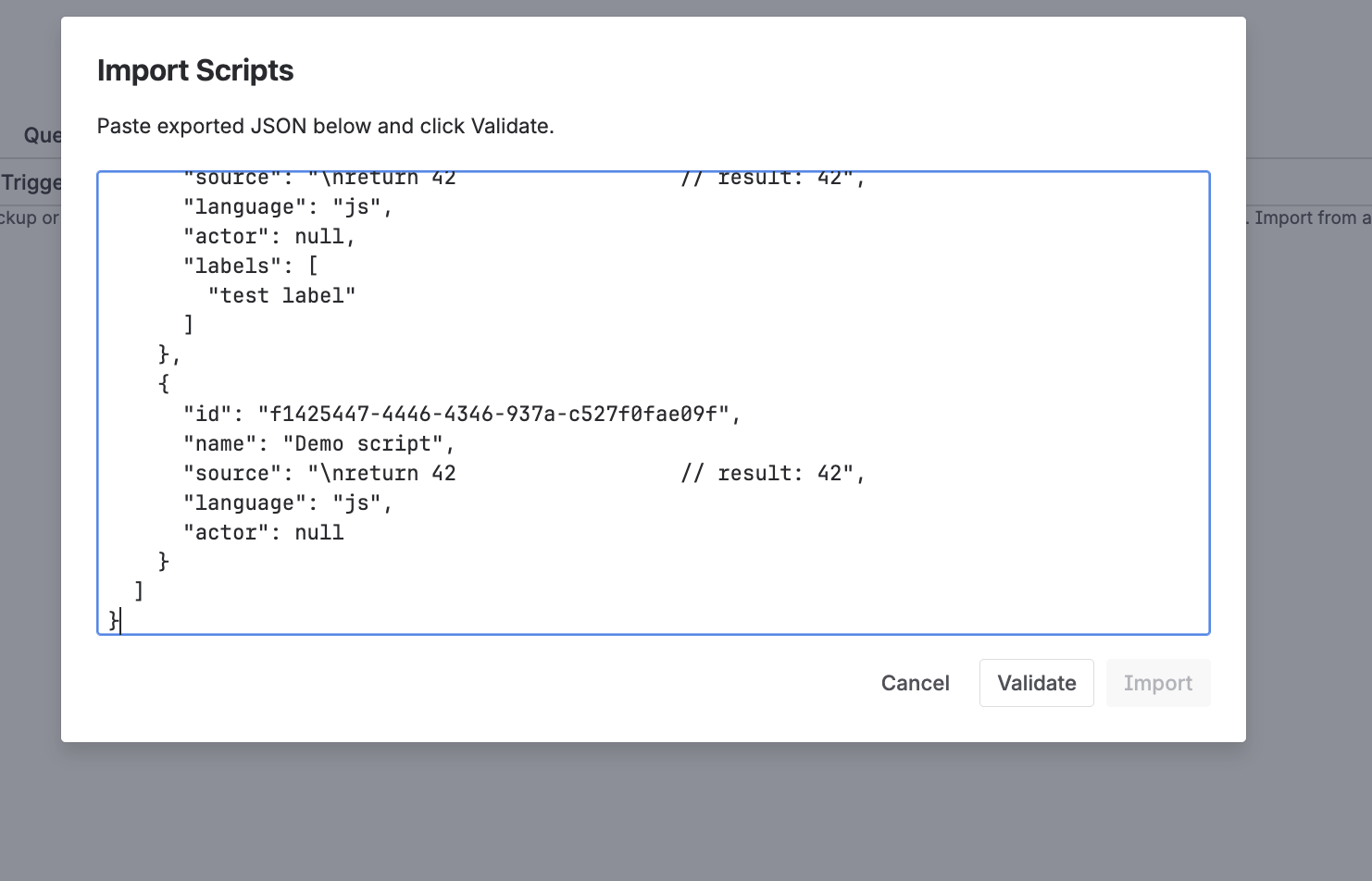
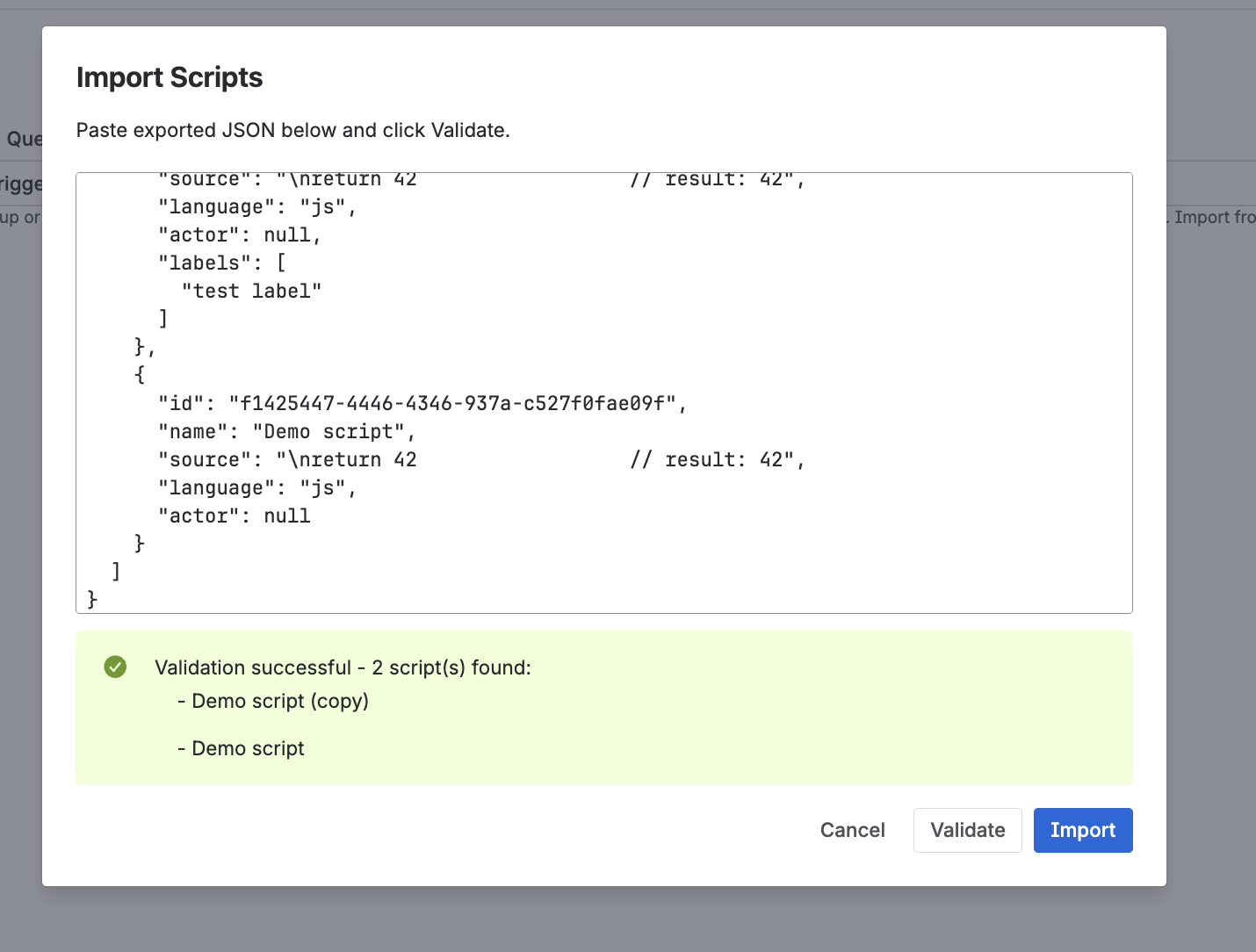
Note: Import/Export for bulk operations is available in the Admin tab. See Administration.
Next steps
- Script Console - Write and run scripts
- Triggers - Automate script execution
- Administration - Import/export and label management



