 Message Field for Jira Cloud
What is Message Field?
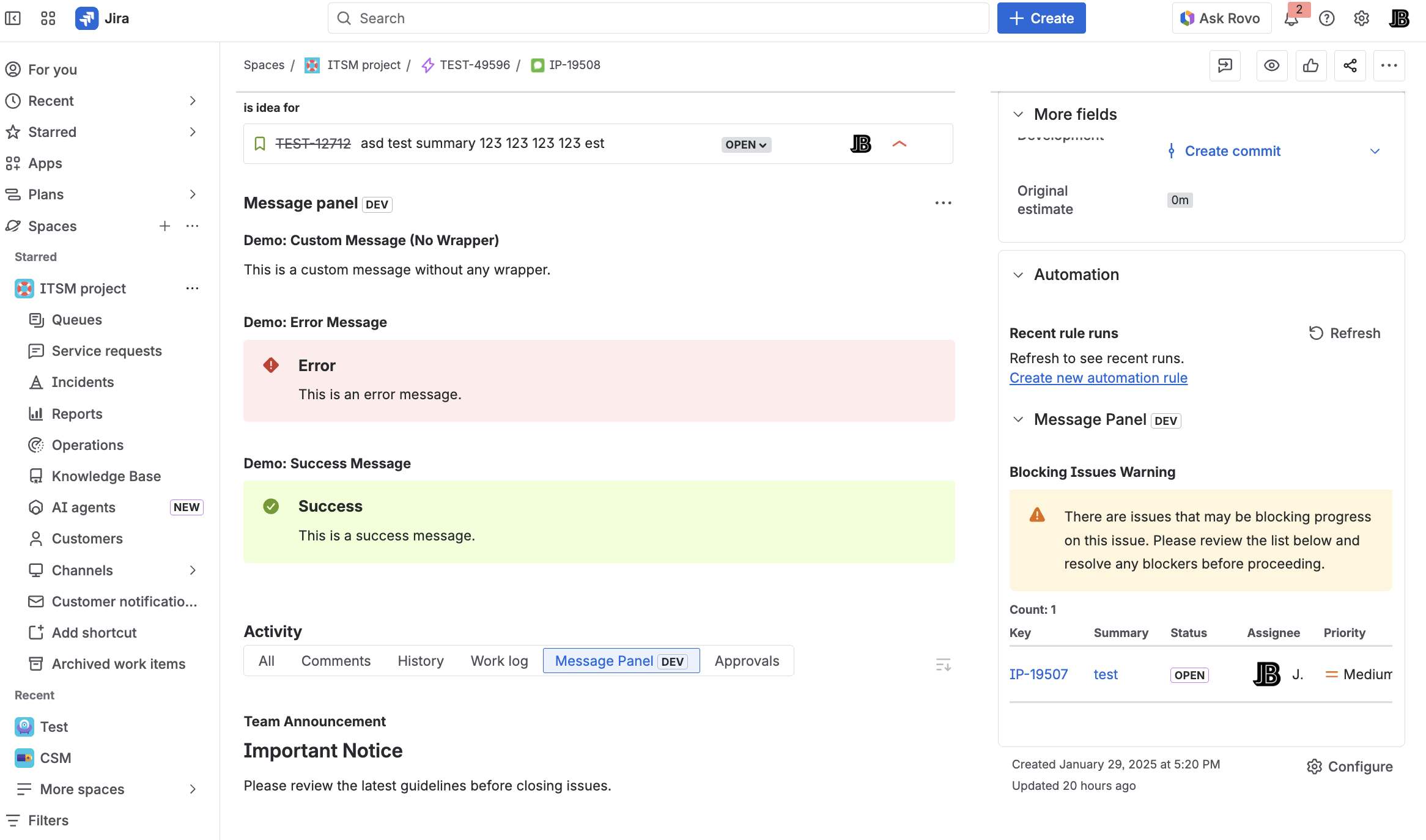
Message Field is a Jira Cloud app that displays dynamic information panels on issues. It helps teams communicate important context, warnings, and related data directly where work happens.
Get it on Atlassian Marketplace
Use it to:
- Show warnings and blockers prominently on issues
- Display related issues from JQL queries
- Present linked issues in organized tables
- Guide users with contextual instructions
- Automate information display based on conditions
- Embed contextual information directly in custom fields on create, edit, and view screens
Key Features
| Feature | Description |
|---|---|
| Dynamic Templates | Use {{ issue.fields.status.name }} syntax to show live issue data |
| Multiple Data Sources | Display linked issues, JQL results, or custom messages |
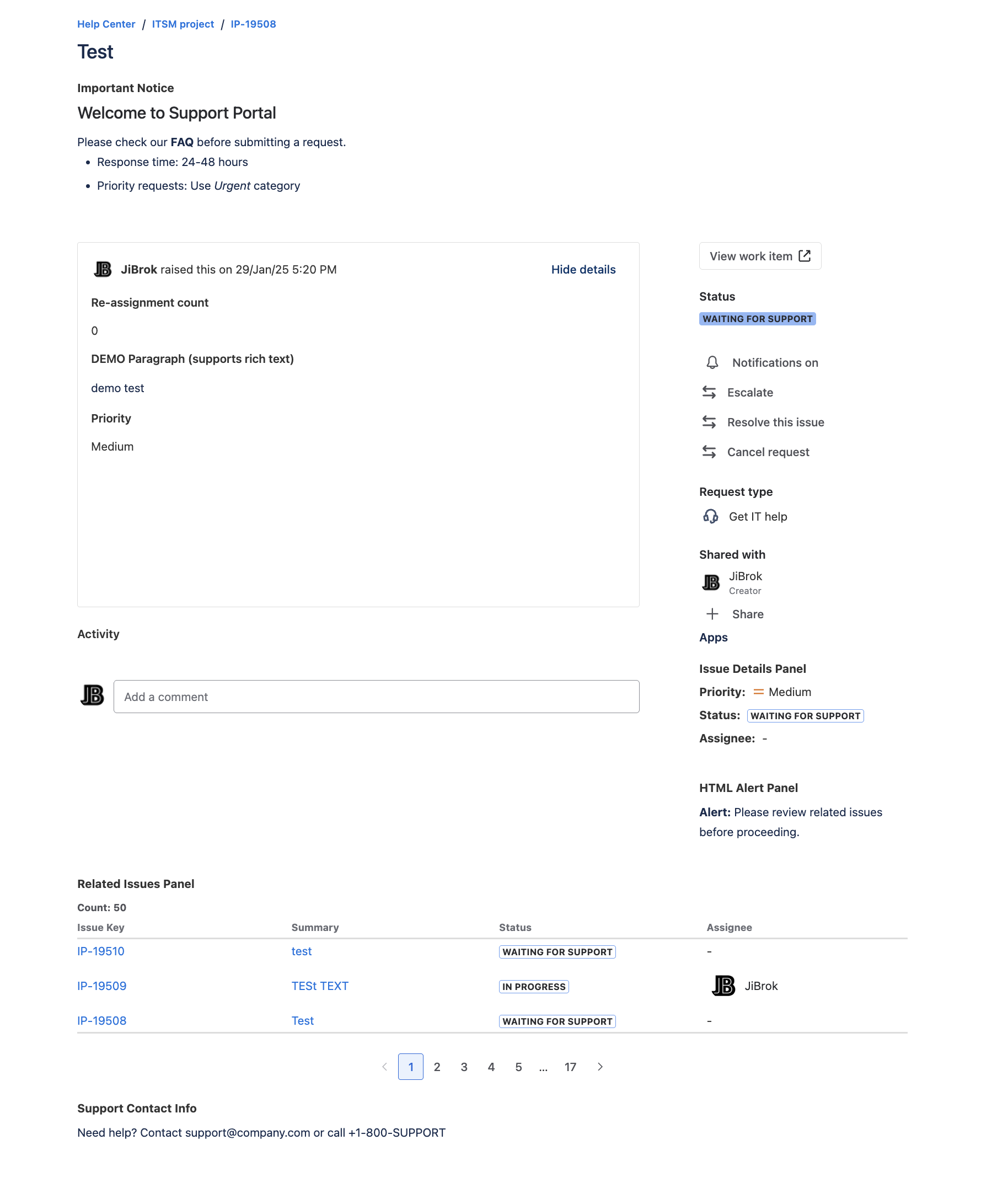
| Display Modules | Jira modules (Issue Panel, Activity, Context, Action) and JSM Portal modules |
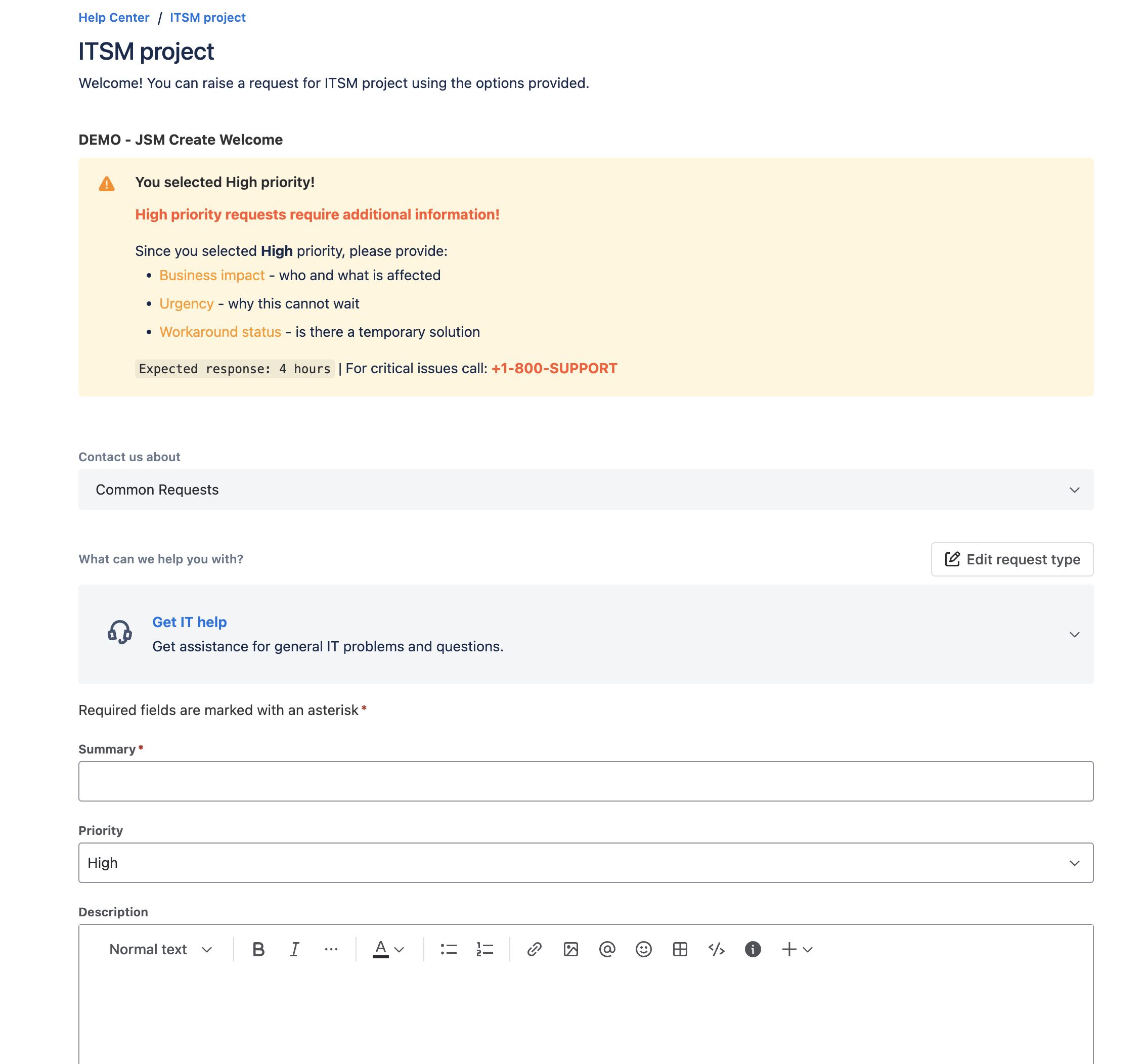
| JSM Create Modules | Display panels on request creation forms with access to form field values |
| Custom Fields | Display message fields as native Jira custom fields with per-context configuration |
| Conditional Display | Show panels only for specific projects, issue types, or JQL conditions |
| User Field Visibility | Show panels only when viewing user is in specific fields |
| Enable/Disable | Toggle configurations on/off without deleting them |
| Modal Windows | Display important information in pop-up dialogs (Issue Panel) |
| Message Formats | Plain text, HTML, Markdown, or ADF formatting |
| Delegation | Allow project admins to manage their own panels |
| Rovo Integration | AI-powered analysis agent and admin agent for natural language configuration management |
Use Cases
For Development Teams:
- Show blocking issues that must be resolved first
- Display epic progress and child issue summaries
- Link related bugs and features
For Support Teams:
- Show customer information from linked tickets
- Display SLA warnings and escalation notices
- Guide agents with resolution instructions
- Show priority-based guidance on request creation forms
For Project Managers:
- Present dependency information
- Show milestone and deadline reminders
- Display team workload summaries
How It Works
- Create a configuration in the admin page
- Choose a data source: linked issues, JQL query, or message only
- Set display conditions: which projects and issue types
- Add dynamic content using template syntax
- Enable the module where you want it to appear
- Delegate to project admins (optional) - let teams manage their own panels
Next Steps
- Getting Started - Create your first panel in 5 minutes
- Modules - Learn about display locations
- Templates - Master dynamic content
- Use Cases - Examples and best practices
- FAQ - Common questions and troubleshooting
- Permissions & Security - Access control and security model
Support
- Atlassian Marketplace - Get the app
- Support Portal - Get help and report issues



