 JiBrok Studio for Jira Cloud
- Overview
- How it works
- Setup
- Script context
- Run script outputs
- Security model
- Important notes
- Next steps
Overview
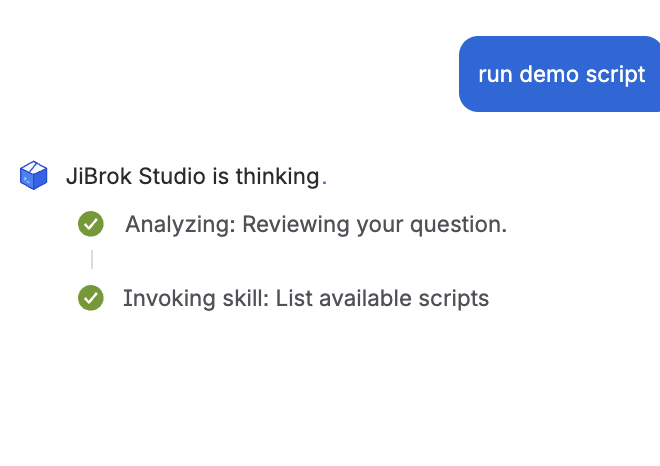
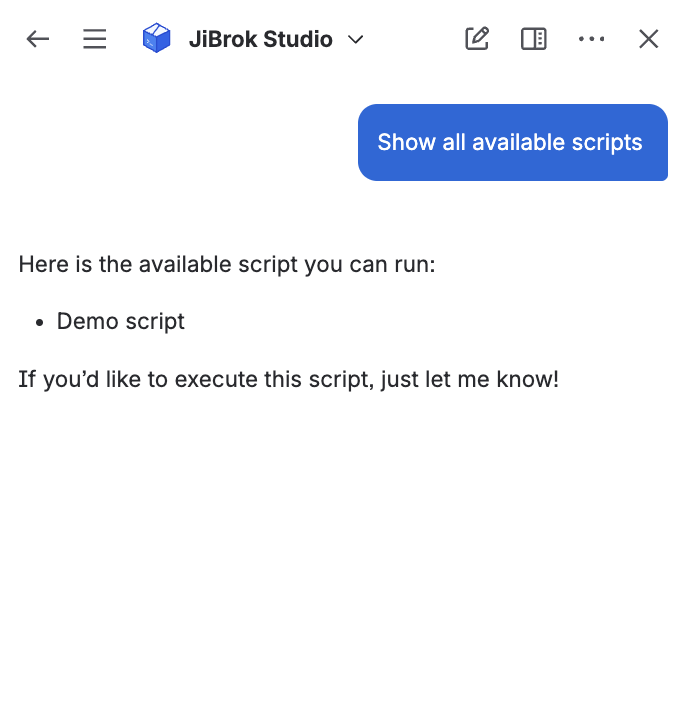
JiBrok Studio registers as a Rovo AI agent, allowing Atlassian Rovo to discover and run scripts from your library through natural language conversations. Users can ask Rovo to list available scripts and execute them - directly from the Rovo chat interface.
How it works
The JiBrok Studio agent provides two actions to Rovo:
| Action | Description |
|---|---|
| List available scripts | Returns all enabled scripts that have a Rovo trigger |
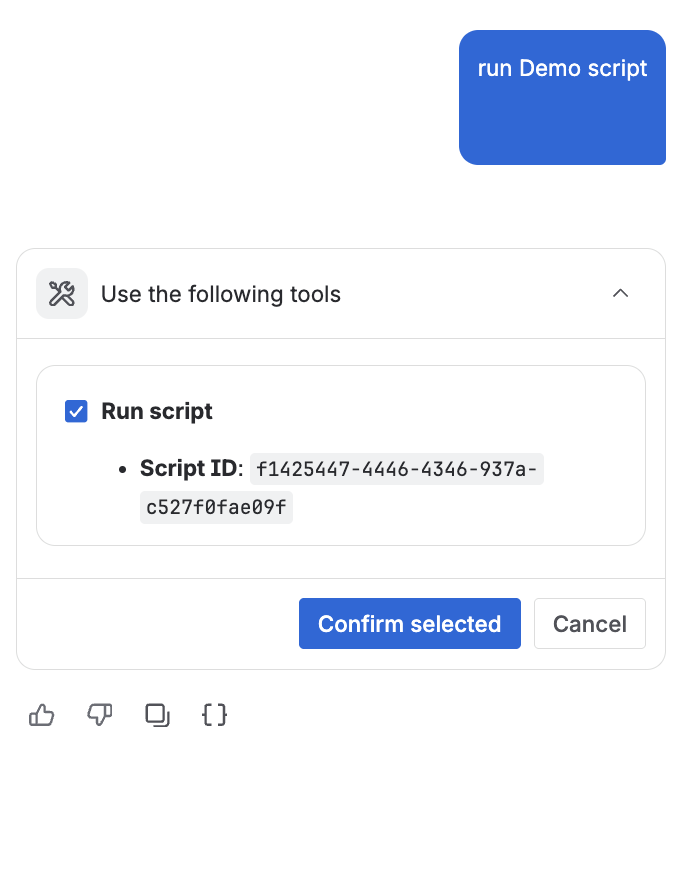
| Run script | Executes a specific script by ID, optionally with an issue key |
Agent prompt
Rovo uses JiBrok Studio as a scripting assistant. The agent will:
- First list available scripts to show what’s possible
- Run the selected script when the user chooses one
- Automatically pass the issue key from context if available
Setup
1. Enable the Rovo Trigger Type
In the Administration panel, ensure the Rovo trigger type is enabled globally.
2. Add a Rovo Trigger to a Script
- Open a script in the Console
- Go to the Config tab
- Click Add Trigger and select Rovo
- Save the script
Only scripts with an enabled Rovo trigger are visible to the Rovo agent.
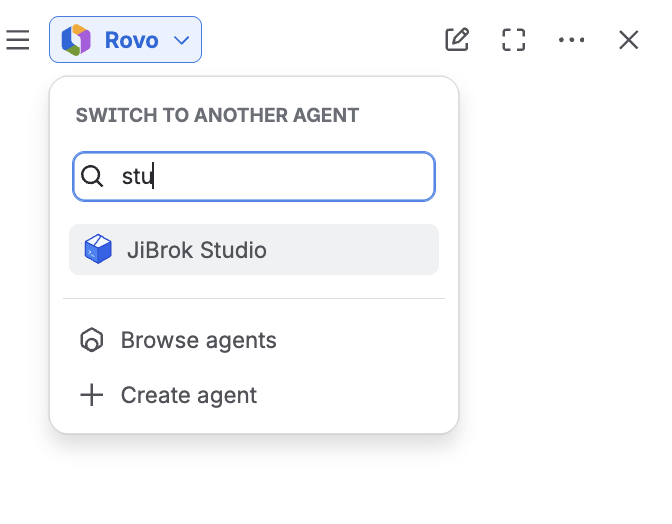
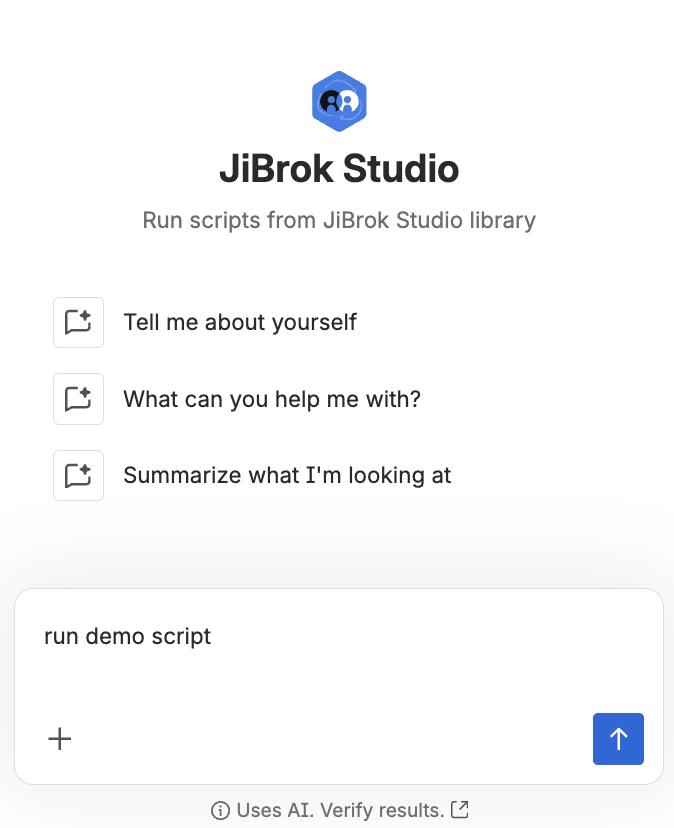
3. Use from Rovo
- Open Rovo chat in Jira
- Ask the JiBrok Studio agent to list scripts or run a specific one
- If you’re viewing an issue, Rovo can pass the issue key to the script automatically
Script context
When a script is executed via Rovo:
- Execution identity: Current User (the Rovo conversation user; falls back to Application if unavailable). Can be changed in the script’s actor configuration.
- Issue key: Optionally passed from the Rovo conversation context
- Trigger type:
rovo
The script receives the same event variable as other trigger types, with trigger-specific metadata.
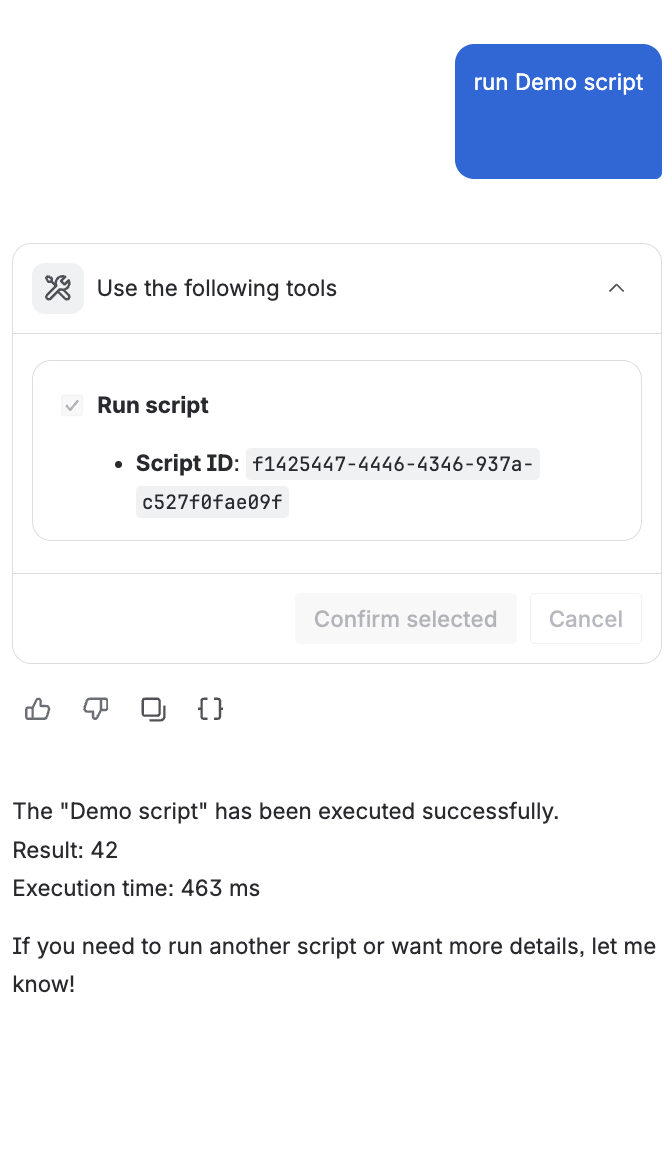
Run script outputs
| Variable | Type | Description |
|---|---|---|
success |
boolean | Whether the script executed successfully |
result |
string | Script return value (serialized) |
error |
string | Error message if execution failed |
executionMs |
integer | Script execution time in milliseconds |
Rovo displays these results in the chat conversation.
Security model
Rovo integration follows a delegation by design approach:
- Admin controls access - only scripts with an explicitly enabled Rovo trigger are visible to users
- User-level permissions - scripts run with the calling user’s Jira permissions, not the admin’s. Users can only affect data they already have access to
- All sandbox protections apply - the same security pipeline, API access control, and resource limits protect Rovo-triggered executions
- Full audit trail - every Rovo execution is logged in the Script Runs Audit
See Security for the complete security model overview.
Important notes
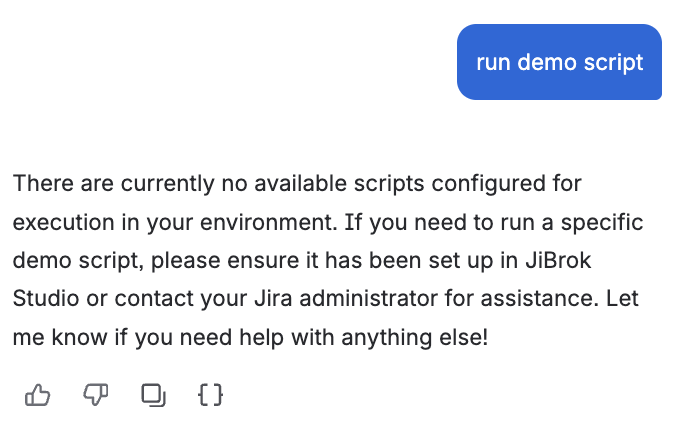
- Scripts must be enabled with an enabled Rovo trigger to appear in Rovo
- By default, scripts run as the current Rovo user - they use that user’s Jira permissions. If the user cannot be resolved, falls back to Application.
- The Rovo trigger type must be enabled in Administration
- Standard execution limits apply
Next steps
- Triggers - All trigger types
- Administration - Enable/disable Rovo trigger type
- Scripting Language - Language and API reference
- Limits - Execution limits



