 Message Field for Jira Cloud
- Overview
- What is Rovo Integration?
- Message Field Assistant
- Requirements
- Message Field Admin Agent
- Message Field Agent
- Example Use Cases
- Best Practices
- Troubleshooting
- Next Steps
- Support
Overview
Message Field integrates with Atlassian Rovo, allowing AI-powered agents to analyze and interact with your panel data. This integration enables intelligent automation, data analysis, and enhanced decision-making capabilities.
Key Features:
- Instruction-Driven Analysis - Define analysis workflows in panel messages that Rovo agents execute
- Recursive Queries - Automatically analyze linked issues across multiple levels
- Structured Data Access - Retrieve issue data, custom fields, and relationships
What is Rovo Integration?
Atlassian Rovo is an AI-powered platform that helps teams work smarter with intelligent agents and automation. Message Field provides skills that Rovo agents can use to retrieve and analyze panel information from any Jira issue.
Key Benefits
- AI-Powered Analysis - Let Rovo agents analyze panel data and provide insights
- Configuration Management - Create, edit, and diagnose configurations using natural language
- Intelligent Automation - Automate workflows based on panel information
- Natural Language Queries - Ask questions about panel data in plain language
- Context-Aware Responses - Agents understand panel structure and custom fields
- Multi-Level Analysis - Build dependency trees and analyze impact chains
Message Field Assistant
The Message Field Assistant is an AI-powered tool built into the admin settings. It helps you create and update panel configurations by generating templates with issue variables, loops, and conditions based on your natural language requests.
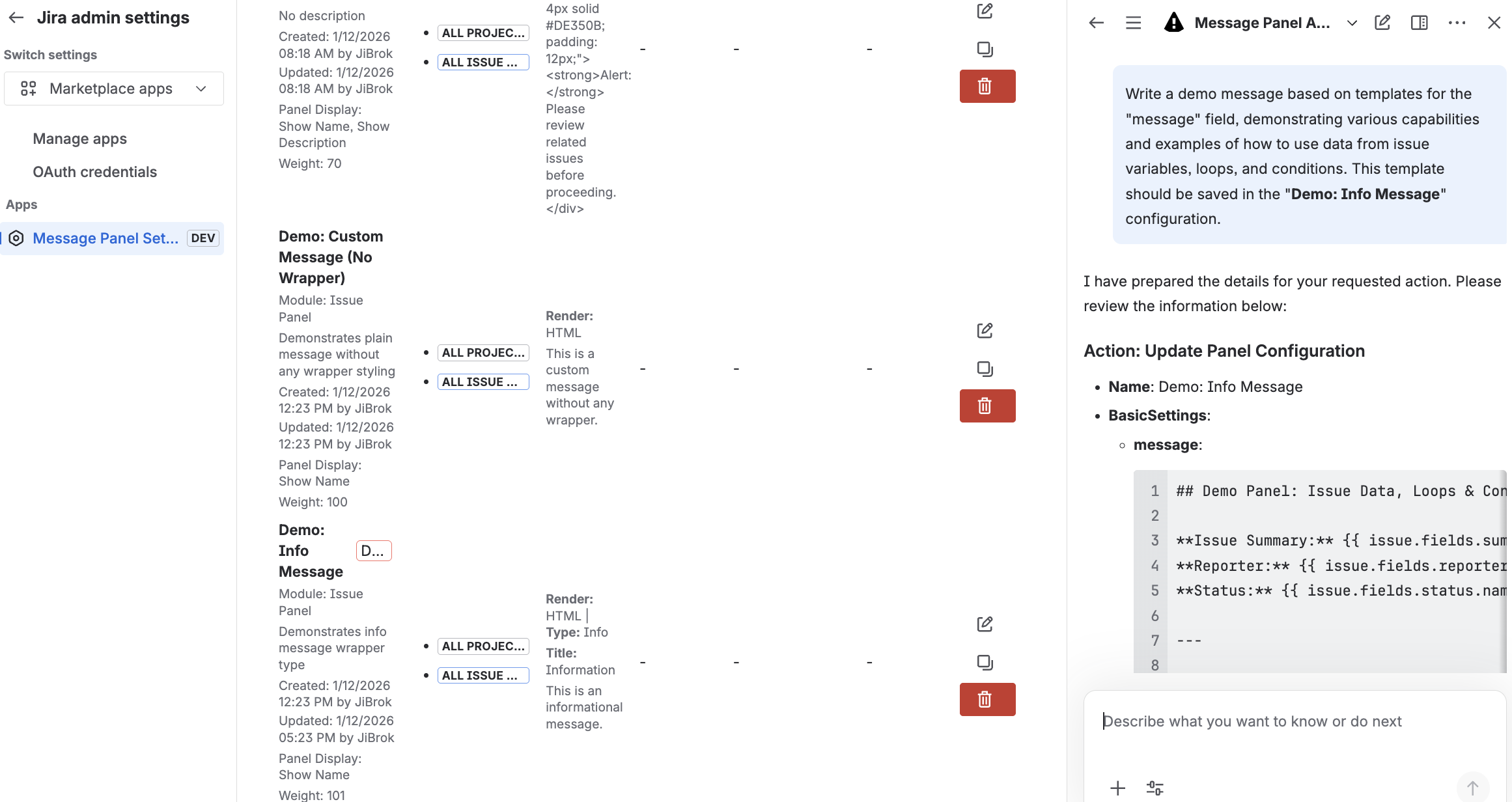
How to use:
- Open Message Field Settings in Jira admin
- Click the Assistant icon to open the AI panel
- Describe what template you need in plain language
- Review the generated configuration
- Apply changes directly to your panel
Requirements
To use Rovo integration features, you need:
- Atlassian Rovo - Rovo must be enabled for your Atlassian site
- Rovo license - users interacting with Rovo agents need a Rovo-enabled plan
- Message Field app - installed and configured with at least one panel configuration
- Site admin permissions - required to manage Rovo agent settings
Note: Rovo agents may take up to 24 hours to appear after Message Field is installed or updated.
Message Field Admin Agent
The Message Field Admin Agent is a Rovo-powered agent designed for site administrators. It helps you manage panel configurations using natural language - no need to navigate through settings pages manually.
What It Can Do
The Admin Agent provides the following capabilities:
- Create configurations - describe what you want in plain language and the agent creates the configuration
- Update configurations - modify existing configurations by name or description
- Clone configurations - duplicate configurations with modifications
- Toggle configurations - enable or disable configurations individually or in bulk
- Health checks - scan all configurations for common issues (broken JQL, missing modules, orphaned contexts)
- Diagnostics - troubleshoot why a panel isn’t appearing on a specific issue
- Step-by-step wizard - guided walkthrough for creating complex configurations
Example Conversations
Creating a configuration:
“Create a warning panel for the SUPPORT project that shows on Bug issues when priority is Critical. It should display a red warning message saying ‘This bug requires immediate triage.’”
Bulk operations:
“Disable all panel configurations for the OLD-PROJECT project.”
Diagnostics:
“Why isn’t any panel showing on issue PROJ-123?”
Health check:
“Run a health check on all my configurations and report any issues.”
Admin Agent Actions
| Action | Description |
|---|---|
| Create Config | Create a new panel configuration from a natural language description |
| Update Config | Modify an existing configuration’s settings |
| Clone Config | Duplicate a configuration, optionally with modifications |
| Toggle Config | Enable or disable one or more configurations |
| List Configs | List configurations with optional filtering |
| Health Check | Scan configurations for issues and report findings |
| Diagnose Issue | Analyze why a panel does or doesn’t appear on a specific issue |
| Wizard | Step-by-step guided configuration creation |
Message Field Agent
Message Field includes a pre-built Rovo agent ready to use for data analysis.
Note: The agent may take up to 24 hours to appear after installation.
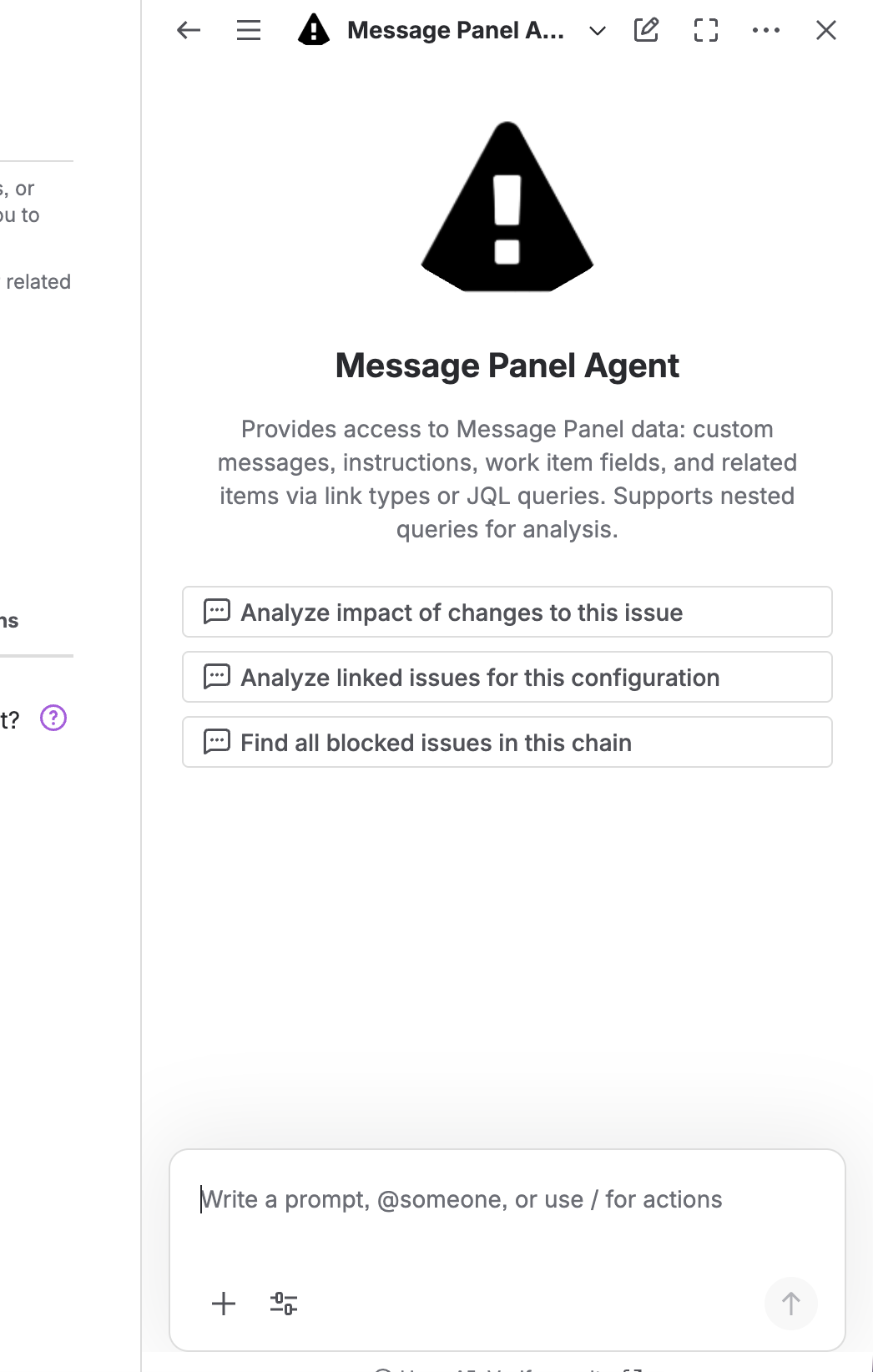
Agent Details
Name: Message Field Agent
Description: Provides access to Message Field data: custom messages, instructions, work item fields, and related items via link types or JQL queries. Supports nested queries for analysis.
Conversation Starters
- “Analyze linked issues for this configuration”
- “Show me the relationship tree for this issue”
- “What are the dependencies for this issue?”
- “Analyze impact of changes to this issue”
- “Find all blocked issues in this chain”
- “Show me the complete issue hierarchy”
Agent Actions
The Message Field Agent has access to the following actions:
| Action | Description |
|---|---|
| Get Panel Data | Retrieve panel data for a specific issue, including message content, linked issues, and field values |
| List Panels | List all panel configurations matching an issue’s project and type |
| Analyze Dependencies | Build dependency trees from linked issue data across multiple levels |
| Execute Instructions | Follow analysis instructions defined in the panel Description field |
Agent Behavior
The agent is configured to:
- Execute user requests - Perform specific analysis or tasks
- Follow panel instructions - Execute instructions from panel description
- Render messages - Convert panel message to readable format
- Analyze linked issues - Use linked issue data for analysis
- Utilize field values - Leverage display field values for insights
Using Panel Instructions
You can define analysis workflows in the panel Description field:
When analyzing this panel:
1. List all blocking issues with their status
2. Calculate total story points across linked issues
3. Identify any overdue items
4. Recommend which blockers to prioritize
The agent reads and follows these instructions when retrieving the panel.
Example Use Cases
Epic Progress Tracking
Panel Configuration:
- Name: “Epic Progress”
- Data Source: JQL
- JQL:
"Epic Link" = {{ issue.key }} - Description: “Calculate completion percentage. Identify blocked stories. Recommend next actions.”
Agent Query: “What’s the progress on EPIC-100?”
The agent will retrieve the panel, read your instructions, analyze the linked stories, and provide a formatted progress report.
Dependency Impact Analysis
Scenario: Before making breaking changes, understand the impact.
Agent Query: “What would be impacted if I change CORE-50?”
The agent will analyze dependencies, build a relationship tree, identify blocked issues, and provide a comprehensive impact report.
Circular Dependency Detection
Scenario: Find and fix circular dependencies causing issues.
Agent Query: “Are there any circular dependencies involving PROJ-100?”
The agent will detect cycles, explain each cycle path, and recommend which links to remove.
Best Practices
Effective Panel Instructions
Put clear instructions in panel Description:
Analyze the linked issues in this panel:
1. Group by status category
2. Calculate total story points
3. Identify items past due date
4. Flag issues without assignee
5. Recommend which items to prioritize
Performance Tips
- Specify panel name - Faster than fetching all panels
- Target specific relationships - Filter by link types when possible
- Narrow scope - Use project filters for large organizations
Security
- Agents respect Jira permissions
- Only authorized data is retrieved
- Panel instructions are visible to users with panel access
Troubleshooting
Skill Not Appearing
Solutions:
- Ensure Message Field app is installed
- Check admin permissions
- Wait up to 24 hours after installation
- Refresh the skills list
No Data Returned
Solutions:
- Verify issue key exists and is accessible
- Check panel is configured for the project/issue type
- Ensure user has permission to view the issue
- Confirm panel module is enabled
Panel Instructions Not Followed
Solutions:
- Ensure instructions are in the Description field (not Message)
- Make instructions clear and actionable
- Test with simple instructions first
- Add explicit “When analyzing this panel:” prefix
Actions Timing Out
Solutions:
- Reduce depth for tree operations
- Add link type filters
- Use project filters to narrow scope
- Break large analyses into multiple queries
Next Steps
- Configuration Basics - Set up panels for Rovo analysis
- Templates - Create dynamic panel content
- Data Sources - Configure JQL and linked issues
- FAQ - Troubleshoot common Rovo issues
- Atlassian Rovo Documentation - Learn more about Rovo
Support
For questions about Rovo integration:
- Support Portal - Get help
- Atlassian Community - Ask the community
- Rovo Documentation - Rovo resources



