 JiBrok Studio for Jira Cloud
- Track script usage
- Manage UI modifications
- Export and import scripts
- Run health check
- Support
- Next steps
Part of the Administration reference. API Restrictions | Admin Tools | Audit Logs
Track script usage
Track where scripts are used across your Jira instance - in workflows and custom fields.
Collecting data
Click Collect Information to scan all workflows and custom fields for script references. The process:
- Scans all workflow rules (post functions, validators, conditions) for scripts managed by the app
- Scans all scripted custom field configurations
- Stores results in a usage cache
Usage table
| Column | Description |
|---|---|
| Script | Script name (or truncated ID if deleted) |
| Type | Usage type - Post Function, Validator, Condition, or Custom Field |
| Location | Workflow name with link (for workflow rules) or field name (for custom fields) |
| Version | Version status - Current (green), Outdated (orange), or - (not tracked) |
Version tracking
For workflow rules, the table shows whether the deployed script version matches the latest saved version:
- Current - the workflow uses the latest script version
- Outdated - the workflow uses an older version
- - - version information is not available
Search and pagination
Search across script names, workflow names, and field names. Results are paginated (20 per page).
Per-script view
Each script also has a Where Used action in the Library context menu, showing only that script’s usage locations.
Manage UI modifications
Manage UI Modification registrations:
- View all registered UIMs (Jira and JSM separately)
- Delete specific UIMs by context
- Register a demo UIM for testing
- Bulk delete all UIMs
Export and import scripts
Export
- Go to the Admin tab > Export section
- Select scripts to export (or export all)
- Click Export - copy to clipboard or download as file
See Import & Export for details on what’s included and the export format.
Import
- Go to the Admin tab > Import section
- Paste JSON or upload a file (max 5 MB)
- Review the preview (created vs. updated counts)
- Click Import
Import behavior:
- New scripts (unknown ID) are created
- Existing scripts (matching ID) are updated (merged)
- Folders are created automatically if they don’t exist
- Labels are created automatically if they don’t exist
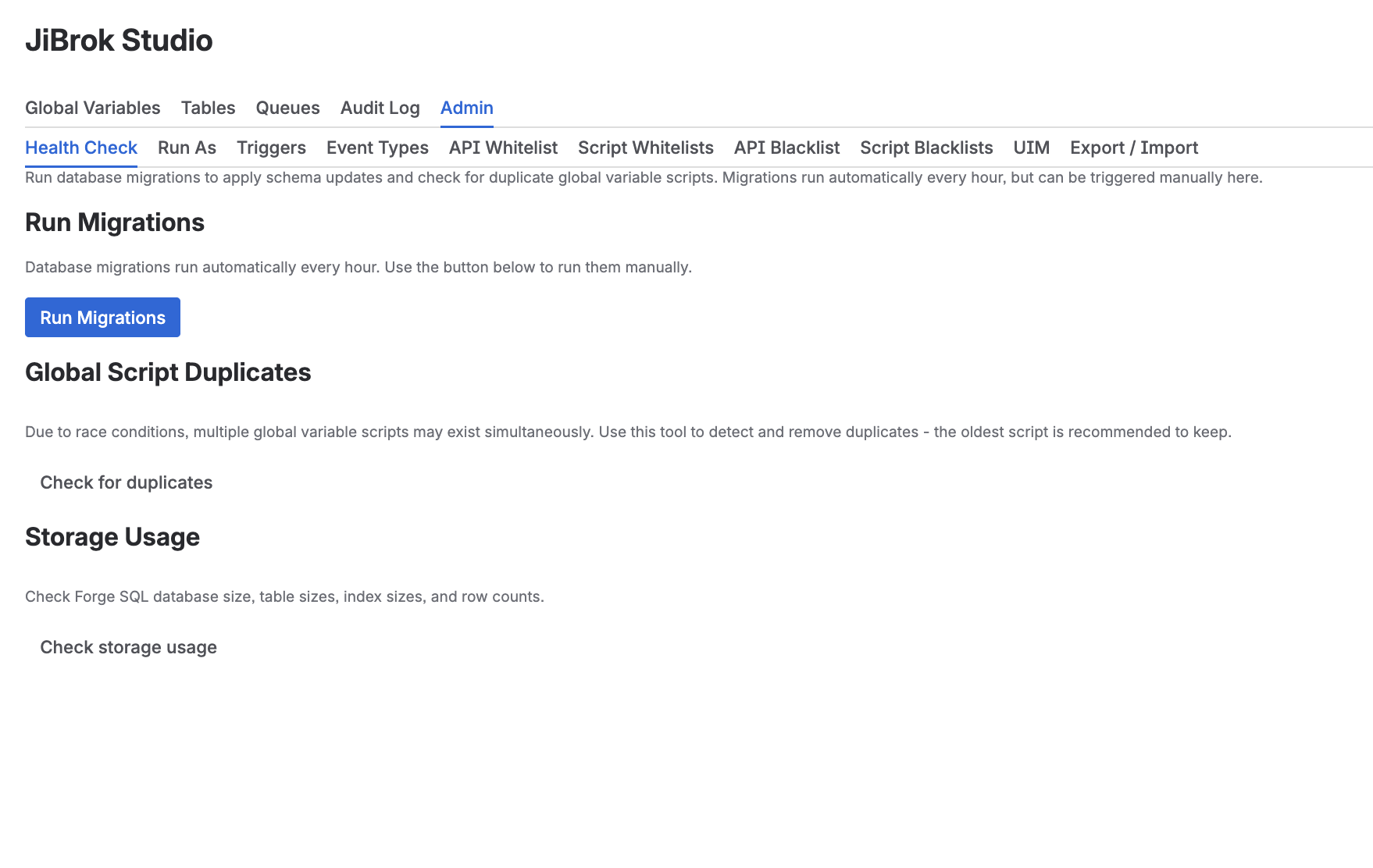
Run health check
Run database maintenance tasks:
- Run migrations - apply pending database schema updates (also runs hourly automatically)
- Check duplicates - detect and remove duplicate global variable scripts
- Storage Usage - view Forge SQL database size, table sizes, index sizes, and row counts
- Data integrity - detect and clean up orphaned records left by failed deletions
Support
Diagnostic logging
Time-limited diagnostic logging for troubleshooting trigger and script execution issues.
- When enabled, detailed info-level logs are written for all trigger invocations
- Logs include: trigger invocations, script start/complete events, timing, skip reasons
- No sensitive data is logged (source code, issue data, PII are excluded)
- Duration options: 5 minutes to 14 days - auto-disables after the chosen duration
- Can be disabled manually at any time
- Diagnostic logs are written to the Forge runtime log. Contact the app vendor if you need access to raw logs
- Enable/disable actions are recorded in the settings audit log
Next steps
- Administration - Core settings overview
- Audit Logs - Settings, script runs, and version history audit
- Limits - All system limits



