 JiBrok Studio for Jira Cloud
Overview
Store persistent data in Custom Tables or process asynchronous messages with Message Queues. Both are accessible from scripts and the app UI.
Custom tables
Structured data storage accessible from both the UI and scripts.
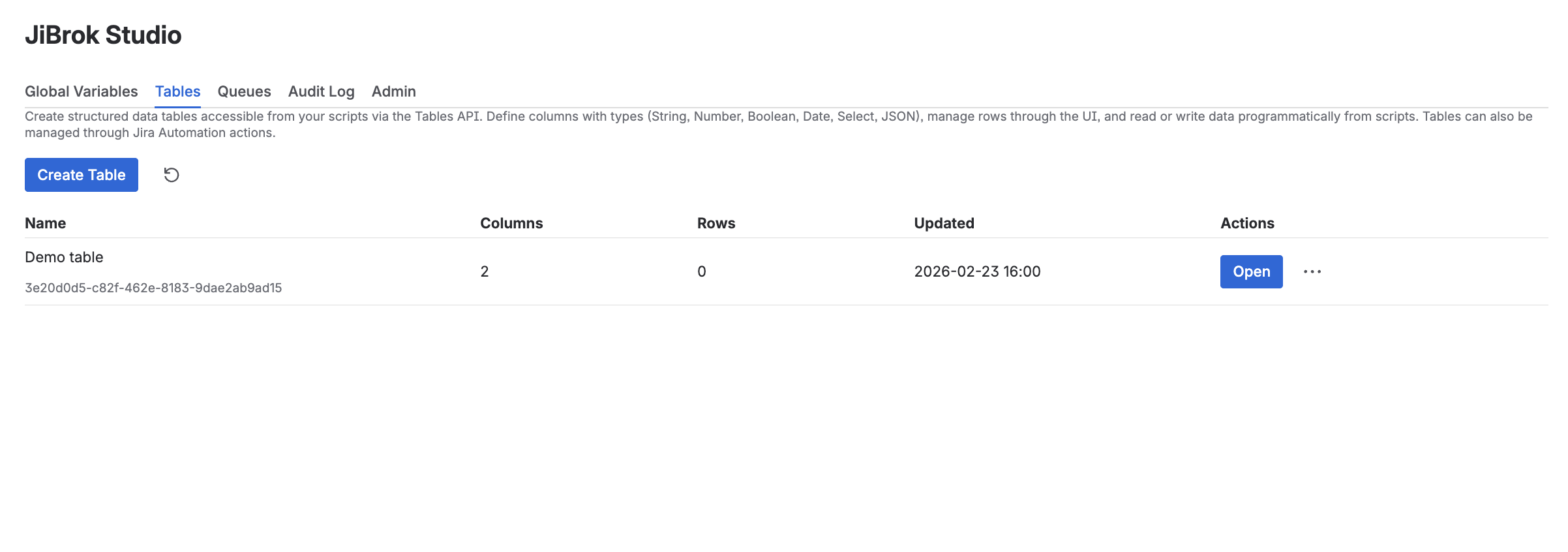
Creating a table
- Navigate to the Tables tab
- Click Create Table
- Enter a table name
- Define columns with name, type, and required flag
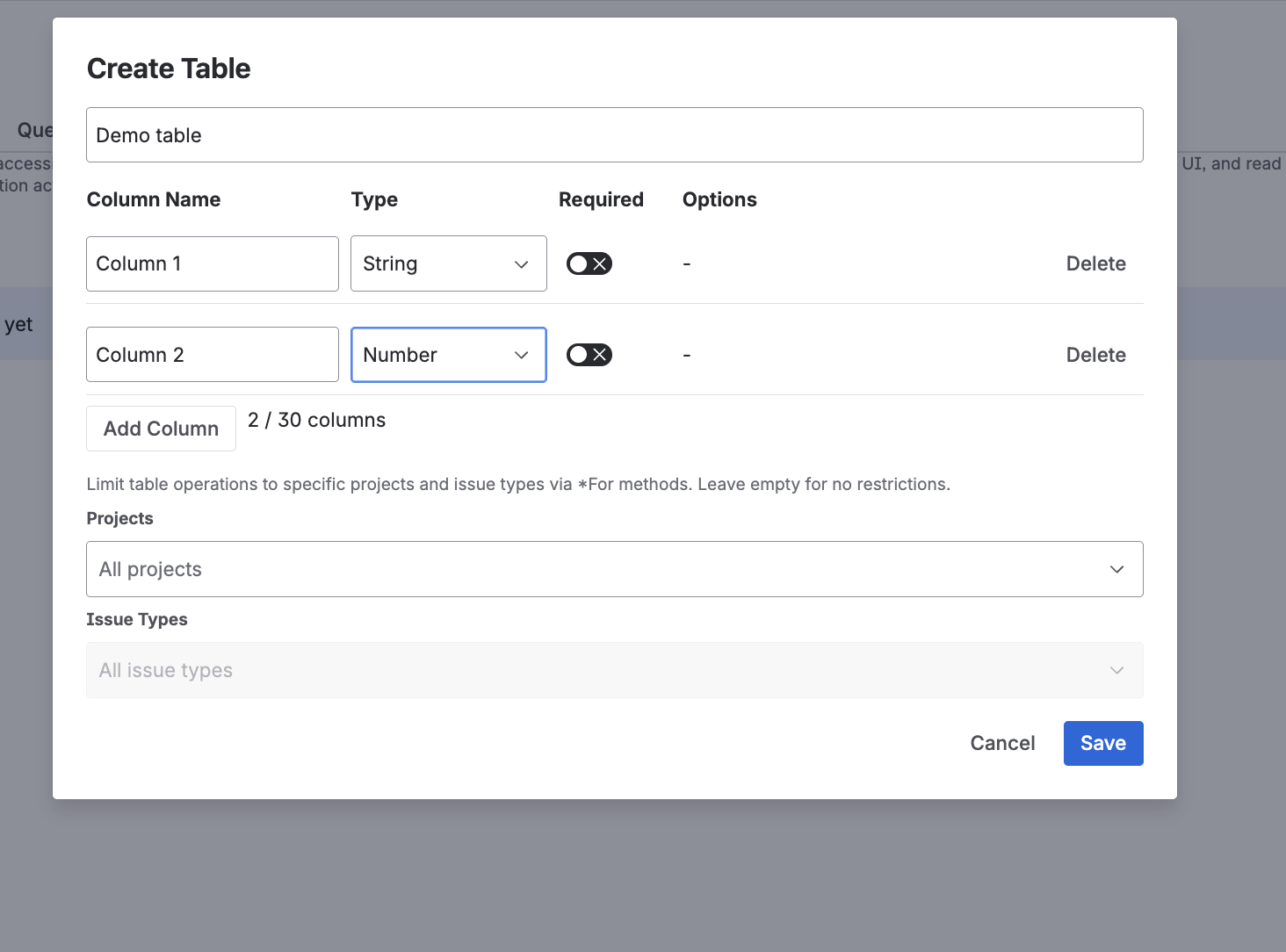
Column types
| Type | Description |
|---|---|
| String | Text values |
| Number | Numeric values |
| Boolean | True/false values |
| Date | Date values |
| Select | Dropdown from predefined options |
| JSON | Arbitrary JSON data |
See Limits for table size and storage limits. When a table reaches its row limit, new inserts will fail with an error - delete existing rows or increase limits before adding more data.
Managing data in the UI
- Add Row - opens a form with fields for each column
- Edit Row - click a row to modify values
- Delete Row - select rows and delete, or delete individually
- Search and Sort - filter rows by column values, sort ascending or descending
Script API
Access tables from scripts using the tables variable:
// Query rows with filtering
const rows = tables.rows("Users", {
  where: { Status: { $eq: "active" } },
  orderBy: "-Age",
  limit: 10,
  offset: 0
})

// Add a row
tables.addRow("Users", {
  Name: "Alice",
  Age: 30,
  Status: "active"
})

// Update a row
tables.updateRow("Users", rowId, { Status: "inactive" })

// Delete a row
tables.deleteRow("Users", rowId)

// Bulk insert multiple rows
tables.addRows("Users", [
  { Name: "Bob", Age: 25, Status: "active" },
  { Name: "Carol", Age: 28, Status: "active" }
])

// Delete rows by filter (returns number of deleted rows)
const deleted = tables.deleteRows("Users", { Status: { $eq: "inactive" } })
log(deleted)  // e.g., 3

// Find a single row
const row = tables.findRow("Users", { Name: { $eq: "Alice" } })

// Count rows
const total = tables.count("Users")
const active = tables.count("Users", { Status: { $eq: "active" } })
Context-aware methods (*For)
When a table has a context configured (project/issue type restrictions), use *For methods. The issue parameter can be an issue object or a string key (e.g. "PROJ-123").
| Method | Description |
|---|---|
tables.getFor(name, issue) |
Get schema with context check |
tables.rowsFor(name, issue, options?) |
Search with context check |
tables.findRowFor(name, issue, where) |
Find first with context check |
tables.addRowFor(name, issue, data) |
Insert with context check |
tables.addRowsFor(name, issue, rows[]) |
Bulk insert with context check |
tables.updateRowFor(name, issue, rowId, data) |
Update with context check |
tables.deleteRowFor(name, issue, rowId) |
Delete with context check |
tables.deleteRowsFor(name, issue, where) |
Delete rows with context check |
tables.countFor(name, issue, where?) |
Count with context check |
tables.addRowFor("Logs", "PROJ-123", { Message: "Done" })
tables.rowsFor("Logs", issue, { where: { Status: "open" } })
Filtering operators
| Operator | Description |
|---|---|
$eq |
Equal |
$ne |
Not equal |
$gt |
Greater than |
$gte |
Greater than or equal |
$lt |
Less than |
$lte |
Less than or equal |
$like |
Pattern match (SQL LIKE) |
$in |
In array of values |
Message queues
Async message processing between scripts and triggers.
Creating a queue
- Navigate to the Queues tab
- Click Create Queue
- Enter a queue name
Queue dashboard
The queue list shows:
- Queue name
- Message counts by status (Pending, Processing, Failed)
- Last activity time
Message states
| State | Description |
|---|---|
| Pending | Waiting to be processed |
| Processing | Pulled by a consumer, awaiting acknowledgment |
| Failed | Rejected by a consumer |
See Limits for queue size and message limits. When a queue reaches its message limit, new pushes will fail - consume or purge messages to free space.
Message browser
View messages filtered by status (Pending, Processing, Failed). Actions include:
| Action | Description |
|---|---|
| Requeue | Move failed message back to pending |
| Delete | Remove individual message |
| Purge | Delete all messages (or by status) |
Script API
Access queues from scripts using the queue variable:
// Push a message (with optional priority - higher = processed first)
queue.push("tasks", { action: "process", data: "..." }, 5)

// Pull messages for processing
const messages = queue.pull("tasks", 5)
for (const msg of messages) {
  // process msg.payload
  queue.ack(msg.id)    // acknowledge success
  // or: queue.reject(msg.id)  // mark as failed
}

// Consume (pull + auto-ack in one step)
const consumed = queue.consume("tasks", 5)

// Peek without changing status
const preview = queue.peek("tasks", 5)

// Requeue failed messages
queue.requeue(messageId)

// Get queue size and stats
const size = queue.size("tasks")
const stats = queue.stats("tasks")
When to use tables vs queues
| Use Case | Tables | Queues |
|---|---|---|
| Persistent data storage | Yes | No (messages are consumed) |
| Configuration/lookup data | Yes | No |
| Audit/history records | Yes | No |
| Task processing pipelines | No | Yes |
| Event-driven workflows | No | Yes |
| Cross-script communication | Possible | Designed for this |
| Priority-based ordering | No | Yes |
Next steps
- Scripting API: Tables - Full Tables API reference with filter operators, sort syntax, upsert, and context-aware methods
- Scripting API: Queues - Full Queue API reference with message lifecycle and context-aware methods
- Scripting Examples - Table and queue patterns and recipes
- Scripting Language - Full language reference
- Limits - All storage limits



